
Housing Society ERP · File actions
Transfer a file to a new owner
Move a file from one member to another, collect the transfer fee and print the transfer letter.
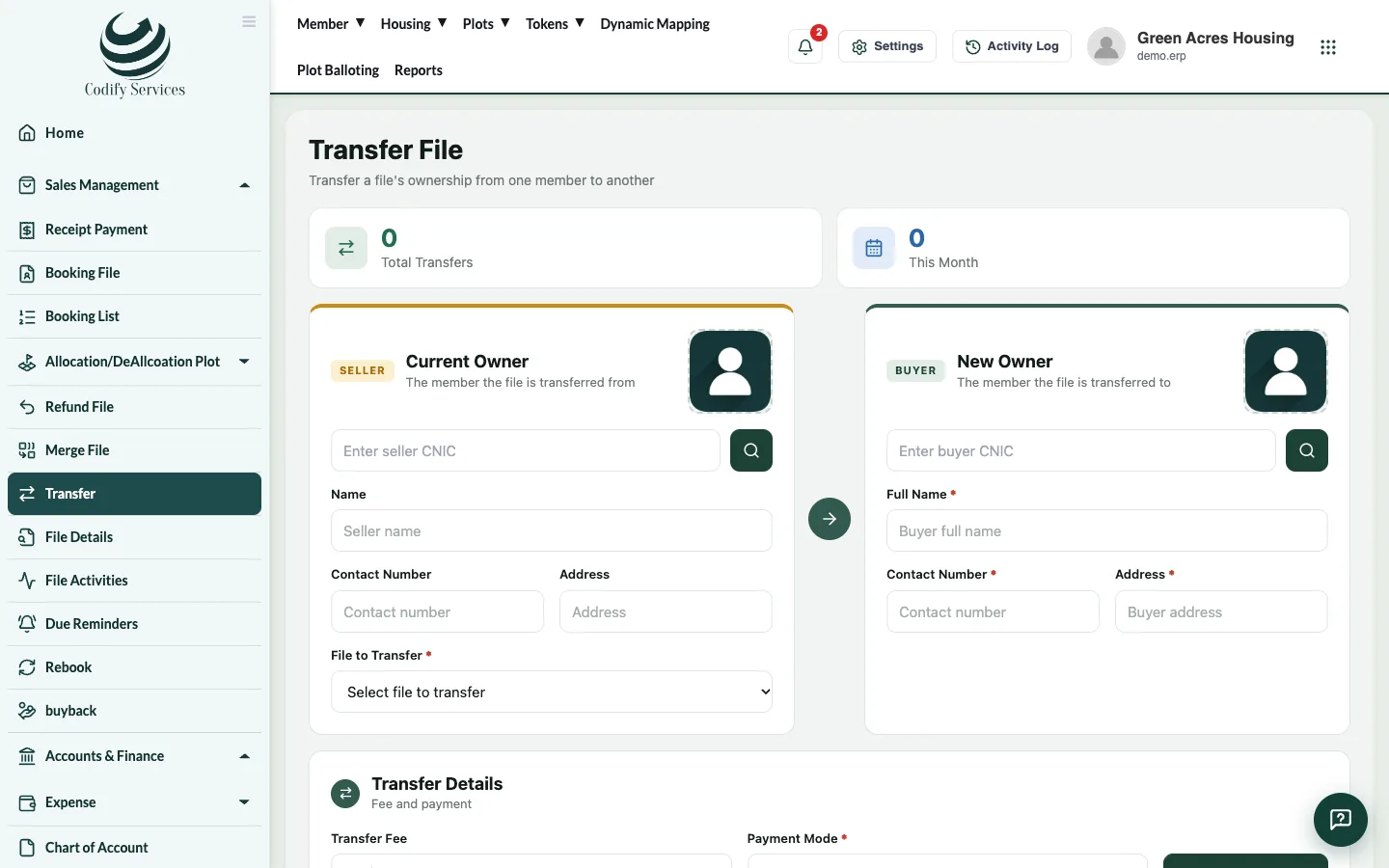
A transfer moves a file, with its payments and plan, from the current owner (seller) to a new owner (buyer).
Before you start
- The new owner must be registered as a member of your society.
Steps
- In the sidebar, open Sales Management > Transfer.
- Under Current Owner, type the seller's CNIC and search. Name, contact and address fill in.
- Choose the File to Transfer.
- Under New Owner, type the buyer's CNIC and search.
- Under Transfer Details, enter the Transfer Fee and choose the Payment Mode. For a cheque, enter the Cheque No and Cheque Bank; choose the Bank if the fee goes to a bank.
- Press Transfer File.
- In Transfer History below, open the transfer to print the transfer letter.
Good to know
- Enter the Ref No and Letter date on the transfer letter before you press Print.
- Export downloads the transfer history.
- If the search says the member is not registered in this society, register the buyer first.
- Transfer Plot on the member profile opens the same page.
Related
More in File actions
Refund or cancel a fileCancel a member's file and refund what they paid, less a refund fee, or simply make a file inactive.Merge two filesMerge one file into another, so the money paid on the first is counted on the second. Any excess is shown for refund.Rebook a fileGive a refunded or cancelled file to a new owner with a new installment plan.Buy back a fileRecord that the society bought a file back from its member, so it can be sold again.
Ready to try it? Open Housing Society ERP