
Housing Society ERP · Payments
Receive an installment payment
Find the member's file, see what is due, receive cash, cheque or bank payment against the installments, and print the receipt.
When a member pays, you record it on the Receipt Payment page against their file. The payment is applied to the installments that are due, and a receipt is made.
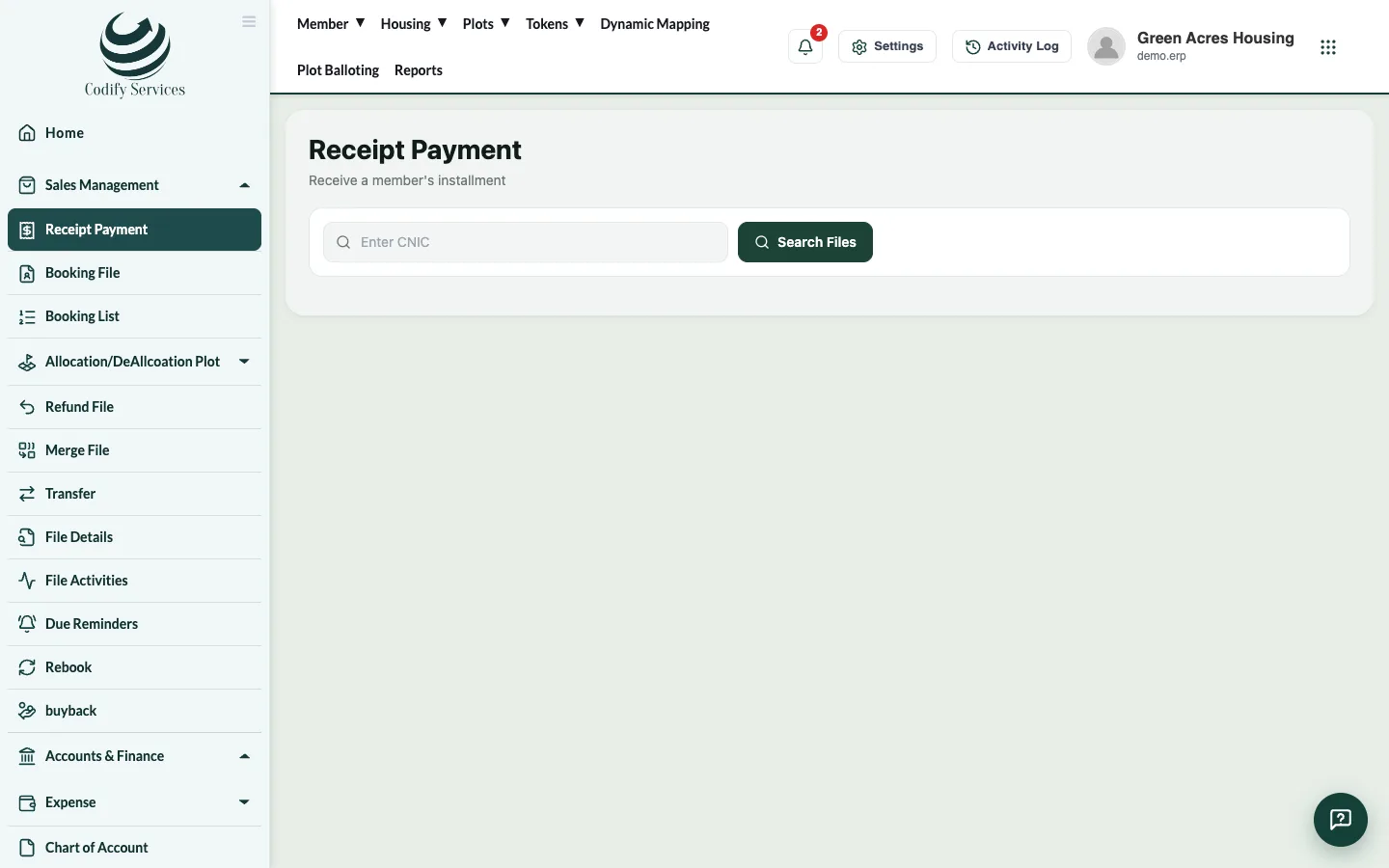
Steps
- In the sidebar, open Sales Management > Receipt Payment (or press Receive Payment on the member profile).
- Enter the member's CNIC and press Search Files, then pick the file.
- The Installment Schedule shows each installment with its due amount, received amount, discount and status.
- Enter the Amount, or press a quick button: Overdue, Next due or Full.
- Choose the Payment Mode. For a cheque or bank payment, choose the Bank and enter the Account No, Cheque No and Cheque Bank.
- Choose the Payment Date.
- Press Deposit.
- Press Payments to see the file's receipts. The eye icon opens a receipt, where you can print it.
Good to know
- Ledger shows the file's ledger; Print File Ledger prints it.
- Reverse Voucher cancels a receipt's finance voucher, with a reason.
- Receipts reach your accounts when you post them in Accounts & Finance > Posting A/C Voucher.
- Your role needs the Receipt Payment permission.
Related
More in Payments
Give a discount on a fileGive a member a discount on an installment or another charge of their file, and see the discount history.Print or email a receiptPrint a payment receipt again, choose its template, add the receiver and signature, or email it to the member.Cancel a receiptCancel a wrong receipt and reverse its accounting voucher, with a reason, from All Receipt Details.Add other charges to a fileAdd a one-off charge such as possession, development or transfer charges to a member's file, so it is collected with the installments.
Ready to try it? Open Housing Society ERP