
Housing Society ERP · Payments
Print or email a receipt
Print a payment receipt again, choose its template, add the receiver and signature, or email it to the member.
You can print a receipt right after the payment, or later from the Receipt Printing report.
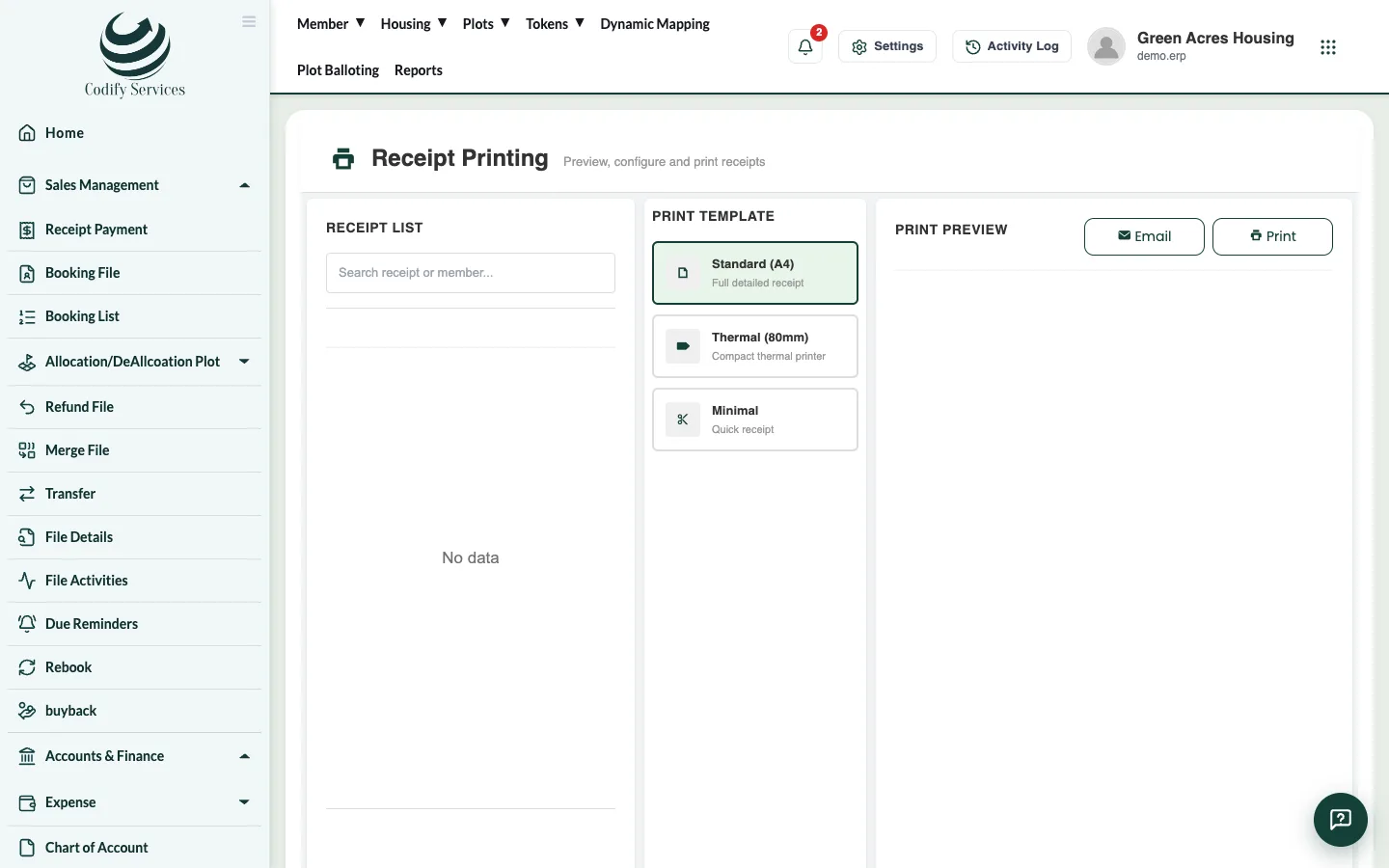
Steps: right after a payment
- On Receipt Payment, press Payments.
- Press the eye icon on the receipt and print it.
Steps: any receipt later
- Press Reports in the top menu.
- Open Sales & Members > Receipt Printing.
- Choose the dates and pick the receipt in the Receipt List.
- Check the Print Preview. Choose the Print Template and fill in Received By if needed.
- Press Print, or Email to send it to the member.
Good to know
- Allow pop-ups for the site so the print window can open.
- A cheque receipt says it is subject to the cheque being cleared.
- Receipt Details (Reports > Sales & Members) lists every receipt with its status.
Related
More in Payments
Receive an installment paymentFind the member's file, see what is due, receive cash, cheque or bank payment against the installments, and print the receipt.Give a discount on a fileGive a member a discount on an installment or another charge of their file, and see the discount history.Cancel a receiptCancel a wrong receipt and reverse its accounting voucher, with a reason, from All Receipt Details.Add other charges to a fileAdd a one-off charge such as possession, development or transfer charges to a member's file, so it is collected with the installments.
Ready to try it? Open Housing Society ERP