
Housing Society ERP · File actions
Refund or cancel a file
Cancel a member's file and refund what they paid, less a refund fee, or simply make a file inactive.
When a member leaves, you refund the file. The refund fee is kept back from what the member paid. Refunded files leave the active totals and reports.
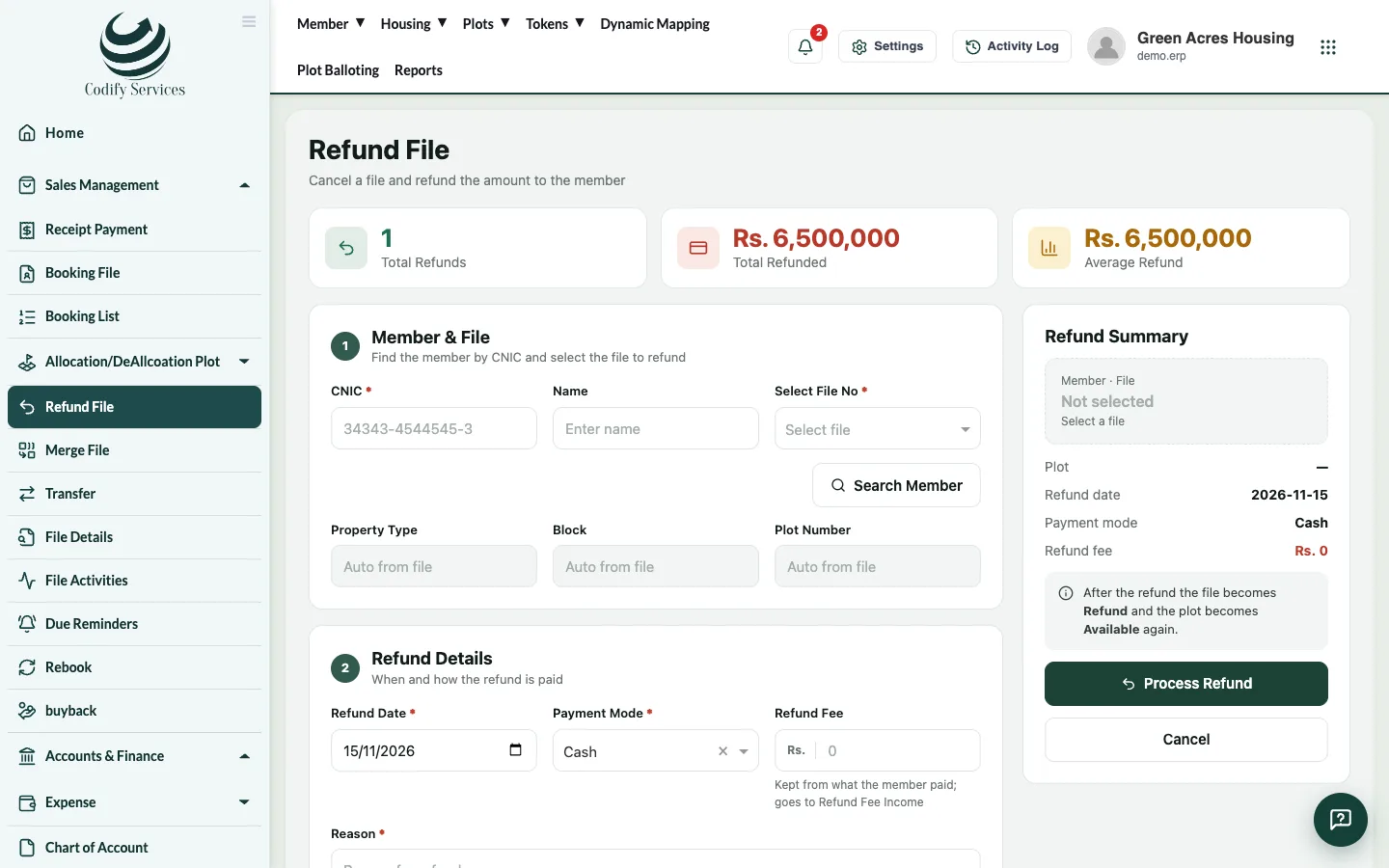
Steps
- In the sidebar, open Sales Management > Refund File (or press Cancellation on the member profile).
- Enter the CNIC and press Search Member.
- Choose the file in Select File No. The property shows.
- Enter the Refund Date and choose the Payment Mode (for a cheque, the Cheque No, Cheque Bank and Bank).
- Enter the Refund Fee and the Reason.
- Check the Refund Summary.
- Press Process Refund.
Good to know
- The refund fee can't be more than what the member paid.
- Post the refund to accounts in Posting A/C Voucher (the Refund Entries tab). The member's account is debited and Refund Fee Income credited, so the member is owed what they paid less the fee.
- A refund with a fee needs Refund Fee Income linked to an income account in System Accounts Configuration.
- Refunded Files lists all refunds. A refunded file can be given to a new owner with Rebook.
- To stop a file without a refund, use Cancel in the file's menu on the Booking List (and Activate to undo).
Related
More in File actions
Transfer a file to a new ownerMove a file from one member to another, collect the transfer fee and print the transfer letter.Merge two filesMerge one file into another, so the money paid on the first is counted on the second. Any excess is shown for refund.Rebook a fileGive a refunded or cancelled file to a new owner with a new installment plan.Buy back a fileRecord that the society bought a file back from its member, so it can be sold again.
Ready to try it? Open Housing Society ERP