
Housing Society ERP · Dealers
Pay dealer and agent commission
See what each dealer and agent has earned, paid and is owed, pay their commission, add commission to a file booked without it, and print a statement.
Commission Payments lists each dealer and agent with their files, sales, commission, what is paid and what is payable.
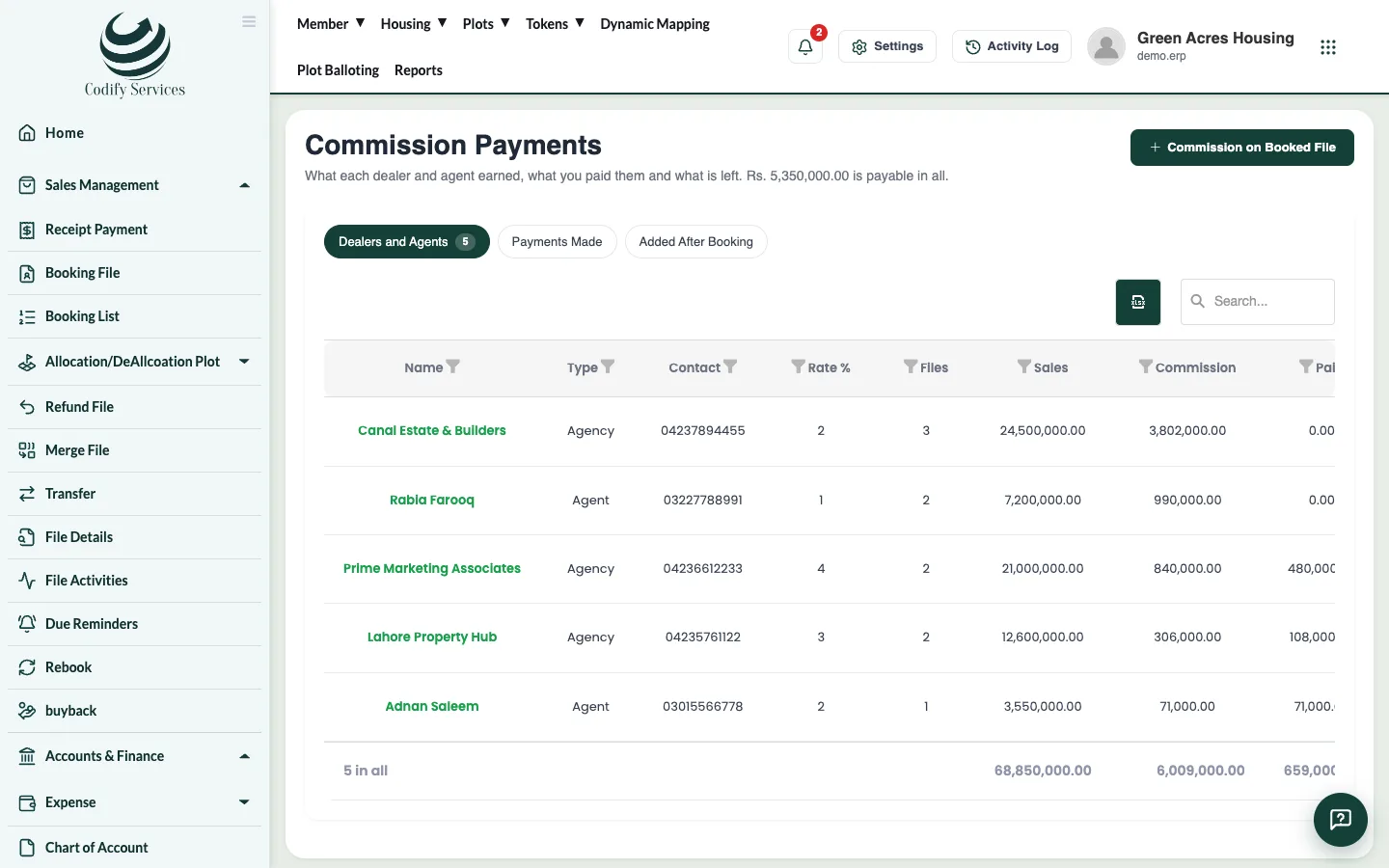
Steps: pay commission
- In the sidebar, open Dealer Management > Commission Payments.
- Find the dealer or agent and press Pay.
- Enter the Amount and Payment Date, choose Paid By and Paid From (the cash or bank account), and add the Reference No and a Note.
- Save the payment.
Steps: commission on a file booked without it
- Press Commission on Booked File.
- Choose the File and the Dealer / Agent.
- Enter the Rate % of the sale amount (or the Commission) and the Date.
- Press Add Commission.
Good to know
- Payments Made lists every commission payment. Added After Booking lists commission added later.
- Open a dealer to see their statement (commission, paid, balance) and Print it.
- Not posted yet shows commission that has not reached your accounts. Commission expense needs its account linked in System Accounts Configuration.
Related
More in Dealers
Ready to try it? Open Housing Society ERP