
Housing Society ERP · Payments
Give a discount on a file
Give a member a discount on an installment or another charge of their file, and see the discount history.
A discount lowers what a member owes on an installment or another head of their file. Each discount is kept in the file's discount history and prints as a receipt.
Steps
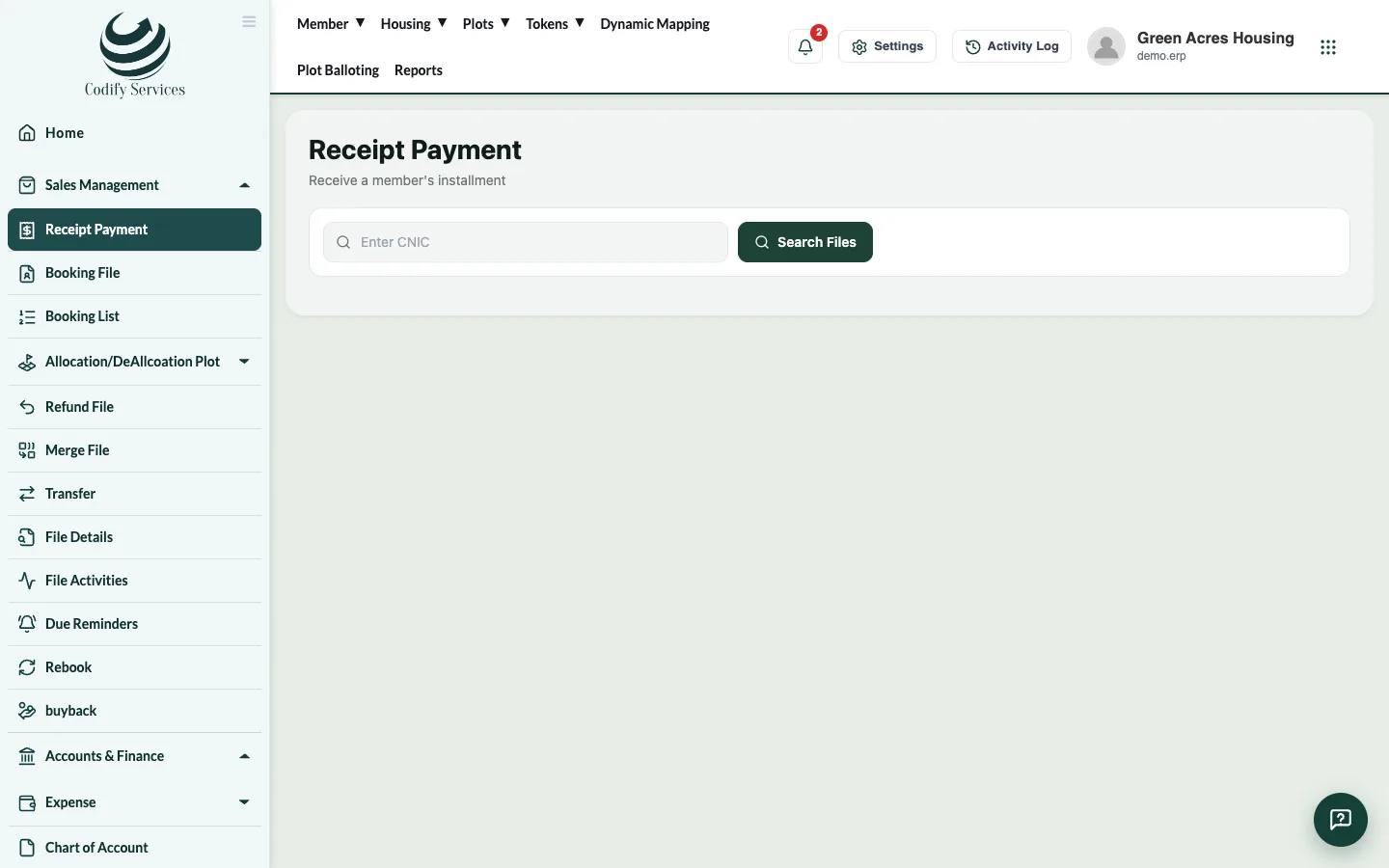
- Open Sales Management > Receipt Payment, search the CNIC with Search Files and pick the file.
- Press Add Discount.
- Enter the Discount Amount and Discount Date, and choose the Discount Type: an installment, or an Other Head such as possession charges.
- Add Remarks (the reason).
- Press Apply Discount.
Good to know
- Press Discounts to see the Discount History of the file. Each discount can be printed.
- Discounts are posted to accounts from Posting A/C Voucher (the Discount Amt tab).
- A discount at booking time is entered as Discount Amount on the Booking File page instead.
Related
More in Payments
Receive an installment paymentFind the member's file, see what is due, receive cash, cheque or bank payment against the installments, and print the receipt.Print or email a receiptPrint a payment receipt again, choose its template, add the receiver and signature, or email it to the member.Cancel a receiptCancel a wrong receipt and reverse its accounting voucher, with a reason, from All Receipt Details.Add other charges to a fileAdd a one-off charge such as possession, development or transfer charges to a member's file, so it is collected with the installments.
Ready to try it? Open Housing Society ERP