
Housing Society ERP · Payments
Cancel a receipt
Cancel a wrong receipt and reverse its accounting voucher, with a reason, from All Receipt Details.
If a receipt was entered by mistake or a cheque bounced, cancel the receipt. Its accounting voucher is reversed at the same time, so your accounts stay correct.
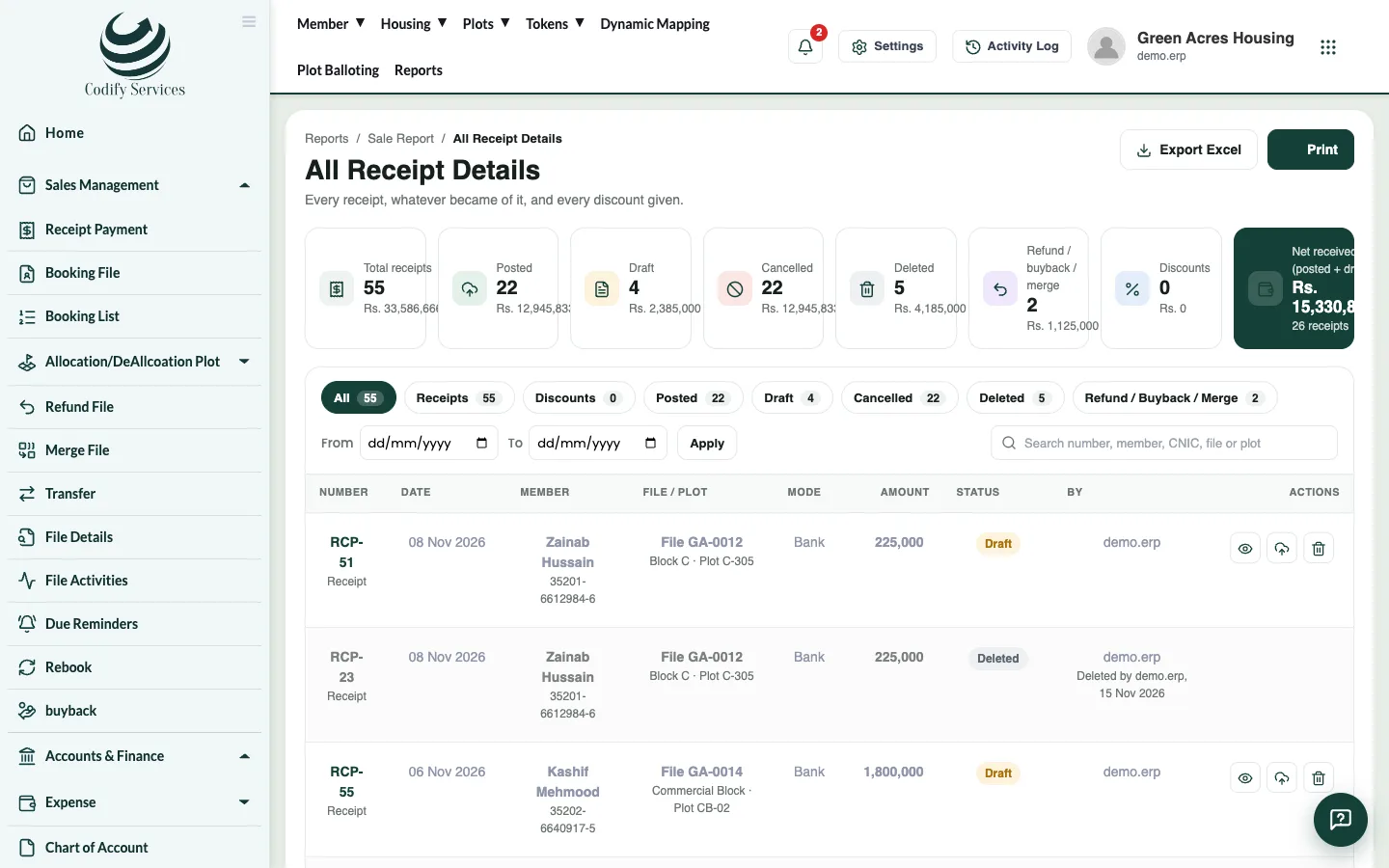
Steps
- Press Reports in the top menu.
- Open Sales & Members > All Receipt Details (Cancel / Delete).
- Choose the dates (From, To) and press Apply, or All dates.
- Find the receipt and open its action.
- Enter the Reason.
- Press Cancel receipt & reverse voucher.
Good to know
- The page shows counts and totals by status: posted, draft, cancelled, deleted, refunded, merged or bought back.
- On Receipt Payment, Reverse Voucher on a payment does the same for one file.
- Export Excel and Print keep a copy of the list.
- This needs a reports permission. Ask your administrator if the page is missing.
Related
More in Payments
Receive an installment paymentFind the member's file, see what is due, receive cash, cheque or bank payment against the installments, and print the receipt.Give a discount on a fileGive a member a discount on an installment or another charge of their file, and see the discount history.Print or email a receiptPrint a payment receipt again, choose its template, add the receiver and signature, or email it to the member.Add other charges to a fileAdd a one-off charge such as possession, development or transfer charges to a member's file, so it is collected with the installments.
Ready to try it? Open Housing Society ERP