
Housing Society ERP · Plots and maps
Allot a plot to a file
Allot a specific plot to a member's file, or take it back (de-allocate) with a reason, and print the allotment.
A file can be booked before a plot number is given. Allotment links a particular plot to the file. After allotment the plot becomes Sold and the file becomes Allocated.
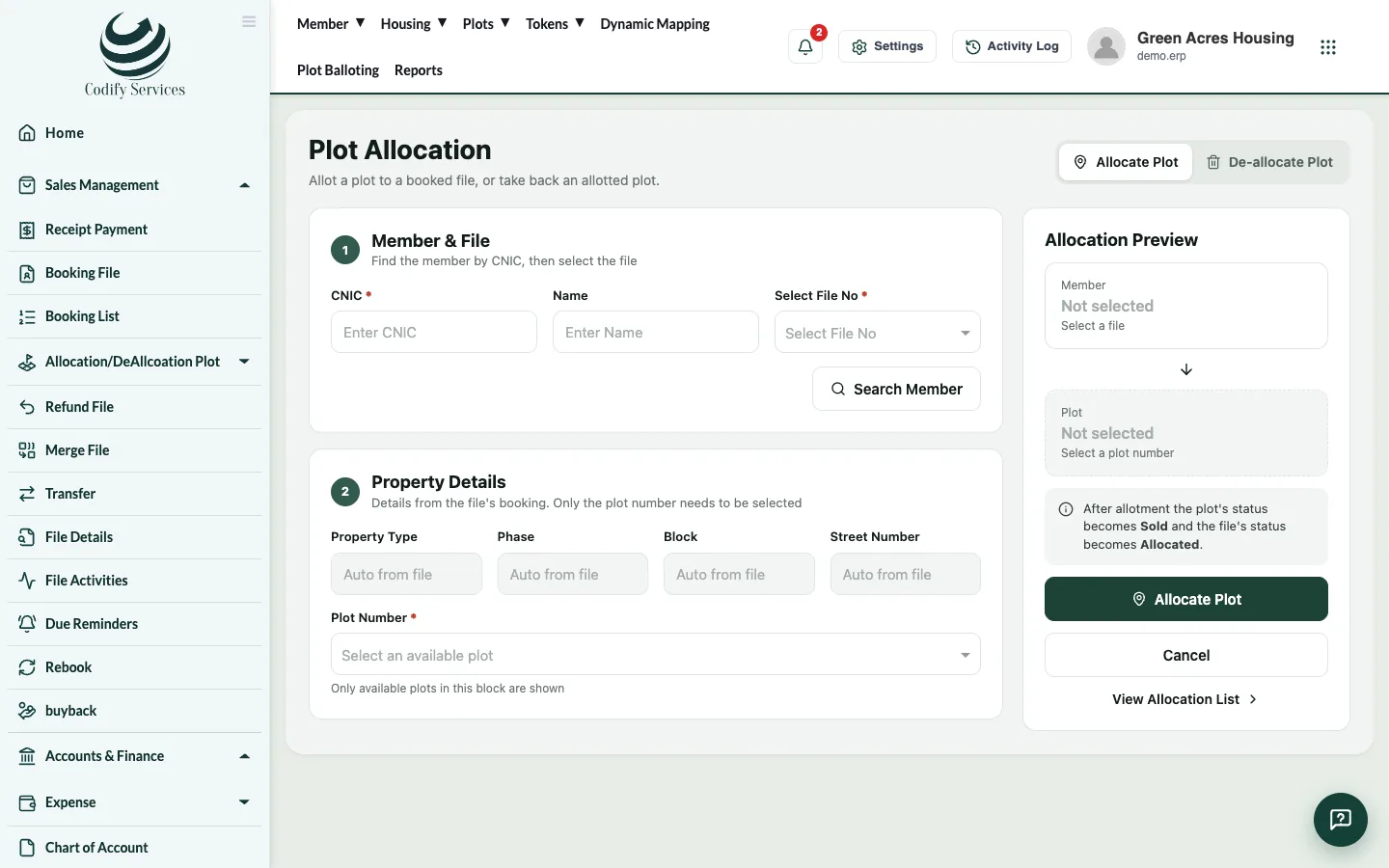
Steps: allot
- In the sidebar, open Sales Management > Allocation/DeAllcoation Plot > Allocation/DeAllocation.
- Enter the member's CNIC and press Search Member.
- Choose the file in Select File No.
- Choose the phase, block, Street Number and the plot.
- Check the Allocation Preview.
- Press Allocate Plot.
Steps: de-allocate
- Open the same page and pick the file. It shows Plot allotted.
- Press De-allocate Plot, enter the Reason and confirm. The plot becomes available again.
Good to know
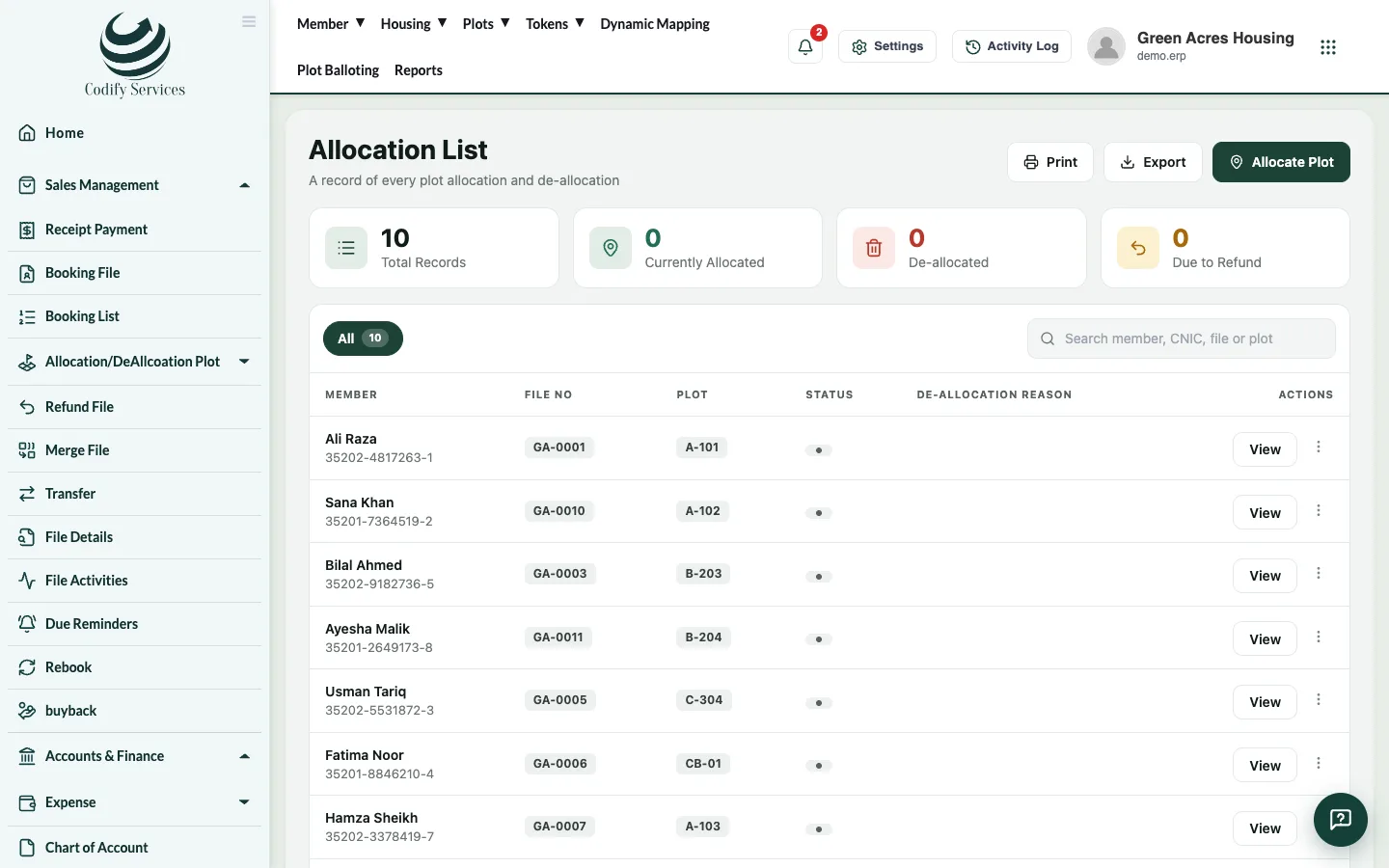
- Allocation List (same menu) lists every allotment with its status and de-allocation reason. Print, Export and Possession Letter are there.
- Plots can also be given by ballot: see Run a plot ballot.
- Allocating and de-allocating are separate permissions.
Related
More in Plots and maps
Give possession and print the possession letterCharge possession fees, then print the member's possession letter with the allotment and possession dates.See plots on the society mapUse Dynamic Mapping to see every plot by status, find a plot, owner or file, and place plots on your uploaded master plan.Run a plot ballotCreate a ballot for a plot size and category, choose the files that take part, run the draw, show it on screen and make it final.
Ready to try it? Open Housing Society ERP