
Housing Society ERP · Plots and maps
See plots on the society map
Use Dynamic Mapping to see every plot by status, find a plot, owner or file, and place plots on your uploaded master plan.
Dynamic Mapping shows every plot of your society by phase, block and street. Green is available, amber is reserved and red is sold. You can also upload your master plan picture and place the plots on it.
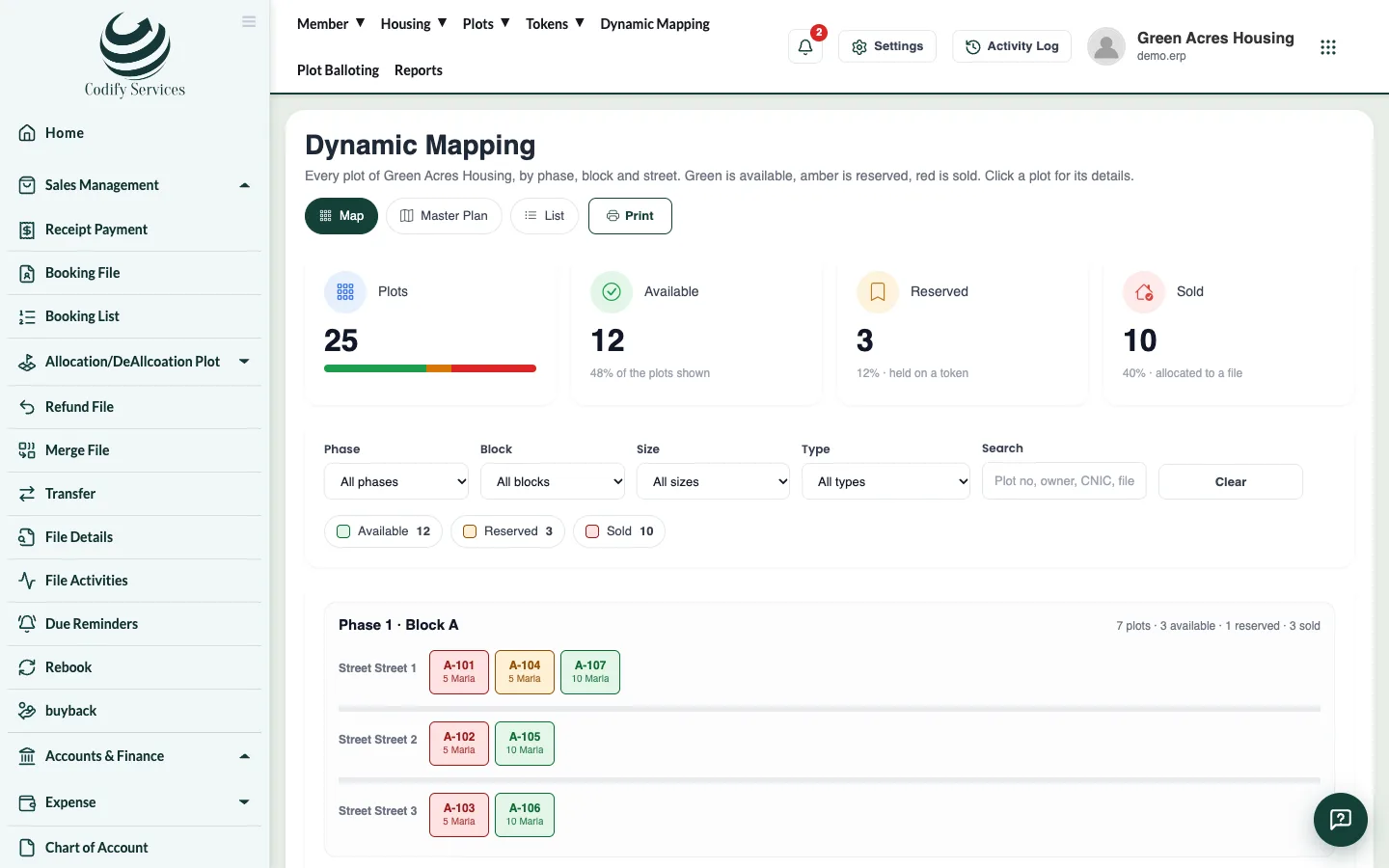
Steps: find a plot
- In the top menu, press Dynamic Mapping.
- Filter by phase, block, Size or Type, or search a plot number, owner, CNIC or file number.
- Click a plot to see its owner, file, balance, or who it is reserved for and until when.
- List shows the same plots as a list; Print prints them.
Steps: put your master plan on the map
- Press Master Plan, then Upload Map.
- Give it a Name (for example Phase 1) and choose the Picture of the map. Press Upload.
- Press Place Plots.
- Pick a plot from the list on the right, then click its spot on the picture. The next plot is picked by itself.
- Press Done Placing.
Good to know
- Not on this map yet lists plots you haven't placed.
- Take off the map removes a plot from the picture (not from the society).
- Placing plots needs the map permission. Everyone with Dynamic Mapping can look.
Related
More in Plots and maps
Allot a plot to a fileAllot a specific plot to a member's file, or take it back (de-allocate) with a reason, and print the allotment.Give possession and print the possession letterCharge possession fees, then print the member's possession letter with the allotment and possession dates.Run a plot ballotCreate a ballot for a plot size and category, choose the files that take part, run the draw, show it on screen and make it final.
Ready to try it? Open Housing Society ERP