
Codify HR · My HR
Use My HR (for employees and managers)
How employees see their attendance, leave and payslips, apply for leave, claim expenses and ask HR, and how managers approve their team's requests.
My HR is the employee's own portal. With the login HR gives them, each employee sees their own attendance, leave, payslips and details, and sends requests to HR. A manager also sees their team and decides its requests.
Before you start
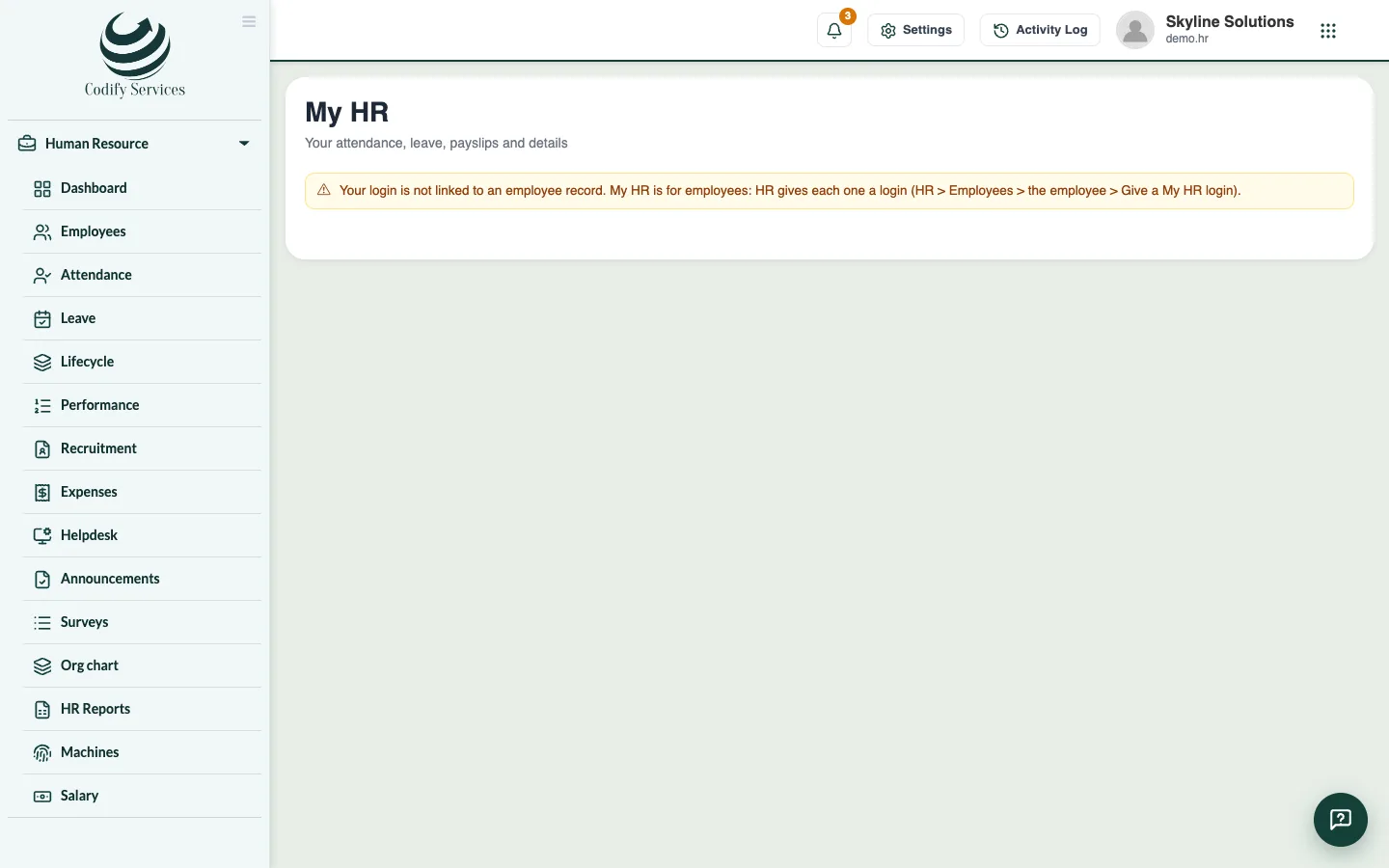
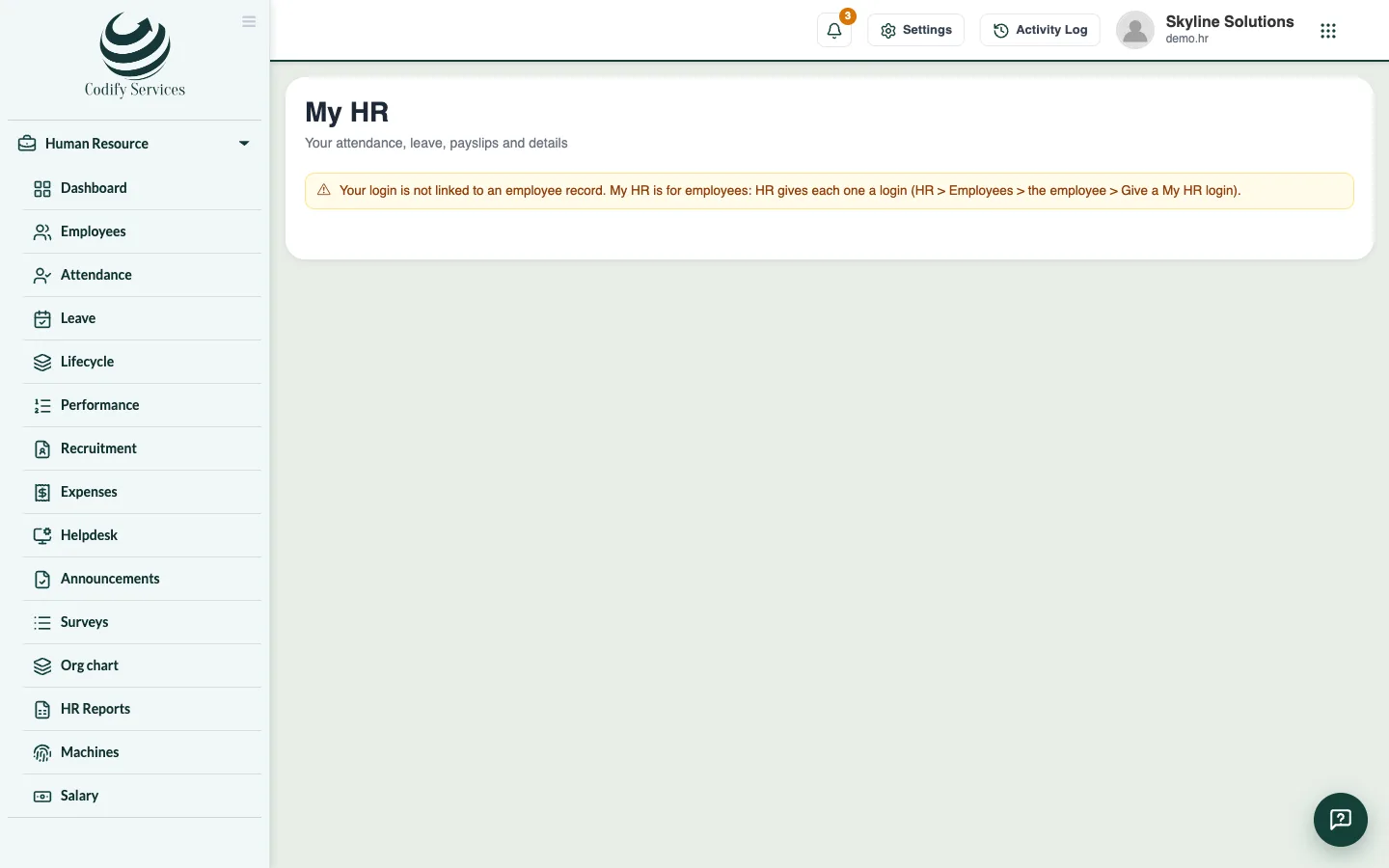
- HR must give you a My HR login. See Give an employee a My HR login.
Steps
For every employee
- Sign in and open Sidebar > My HR > My HR. The home shows today, this month, what waits for approval, your leave, holidays and last payslips.
- To ask for leave, press Apply for leave, choose the leave, From, To (or Half day), write the Reason and press Send for approval.
- To fix a day, open My attendance, press Correct on the day (or Correct a day), choose what I was, the times, Why, and press Send for approval.
- Open My payslips and press Payslip to see or print one.
- Open My expenses, press Claim an expense, enter the amount, what it was and the receipt, and press Send for approval.
- Open Ask HR to send HR a question and read their answer.
- Open News for announcements and surveys, My performance for goals and reviews, and Directory to find colleagues.
- Press the tab My details to see your record. Under I can correct, change your phone, address or emergency contact and press Save.
For managers
- Open My team. Under Leave to decide and Corrections to decide, press Approve or Reject.
- Approve your team's expense claims under My team's claims to approve (in My expenses).
- In My performance, set goals for your team (Set a goal) and fill in your team's reviews.
Good to know
- Leave you asked for can be cancelled while it waits.
- Payslips appear when HR approves a salary sheet.
- Something wrong in your details? Ask HR to correct it.
- Interviewers give interview results in My HR.
Related
More in My HR
Ready to try it? Open Codify HR