
Codify HR · Attendance and leave
See the monthly attendance sheet and close a month
View a month's attendance with each day's code and totals, export it to Excel, and close the month so it no longer changes.
The Month view puts every employee and every day of the month on one sheet, with totals for the days worked, late, absent and on leave. When the month is final, you can close it.
Before you start
- Closing and reopening a month needs Can Close HR Months.
Steps
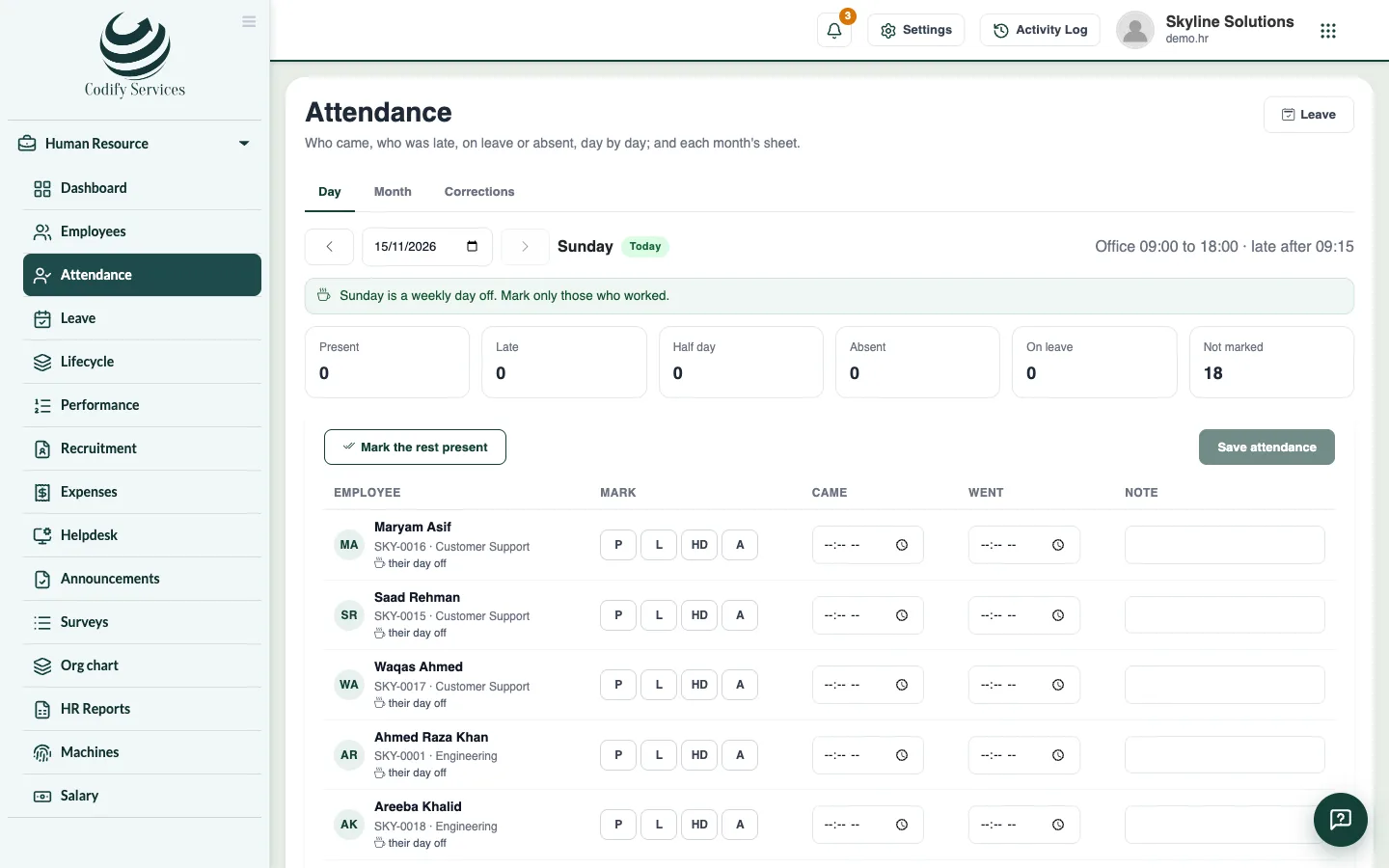
- Open Sidebar > Human Resource > Attendance and the tab Month.
- Choose the month.
- Read each day's code. The legend at the top explains them: P present, L late, HD half day, A absent, LV paid leave, UL unpaid leave, HL half-day leave, H holiday, O day off, - not marked.
- Click a day's number to open that day in the Day view.
- Press Excel to download the sheet.
- When the month is final, press Close month. Press Reopen if it must change again.
Good to know
- Worked counts a half day as half.
- The totals also show Unpaid, Not marked and Overtime hours.
- A closed month keeps its attendance, leave and holidays as they are.
- Approving the month's salary sheet closes the month too.
Related
More in Attendance and leave
Mark the day's attendanceMark each employee present, late, half day or absent for a day, with the times they came and went.Handle attendance correctionsEnter or decide requests to correct a day's attendance mark and times, sent by HR or by employees from My HR.Enter and approve leaveEnter a leave for an employee, see the working days it counts, and approve, reject or cancel it.Check leave balances and enter opening balances or comp-offSee what each employee has taken and has left of each leave type, and add opening balances, corrections, comp-off or days paid out.
Ready to try it? Open Codify HR