
Codify CRM · Contacts and deals
Keep contacts and companies
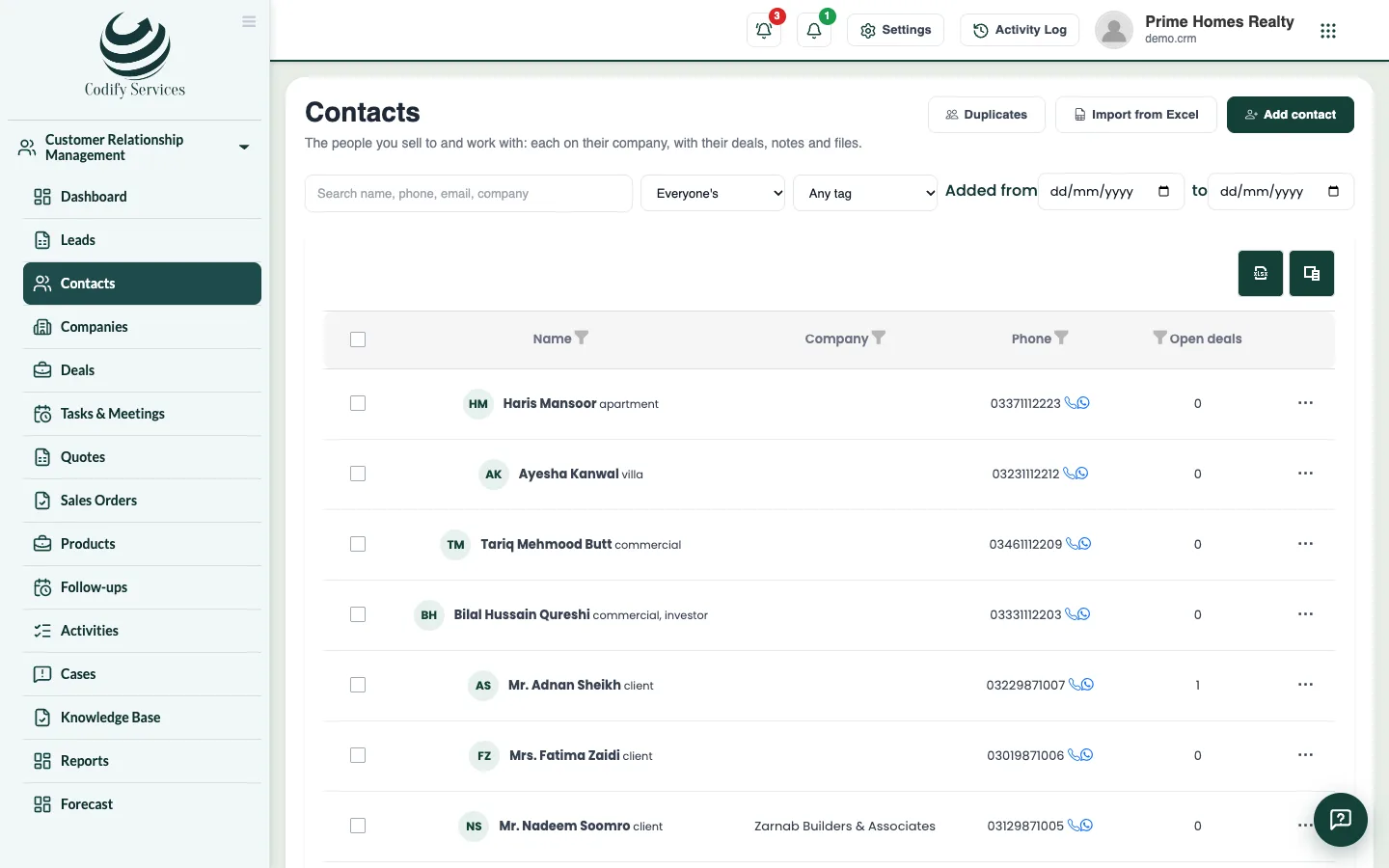
Add the people and businesses you sell to, import them from Excel, save filtered views, and merge duplicates.
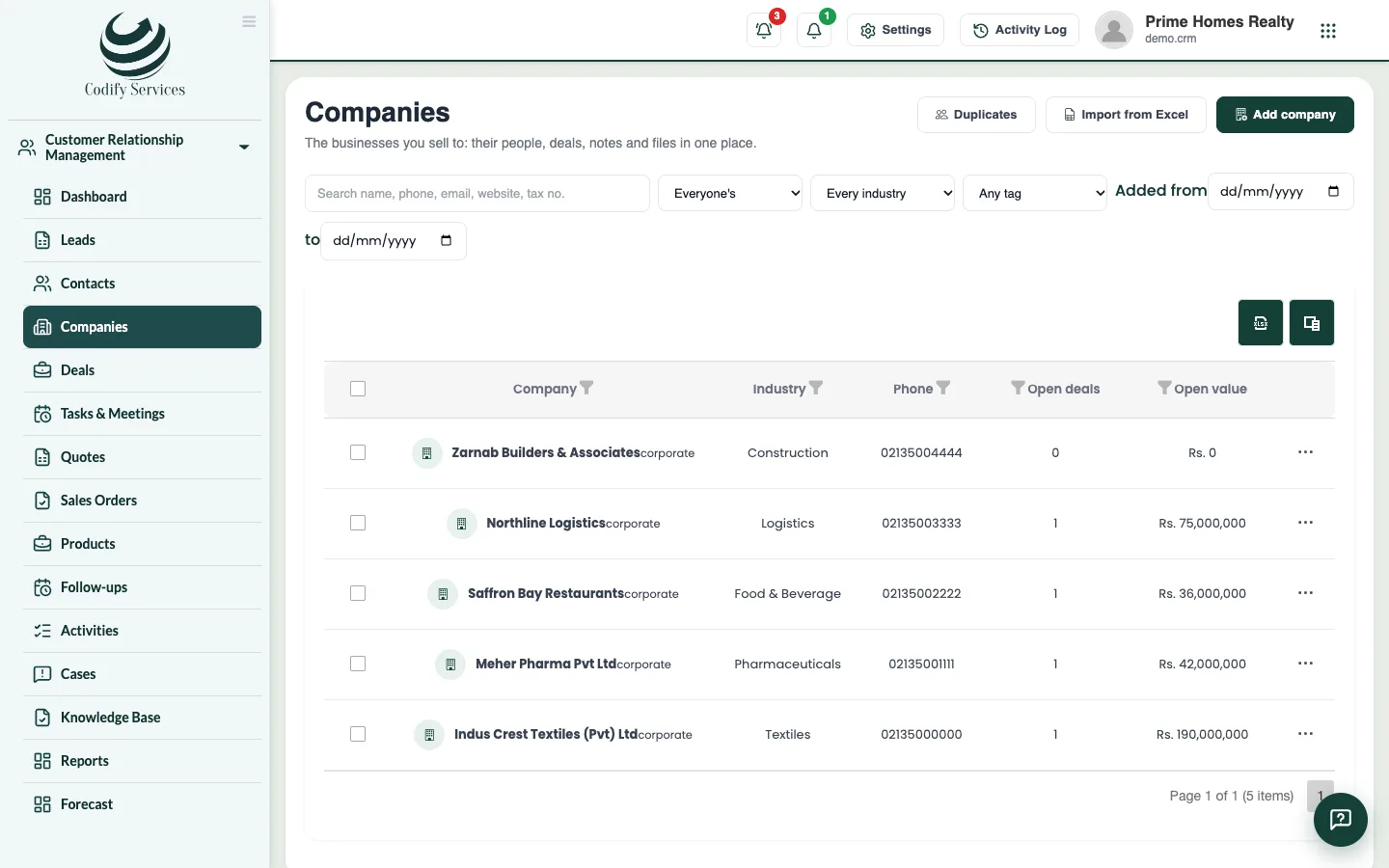
Contacts are the people you sell to and work with. Companies are the businesses they belong to. Each has its own page with its people, deals, notes and files.
Before you start
- Adding needs Can Add Leads; changing needs Can Edit Leads.
Steps
- Open Sidebar > Customer Relationship Management > Contacts (or Companies).
- Press Add contact (or Add company).
- For a contact, enter the Title, First name, Last name, Job title, Company, phones, Email, Source and address. Tick Do not contact if they asked not to be called or messaged.
- For a company, enter the Company name, Industry, Website, Phone, Email, tax number, Employees and City.
- Press Save.
- To bring many at once, press Import from Excel, download the template, fill it and import it (up to 3,000 rows).
- To keep a filter, set the filters and press Save these filters as a view. Tick Everyone in the company can use it to share it.
- Press Duplicates to find records with the same phone, email or name. Choose the one to Keep, and press Merge.
Good to know
- If a record with the same phone, email or name is already there, the form tells you and offers to open it.
- On a record's page you can add Notes, Files (PDF, Word, Excel, pictures; 10 MB each) and your own fields under More details.
- Merging moves everything onto the kept record.
- A converted lead becomes a contact.
Related
More in Contacts and deals
Convert a lead to a contact, company and dealWhen a lead is serious, convert it into a contact (and a company if they buy for a business) with a deal to follow in a pipeline.Follow deals on the pipeline boardAdd deals with their value and close date, drag them through your pipeline's stages, and mark them won or lost.Send quotes and sales ordersKeep a product list, add products to a deal, make a quote, email or print it, turn an accepted quote into a sales order and invoice it in Billing.
Ready to try it? Open Codify CRM