
Codify CRM · Marketing and automation
Track ad campaigns and email campaigns
Record your ad campaigns to see the leads and sales each brings, make lists, and send email campaigns with opens, clicks and unsubscribes.
A campaign is an ad or promotion: a Facebook ad, a billboard, an expo. Choose it on each lead, and CRM shows what each campaign cost and what it brought. From Marketing you can also send emails to lists of leads or contacts.
Before you start
- Making campaigns, lists and email campaigns needs Can Manage CRM Settings.
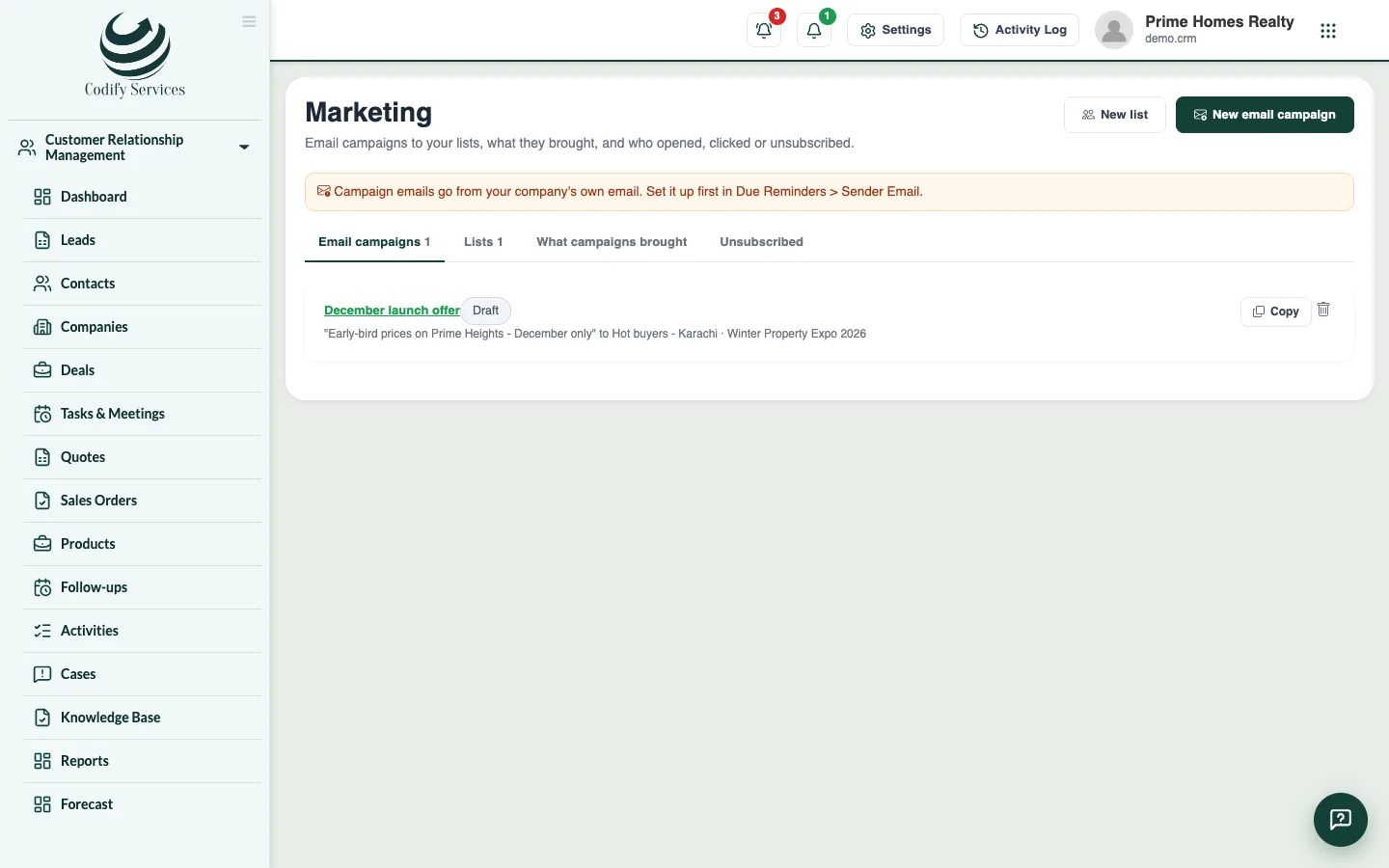
- Email campaigns go from your company's own email: set it up first in Due Reminders > Sender Email.
Steps
Record an ad campaign
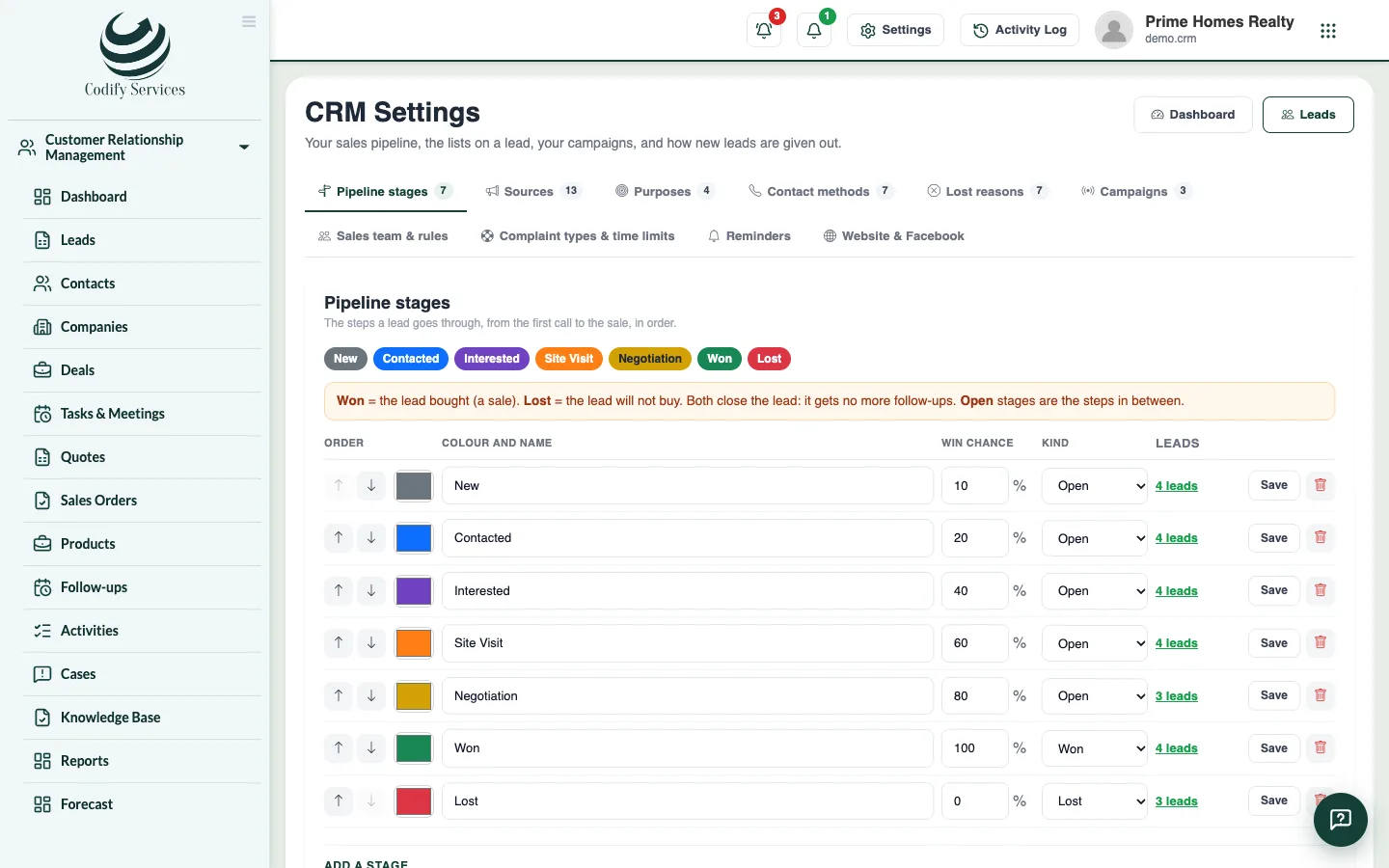
- Open Sidebar > Customer Relationship Management > CRM Settings and the tab Campaigns.
- Press Add Campaign. Enter the Name, Source, Starts, Ends and Budget, and keep Running ticked. Press Add Campaign.
- Choose the campaign on each lead it brings.
Send an email campaign
- Open Sidebar > Customer Relationship Management > Marketing and press New list.
- Name the list, choose Leads or Contacts, and add conditions (for example city, source, tags or budget). Who is in it now shows who would get the email. Press Save list.
- Press New email campaign. Choose the list, the campaign it Counts for, and write the Subject and Email. Click a field under Put in to add each person's name.
- Press Send me a test, then Send now, or enter Send at and press Schedule.
Good to know
- What campaigns brought shows each campaign's budget, leads, cost a lead, won leads, won value and return.
- Every email ends with your company's name and an unsubscribe link. People who unsubscribed, asked not to be contacted or have no email are left out.
- Opens are counted only when the person's email app shows pictures, so the real number is higher.
- Stop stops a campaign that is sending.
Related
More in Marketing and automation
Automate work with rules and lead scoringMake rules that give out leads, add tasks, tag, notify or email by themselves, and score leads hot, warm or cold.Connect other programs to your CRMMake API keys so your own programs can read and add leads and contacts, and webhooks that tell another program when a lead or deal changes.
Ready to try it? Open Codify CRM