
Land Management · Field work and prints
Use the field app on the land, with or without internet
Record site visits, due-diligence checks and encroachments on your phone with photos and GPS, even with no connection.
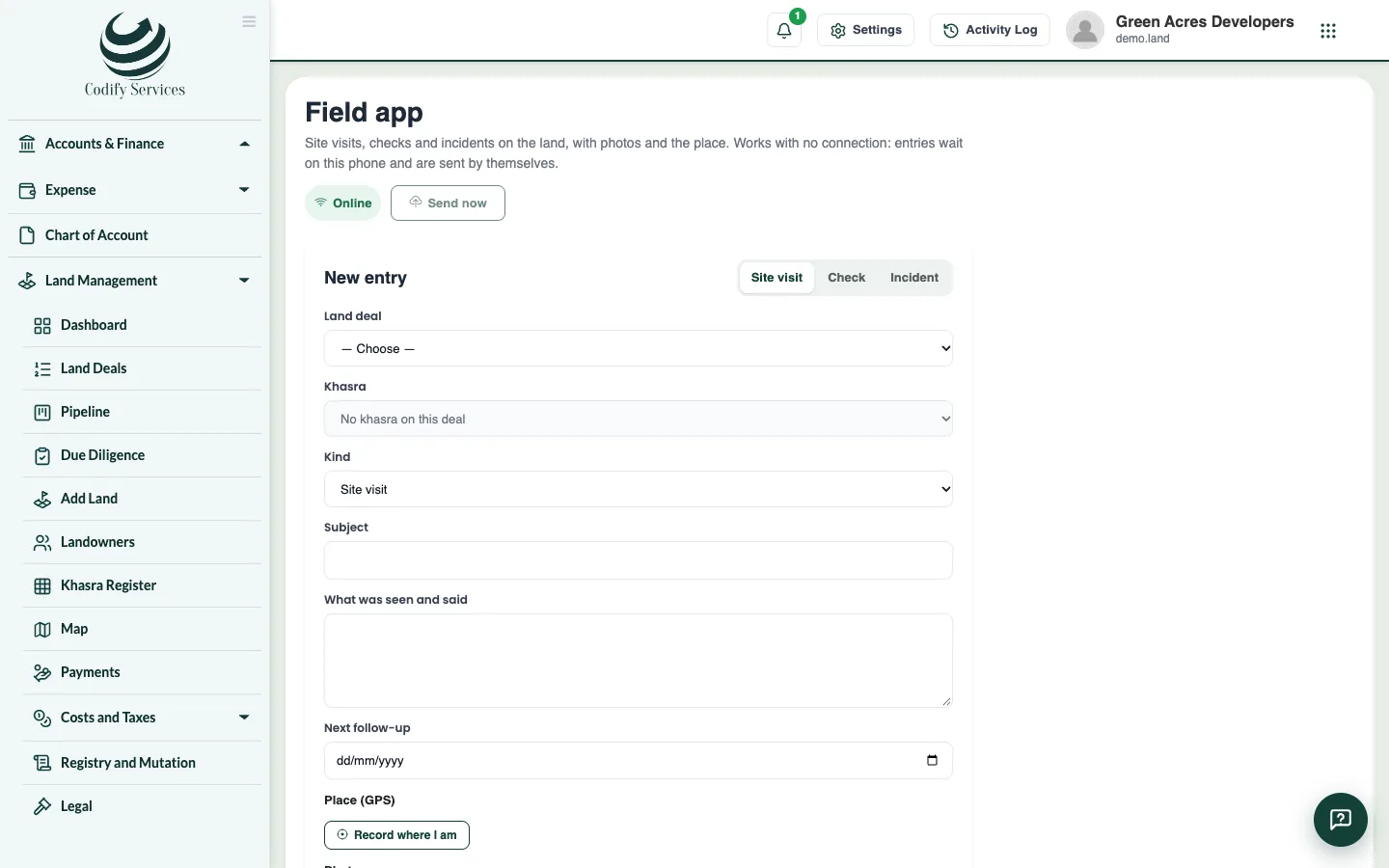
The field app is for staff who go to the land. Open it once on your phone with a connection: it keeps the deals, khasras, checks and lists on the phone, so it works later with no internet.
Before you start
- Site visits need Can Manage Pipeline and Negotiations; checks need Can Manage Due Diligence; incidents need Can Manage Land Legal Matters.
- Open the field app once with a connection on the phone you will use.
Steps
- On your phone, open Sidebar > Land Management > Field app.
- Choose the kind of entry: Site visit, Check or Incident.
- Choose the Land deal (and the khasra, or the whole deal).
- For a Site visit: choose the kind, enter the Subject, What was seen and said and the Next follow-up.
- For a Check: choose one of the deal's due-diligence checks and mark it Clear, Issue or N/A with remarks.
- For an Incident: choose What happened (encroachment, qabza, damage ...), the spot, the land taken (sq ft) and details.
- Tap Record where I am for the GPS position, and Add for photos.
- Tap Save and send. With no connection, tap Save on this phone.
Good to know
- Entries saved on the phone wait under Waiting on this phone and are sent by themselves when the internet is back, or tap Send now. Each is saved once, even if sent twice.
- If the server refuses an entry, it stays on the phone with the reason. Tap Change to correct it, or Delete.
- Signing out deletes entries still waiting on the phone. Send them first.
- A site visit goes into the deal's negotiation log; photos go into the deal's documents as site photos. An incident goes to Legal.
- The deal's due diligence must be started before checks can be marked.
- Tap Refresh the lists after new deals or checks are added in the office.
Related
More in Field work and prints
Ready to try it? Open Land Management