
Land Management · Settings and reports
Approvals, alerts and history
Decide actions that need a second person, set the approval rules, follow the daily land alerts, and see who changed what.
Some land actions need a second person. Alerts tell you each morning what is due. History keeps every change.
Before you start
- Deciding approvals needs Can Approve Land Deals and Deletes or Can Approve Payments to Landowners. Changing approval rules needs Can Manage Land Settings. History needs Can View Land Audit Trail.
Steps
Approval rules
- Open Sidebar > Land Management > Settings and the tab Approvals.
- Switch on the rules you want (for example deleting a land deal, reversing a posting, a payment release). Optionally set an amount, who approves and how many approvers. Save.
Approve
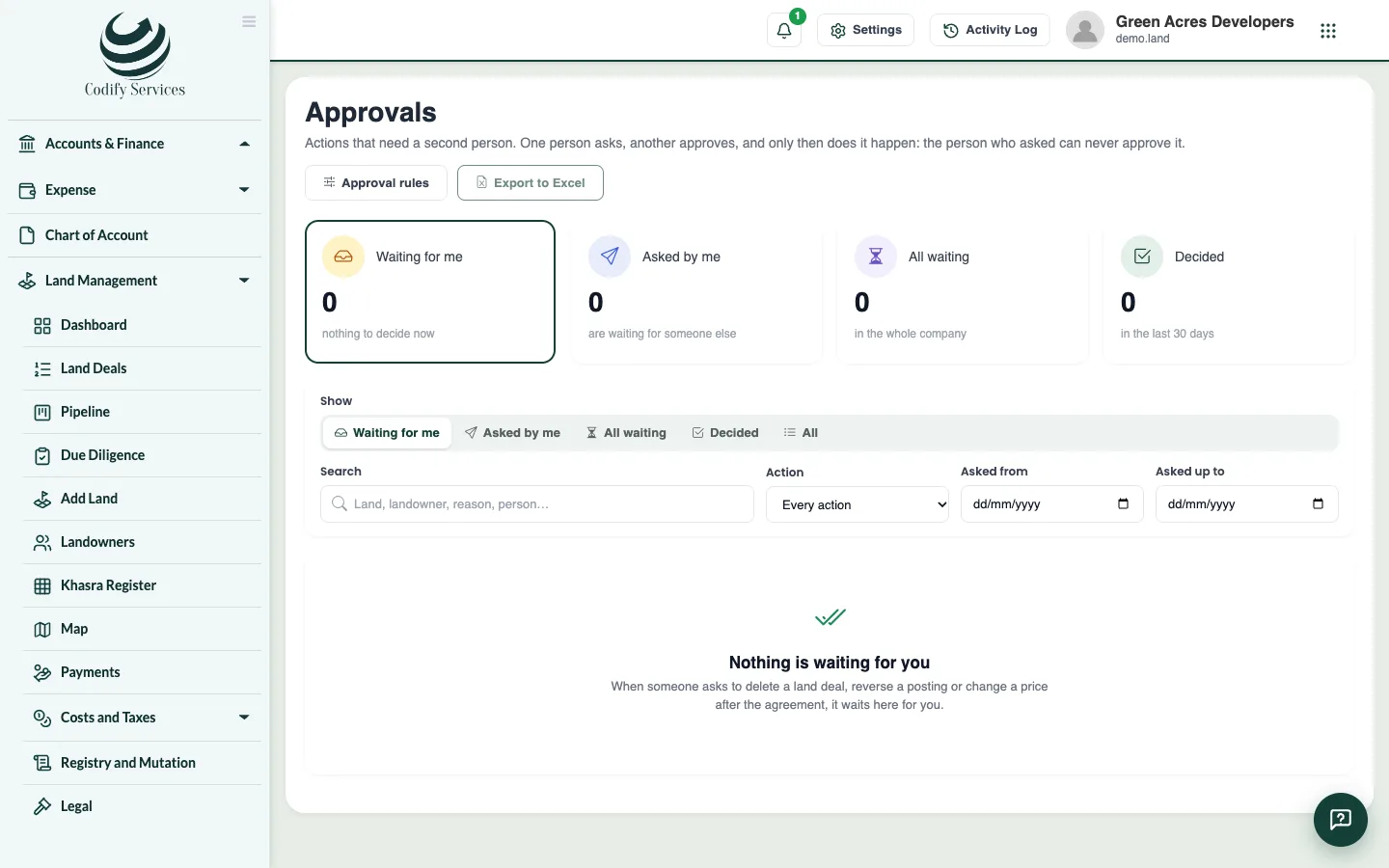
- Open Sidebar > Land Management > Approvals. Waiting for me lists what you may decide, oldest first.
- Open a request to see the record and the change asked for. Press Approve, or Reject with a note.
Alerts
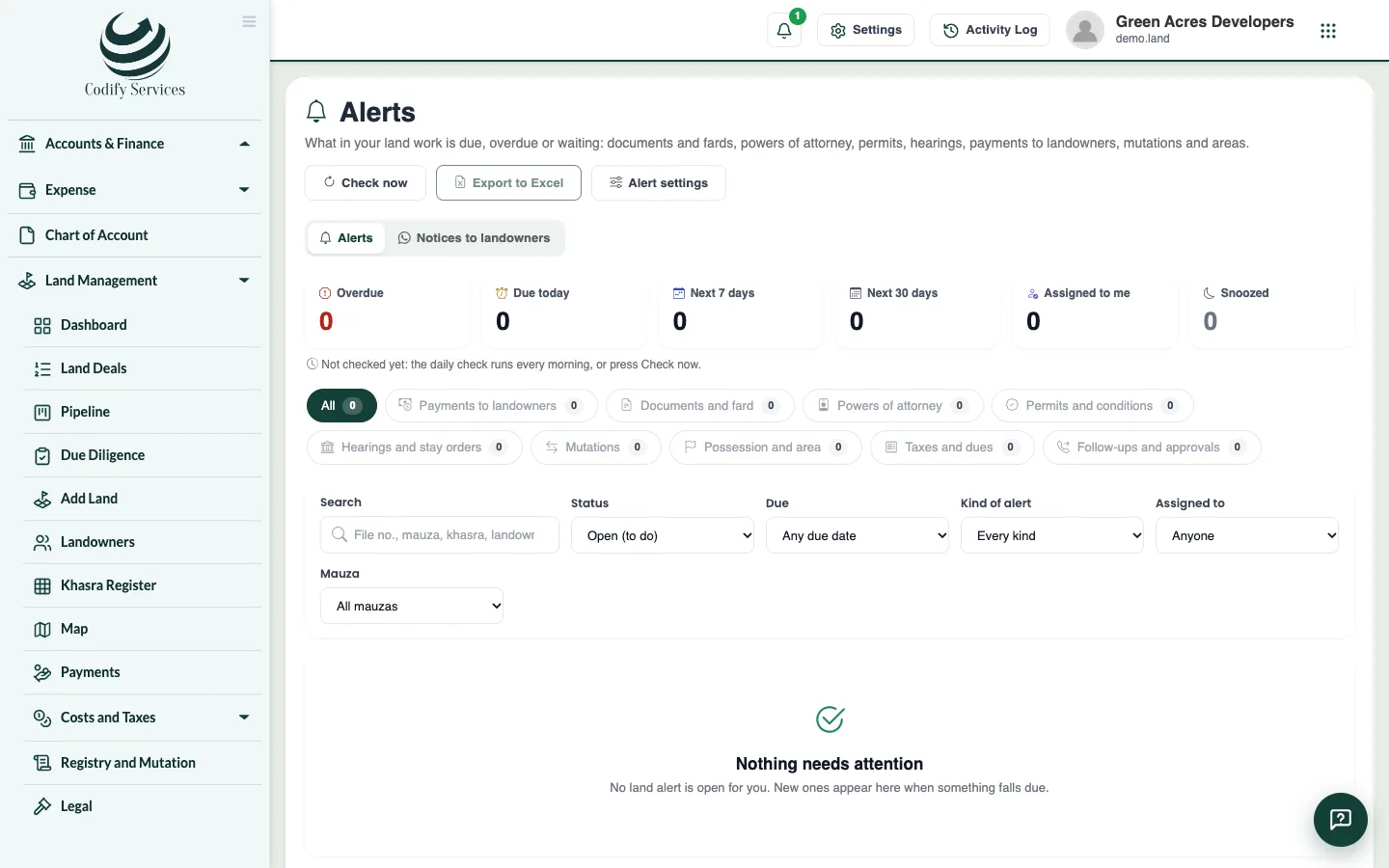
- Open Sidebar > Land Management > Alerts. The cards count what is overdue, due today, in 7 and 30 days, assigned to you and snoozed.
- Choose alerts and Snooze, Assign to a colleague, mark Done, or Dismiss with a reason. Check now runs the daily check at once.
- Notices to landowners lists payments falling due. WhatsApp opens your WhatsApp with the notice typed; Email sends it from your company's mailbox.
History
- Open a deal's, landowner's or khasra's History tab, or the History button on Documents, Permits and Approvals.
Good to know
- Every rule starts switched off, so nothing waits until your company turns one on.
- The person who asked can never approve their own request; they can Withdraw it.
- Alerts are made every morning at 05:00. Set which alerts, how early and the daily email digest in Land Settings > Alerts.
- A notice goes only to a landowner who agreed to be told.
Related
More in Settings and reports
Land reports and printsPrint the land register, ownership schedule, mauza summary, land movement, landowner ledger, cost sheet, tax and title reports, in English or Urdu.Set up Land Settings and your country packSet your country and province, land currency, file numbers, area units, place names, lists, tax rates and map, or apply a country pack in one go.Connect other systems to your land recordsMake API keys so other programs can read your land records, webhooks that report stage moves and payments, and LADM exports for land offices.
Ready to try it? Open Land Management