
Billing & Invoicing · Purchases and expenses
Vendor credits
Record what a vendor owes you back (goods sent back, a price cut, a mistake on a bill), apply it to their bills or record their refund.
A vendor credit is what a vendor owes you back: goods you sent back, a price cut or a mistake on a bill. You apply it to their bills, or record the money they paid back.
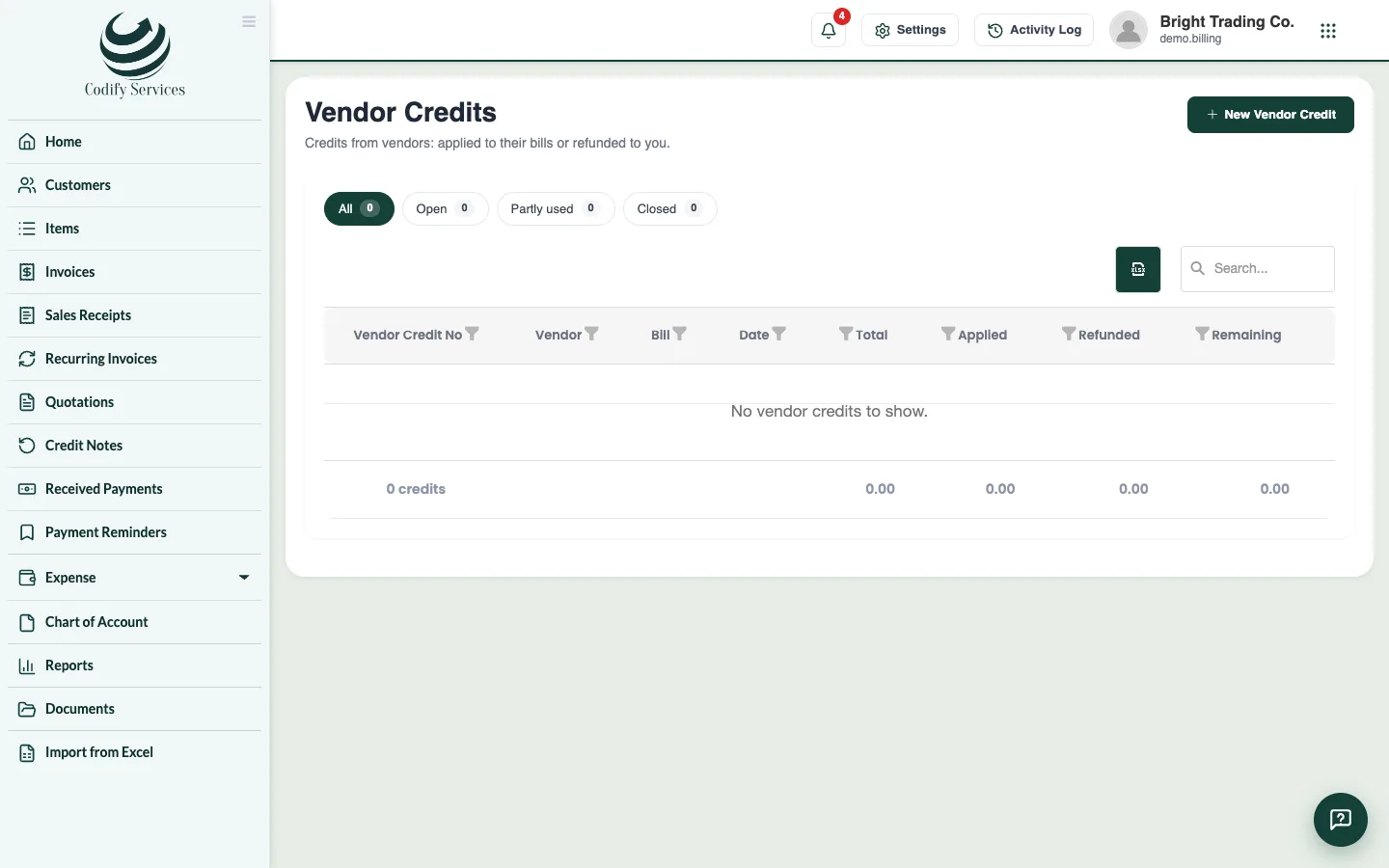
Steps
- Open Sidebar > Expense > Vendor Credits and press New Vendor Credit (or open the bill and press Vendor credit).
- Choose the Vendor and, if you like, the Bill: its items and tax are copied in.
- Enter the Date and choose the Expense Account the credit is taken out of.
- Change the items to what is credited, write the Reason / Notes and press Create Vendor Credit.
- Open the vendor credit and:
- press Apply to Bill, choose the bill and amount, then Apply Credit; or
- press Refund, enter the money the vendor paid back, then Save Refund.
Good to know
- The page shows the total, what has been applied, what was refunded and the Credit remaining.
- The reports Vendor Credit Details and Vendor Refund History list them.
Related
More in Purchases and expenses
Ready to try it? Open Billing & Invoicing