
Billing & Invoicing · Getting started
Set up taxes
Save your tax rates (VAT, GST, sales tax), pick them on invoice and bill lines, and print your own tax number on every document.
Billing works with any sales tax. You save your rates once (for example "VAT 5%") and pick one on each line of an invoice or bill. A company with no tax saved is offered its country's usual rates.
Before you start
- Set your country in Company Profile (the gear at the top right). It gives the tax its name and offers the usual rates.
Steps
Save a tax rate
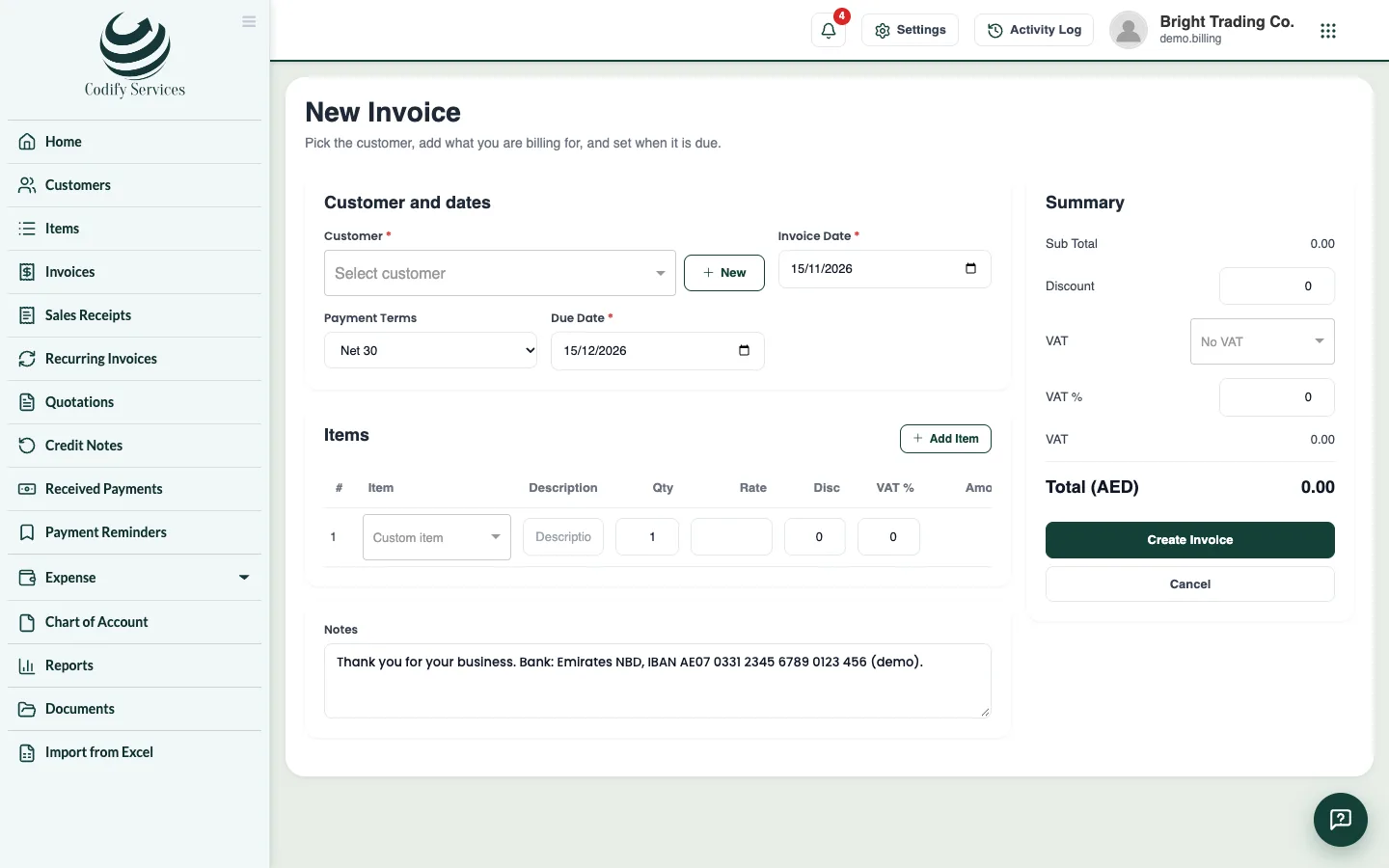
- Open a new invoice (Sidebar > Invoices > New Invoice) or a new bill.
- On an item line, open the tax % box.
- Pick a rate from the list, or press + New tax at the bottom of the list.
- Enter the Tax Name and Rate % and press Add Tax. It is saved for every later invoice and bill.
Print your tax number
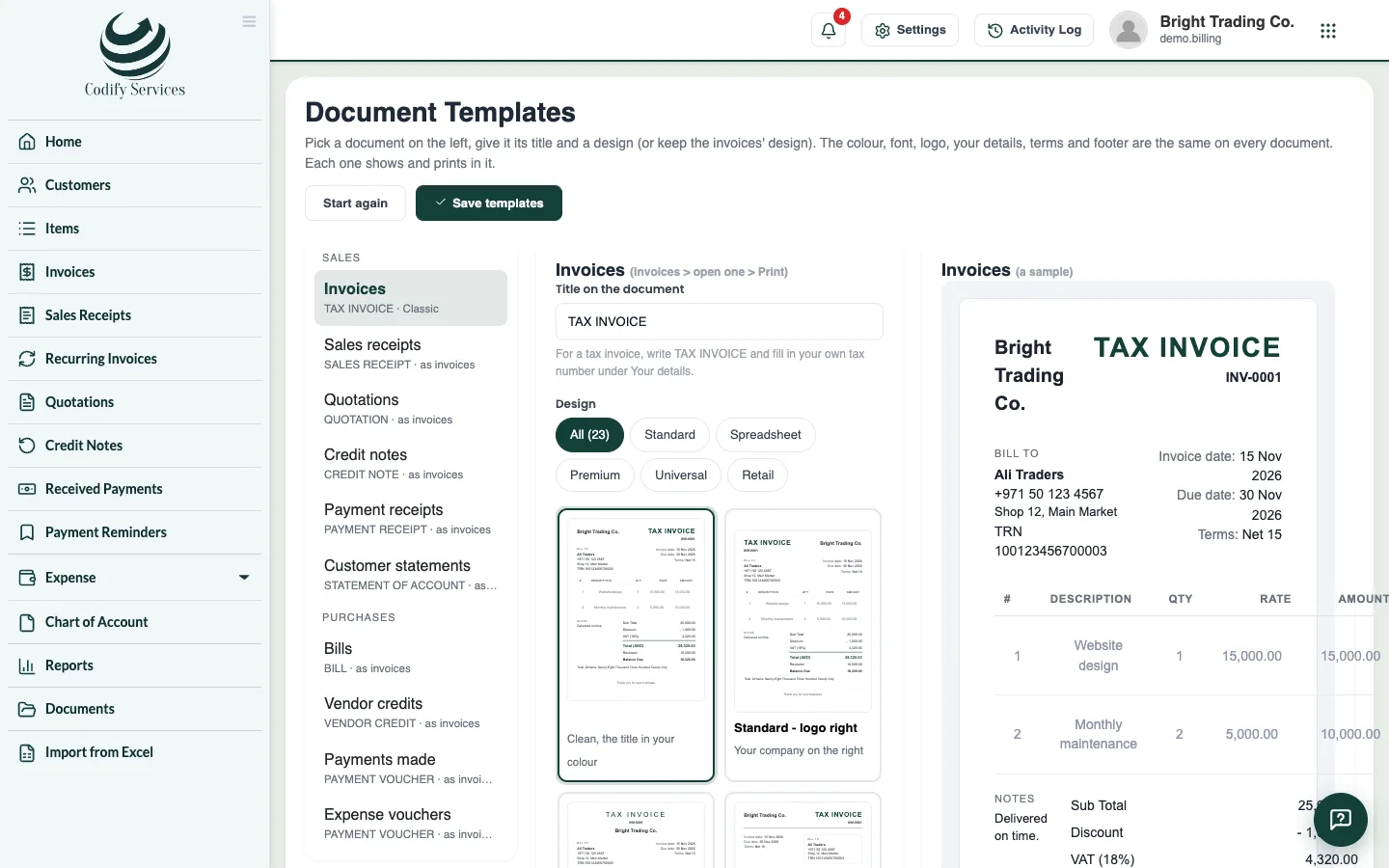
- Open the gear > Customization > Document Templates.
- Under Your details, enter Your tax number. It is printed under your name on every document.
- Check Customer's tax number is called, and for a tax invoice write TAX INVOICE under Title on the document.
- Press Save templates.
Good to know
- Each line has its own rate; the invoice shows the tax of each line. The rate stays editable on the line.
- A customer's or vendor's tax number is entered on the customer or vendor and printed under them.
- In India, items can have an HSN / SAC code, printed on GST tax invoices.
- In Saudi Arabia, tick ZATCA QR code on tax invoices, sales receipts and credit notes (fill in your VAT number first).
- The Tax Report gives the tax summary and your country's tax return. See Tax summary and your country's tax return.
Related
More in Getting started
Get started with Billing & InvoicingWhat Billing & Invoicing does, where to find each page, and the first steps - company profile, country, taxes, customers and items.Design your documents and set their numbersGive invoices, quotations, receipts and credit notes your design, logo, colour and terms, and set the number prefixes and payment terms.
Ready to try it? Open Billing & Invoicing