
Billing & Invoicing · Accounts and reports
Link Billing to your accounts
Choose the accounts invoices, payments, bills and expenses post into, switch on posting to Finance, and post older documents.
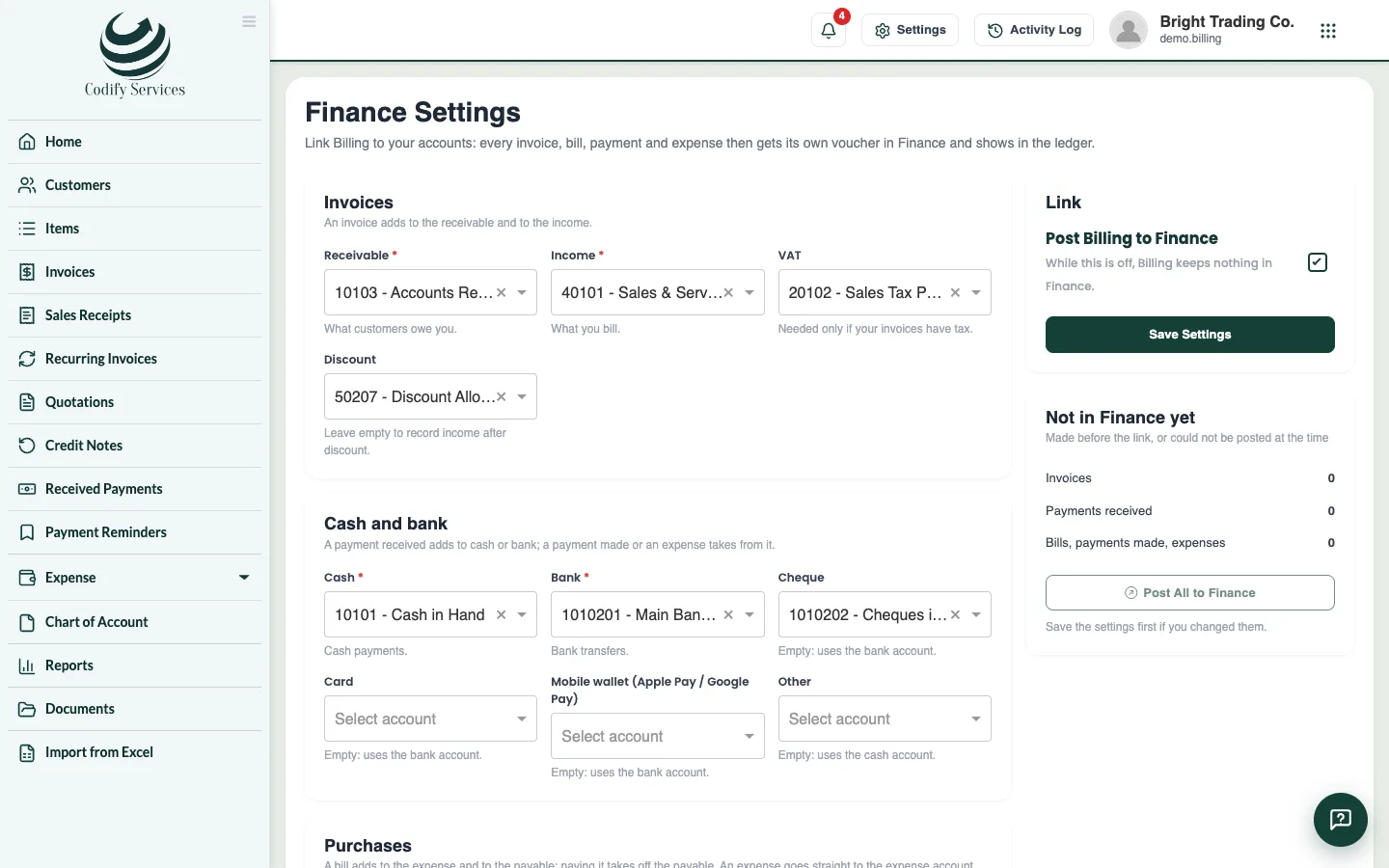
When Billing is linked to your accounts, every invoice, bill, payment and expense gets its own voucher in Finance and shows in the ledger and the financial reports.
Before you start
- You need a chart of accounts and an open fiscal year for today in Finance.
Steps
- Open the gear at the top right (All Settings) and choose Setup & Configurations > Billing Finance Settings.
- Under Invoices, choose the Receivable and Income accounts, and the tax and Discount accounts if you use them.
- Under Cash and bank, choose the Cash and Bank accounts (cheque, card and wallet use the bank account if left empty).
- Under Purchases, choose the Payable and Expense accounts.
- Tick Post Billing to Finance and press Save Settings.
- If documents were made before the link, press Post All to Finance under Not in Finance yet.
Good to know
- While posting is off, Billing keeps nothing in Finance.
- Each document shows its voucher: BLI (invoice), BLP (payment received), BLB (bill), BLV (payment made), BLE (expense).
- On the Billing site you also have the Chart of Account, the Journal Voucher (under Expense) and the ledgers and financial reports in Reports.
- This page needs its own permission (Billing Finance Settings).
Related
More in Accounts and reports
Billing reportsFind sales, receivables, payments, payables, purchases and expenses reports, plus profit and loss, balance sheet and the general ledger.Tax summary and your country's tax returnSee the tax charged on invoices and paid on bills for a period, and the boxes of your country's VAT, GST or sales tax return.
Ready to try it? Open Billing & Invoicing