
Billing & Invoicing · Getting started
Design your documents and set their numbers
Give invoices, quotations, receipts and credit notes your design, logo, colour and terms, and set the number prefixes and payment terms.
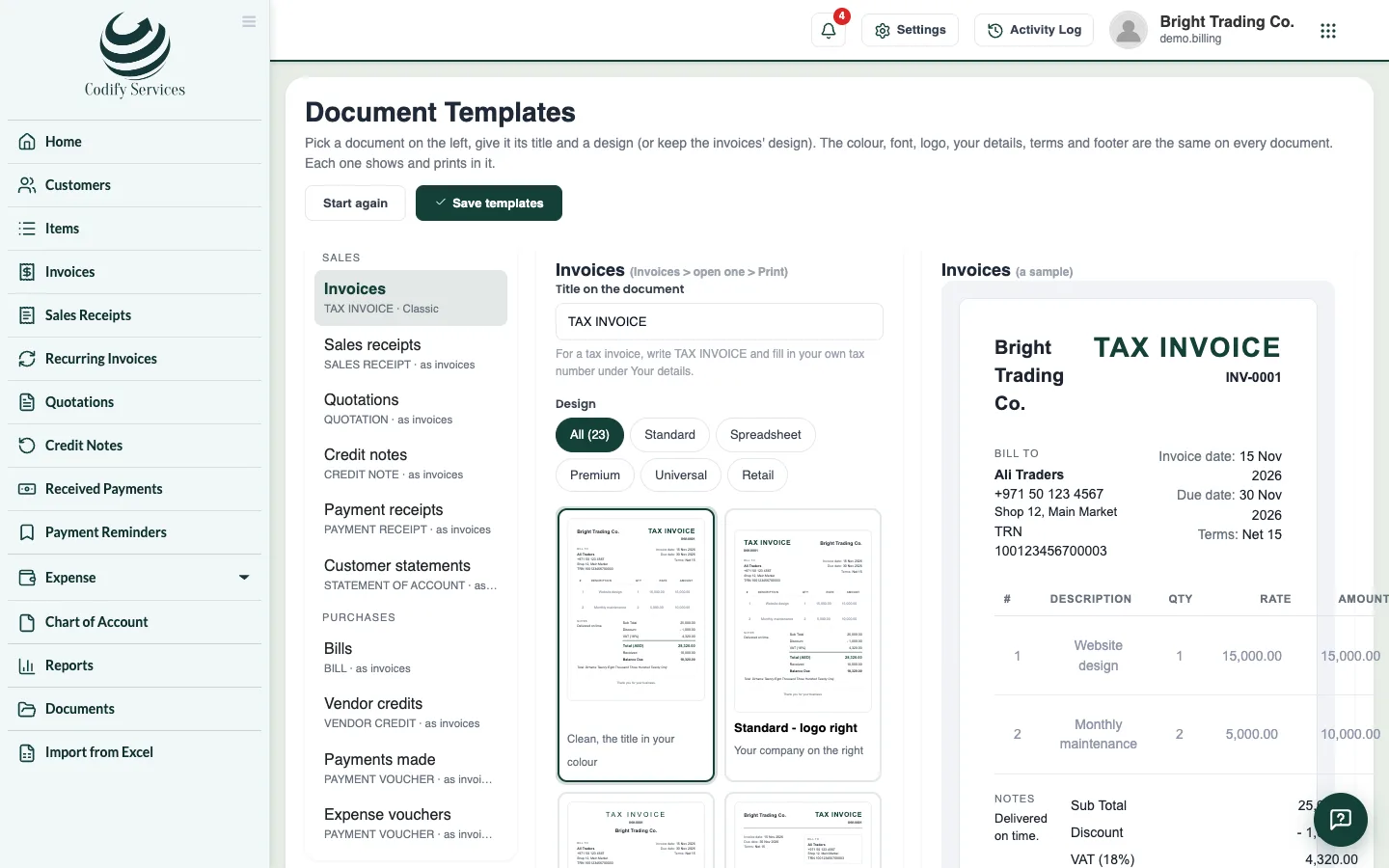
Every document (invoice, sales receipt, quotation, credit note, bill, statement, payment voucher) prints in your design. You also choose how their numbers start and your default payment terms.
Steps
The design
- Open the gear at the top right (All Settings) and choose Customization > Document Templates.
- Pick a document on the left.
- Enter its Title on the document and choose a Design, or keep Same as invoices.
- Under Colour and font, choose the Colour and the Font (Modern or Classic). They are the same on every document.
- Under Your details, check your company details and Your tax number, and tick Show the logo (the logo comes from Company Profile).
- Under What documents show, tick what to print: the contact, due date, paid and balance due, notes, a signature line, the total in words.
- Enter your Terms & conditions and Footer.
- Press Save templates.
Numbers and payment terms
- Under Numbers and payment terms, enter the text before each new document's number: Invoices, Sales receipts, Quotations, Credit notes, Vendor credits.
- Choose the Default payment terms and the Default customer notes.
- Press Save numbers and terms.
Good to know
- The numbers keep running when you change a prefix; documents already made keep theirs.
- A customer's own payment terms (on the customer) come before the default.
- Signature lines on vouchers prints names (for example "Prepared by, Approved by") on expense vouchers and payments made.
- Start again undoes the changes you have not saved.
Related
More in Getting started
Get started with Billing & InvoicingWhat Billing & Invoicing does, where to find each page, and the first steps - company profile, country, taxes, customers and items.Set up taxesSave your tax rates (VAT, GST, sales tax), pick them on invoice and bill lines, and print your own tax number on every document.
Ready to try it? Open Billing & Invoicing