
Billing & Invoicing · Sales
Create and send an invoice
Make an invoice with items, discounts, tax and payment terms, then print it, email it, send it on WhatsApp or save it as PDF.
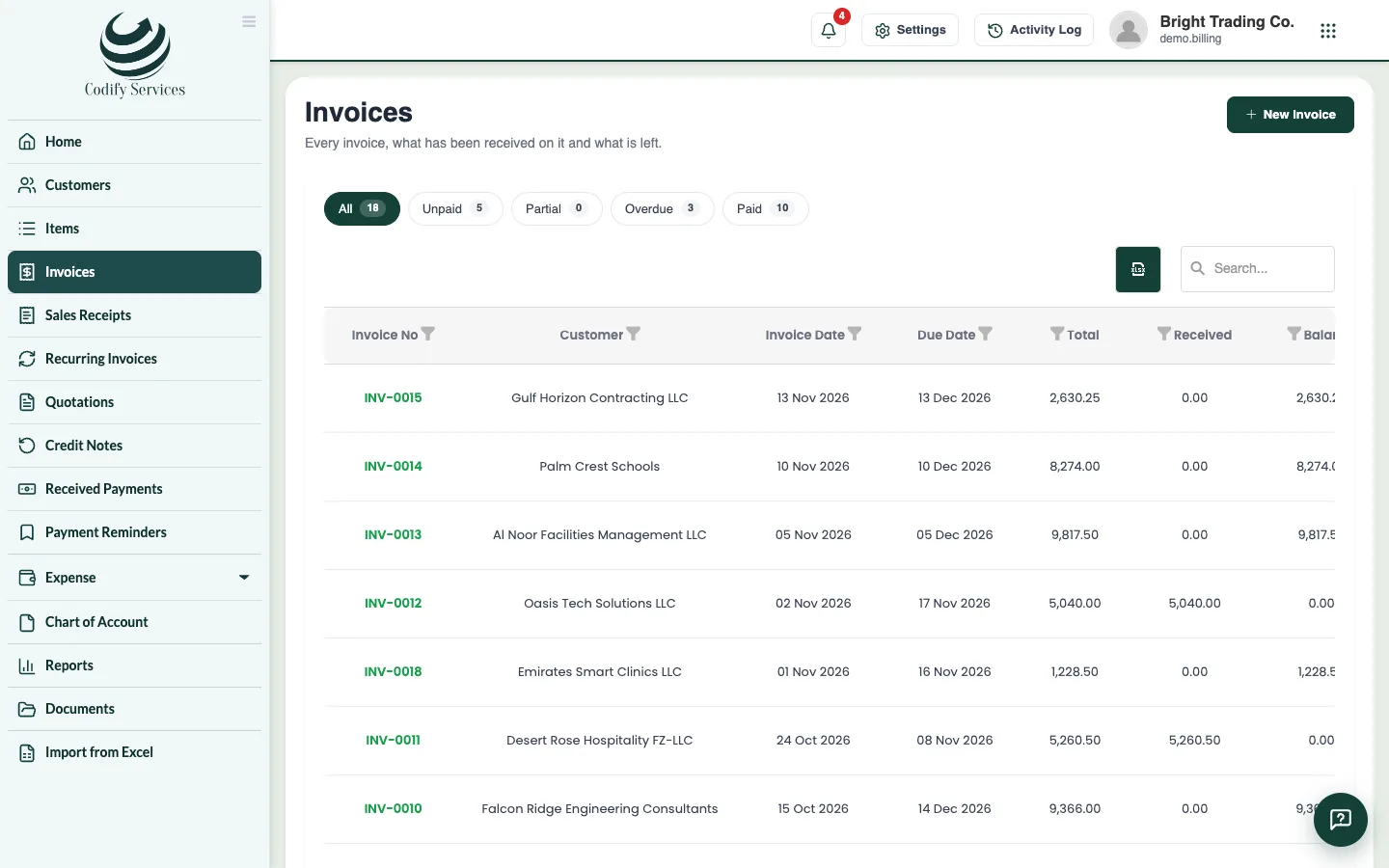
An invoice bills a customer for what you sold. It shows what has been received on it and what is left.
Before you start
- Add the customer and your items (you can also add them from the invoice).
Steps
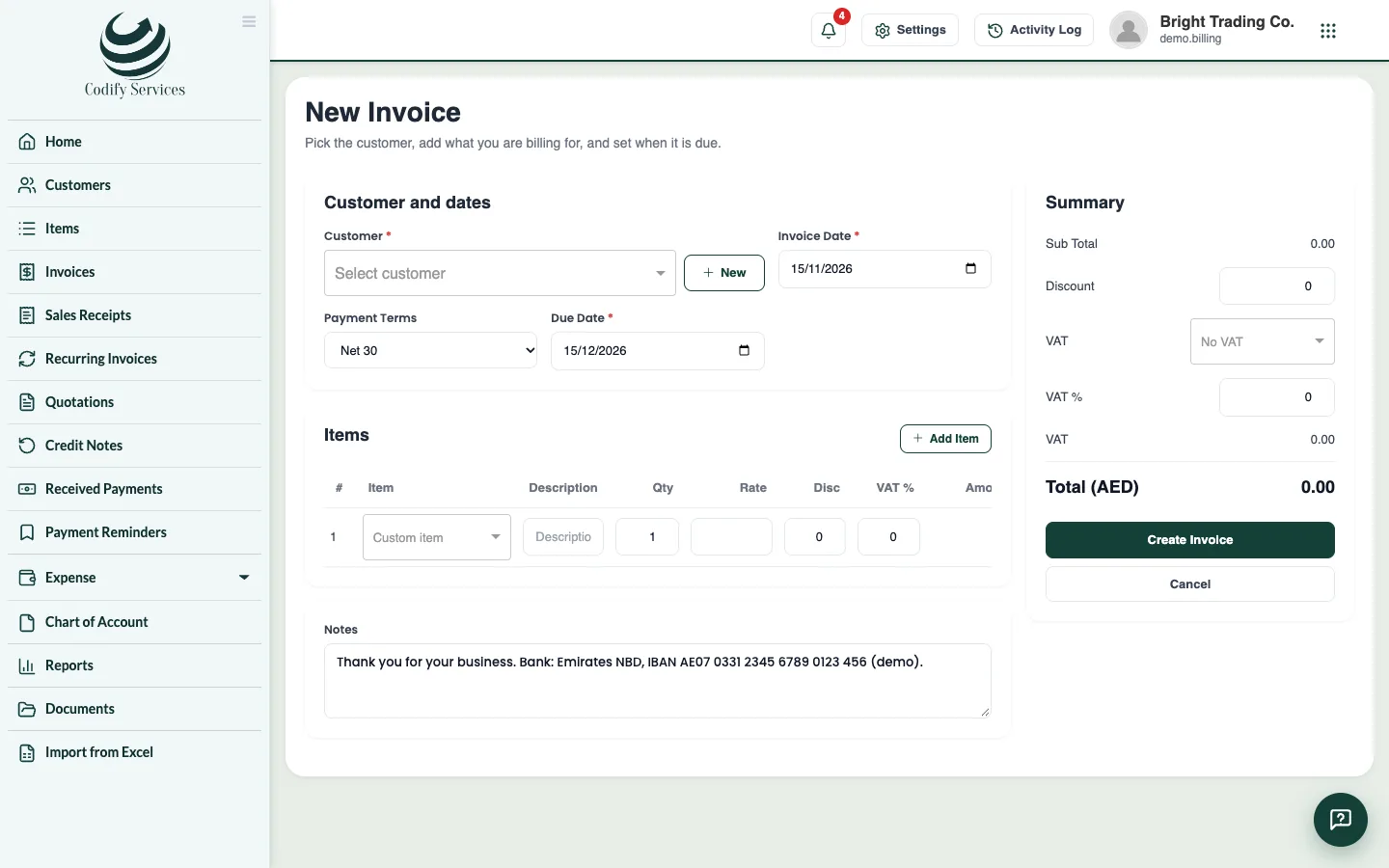
- Open Sidebar > Invoices and press New Invoice.
- Choose the Customer, or press New to add one.
- Check the Invoice Date. Choose the Payment Terms (for example Net 30); the Due Date is worked out.
- Press Add Item and fill each line: Item, Description, Qty, Rate, a line Disc and the tax %.
- Enter an extra Discount and Notes if you like. Check the Total.
- Press Create Invoice. The invoice opens.
- Press Print, or send it: Email (enter To, CC and a Message, then Send), WhatsApp (check the number, then Open WhatsApp), or Download PDF.
Good to know
- An invoice is Unpaid, Partial, Overdue or Paid. The list filters by status.
- Clone makes a new invoice copied from this one; Credit note starts a credit note with its items.
- The email goes in your invoice design from your sender email (set it in the gear > Integrations > Email). With WhatsApp you press Send in WhatsApp yourself; attach the PDF if needed.
- Each invoice shows when it was sent by email or WhatsApp.
- If Billing is linked to Finance, the invoice gets its own voucher (BLI-...).
Related
More in Sales
Credit notes and refundsRecord what you owe back to a customer (goods returned, a price cut, a mistake), apply it to their invoices or refund the money.Send a quotation and turn it into an invoiceMake a quotation (estimate) for a customer, send it, mark it accepted or declined, and turn an accepted one into an invoice in one click.Recurring invoicesBill the same customer every week, month, quarter or year by itself, with a template that turns into an invoice on each date.
Ready to try it? Open Billing & Invoicing