
Codify Store (POS) · Getting started
Set up tax or VAT
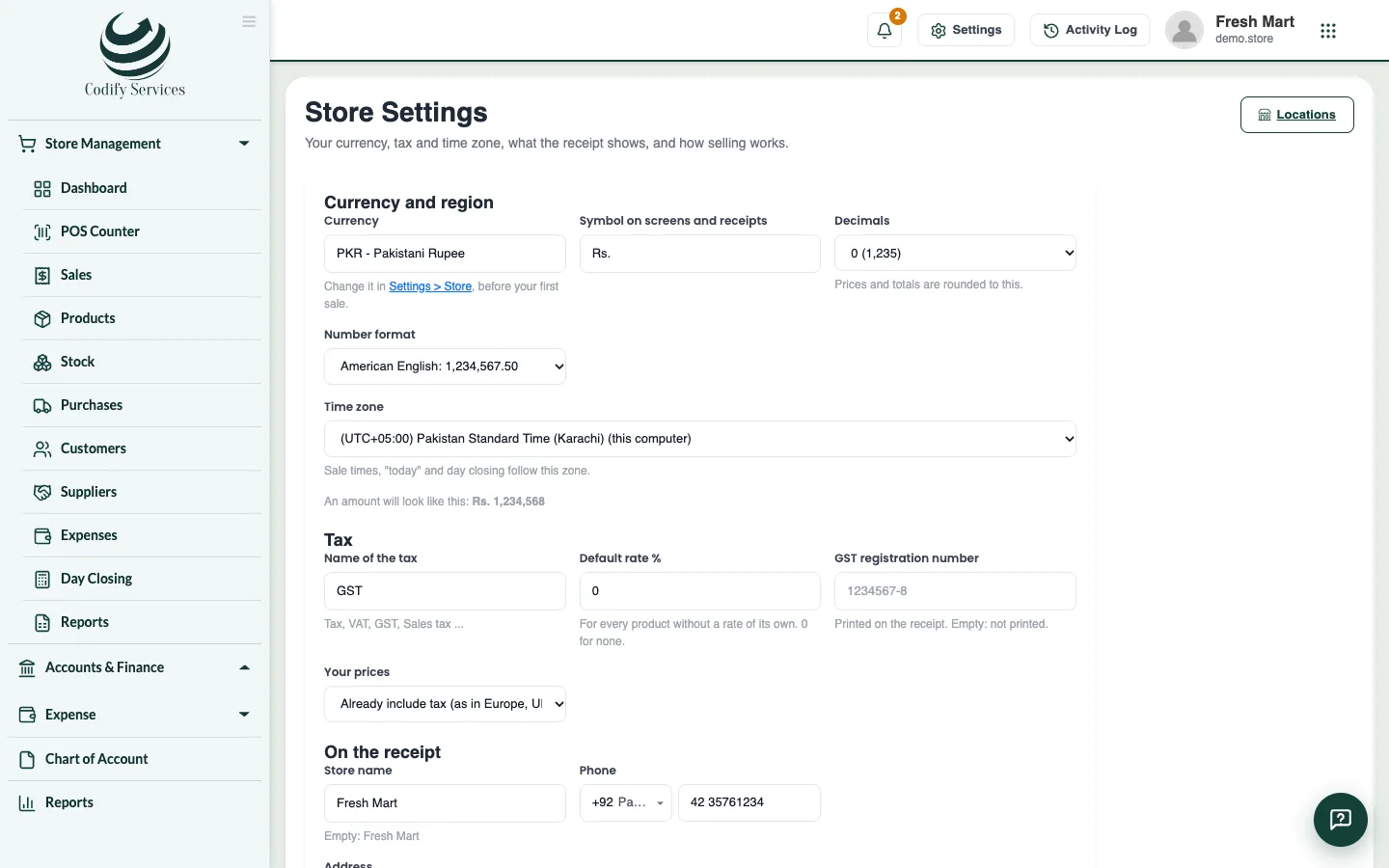
Name your tax (VAT, GST, sales tax), set the default rate, choose if prices include tax, give products their own rate and print your tax number.
Codify Store works with any sales tax: VAT, GST or sales tax. You give it a name and a default rate, and each product can have its own rate. The Tax report then gives you the figures for your tax return.
Steps
- Open Store Settings (the gear at the top right > Module Settings > Store > Store Settings).
- Under Tax, enter the Name of the tax (Tax, VAT, GST, Sales tax ...).
- Enter the Default rate % (0 for none). It is used for every product without a rate of its own.
- Enter your tax registration number. It is printed on the receipt (leave it empty to not print it).
- Under Your prices, choose Do not include tax (it is added at the counter) or Already include tax (as in Europe, UK, UAE).
- Press Save settings.
- For a product with a different rate, open it in Products and fill in its tax %. Empty uses the store's rate, 0 means no tax on it.
Good to know
- At the counter each product is taxed at its own rate, and the receipt shows the tax of each rate.
- Tax paid on purchases is claimed back from the tax you collect, so it is not part of the cost of your stock.
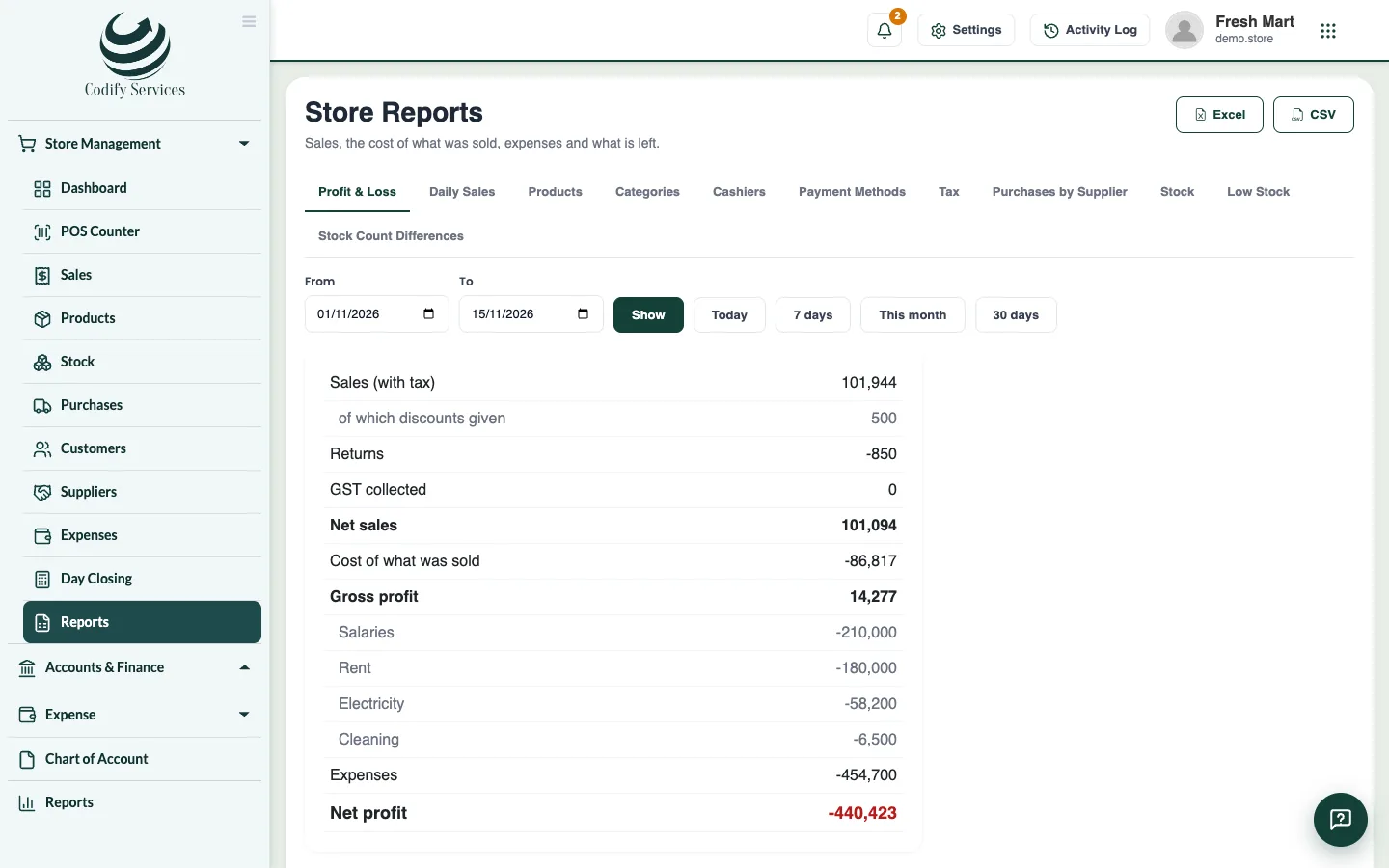
- Reports > Tax shows the tax collected on sales (returns taken off) less the tax paid on purchases, at each rate: what you pay or claim back.
- In Saudi Arabia, with a VAT number, the ZATCA QR code is printed on the receipt when QR code and barcode of the receipt number is ticked.
Related
More in Getting started
Ready to try it? Open Codify Store (POS)