
Codify Store (POS) · Buying and suppliers
Purchase orders and reorder
Order from suppliers, send the order, receive all or part of it into stock, and turn low-stock products into draft orders.
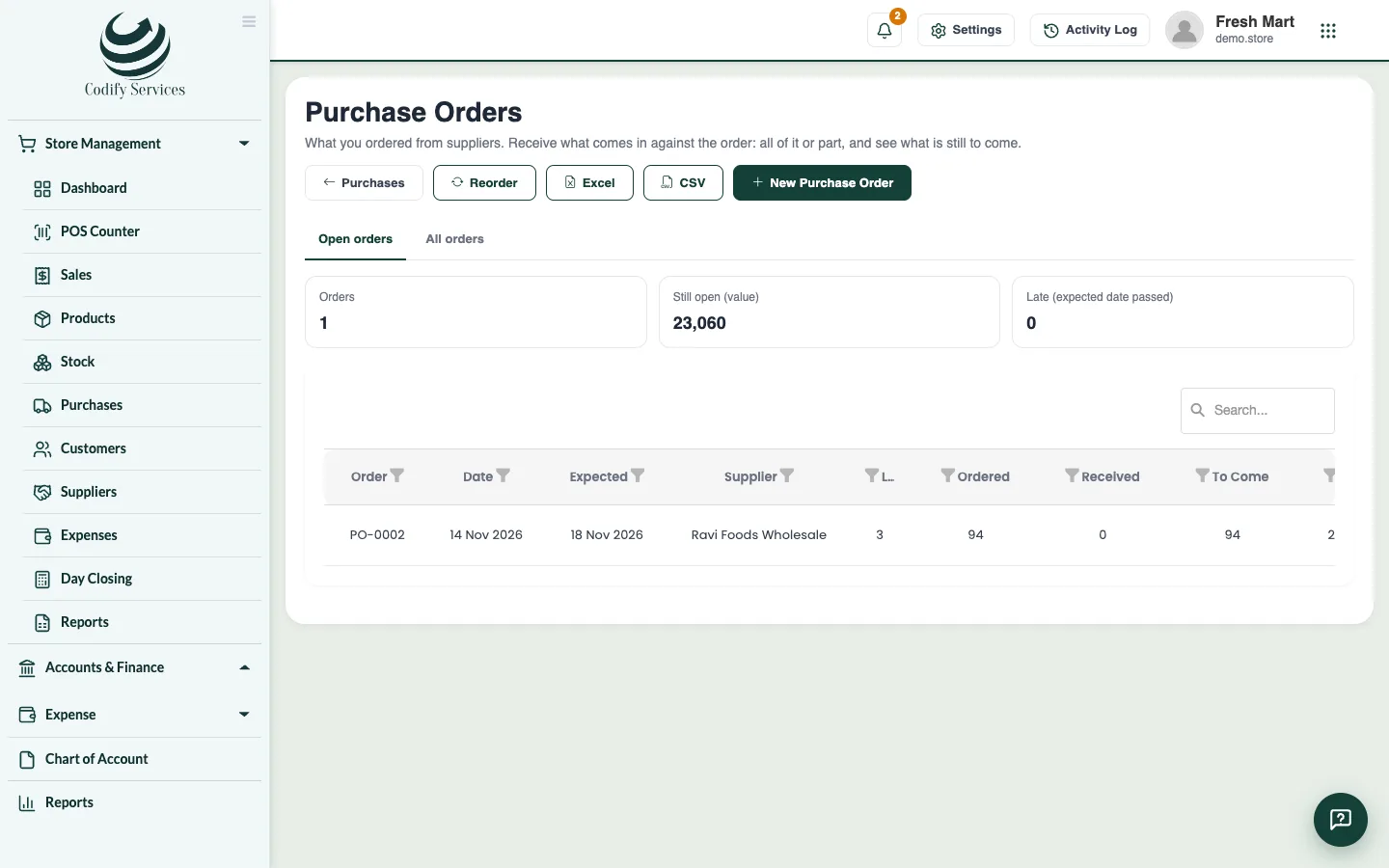
A purchase order is what you ordered from a supplier. Nothing comes into stock until you receive it; you can receive it all at once or in parts.
Steps
Make a purchase order
- Open Sidebar > Store Management > Purchases and press Purchase orders.
- Press New Purchase Order.
- Choose the Supplier, the Order date, the date Expected on and where to Deliver to.
- Add the products (scan or Add a line) with Qty, Unit cost and tax %.
- Add Notes for the supplier and press Save and mark as sent (or Save as draft).
- Open the order and press Print or Email supplier.
Receive the goods
- Open the order and press Receive goods.
- Enter the Date, the Supplier's bill no and where it Comes in at.
- Enter the quantity Received now of each product (or press All that is to come).
- Enter what is Paid now and press Receive into stock.
Order what is running low
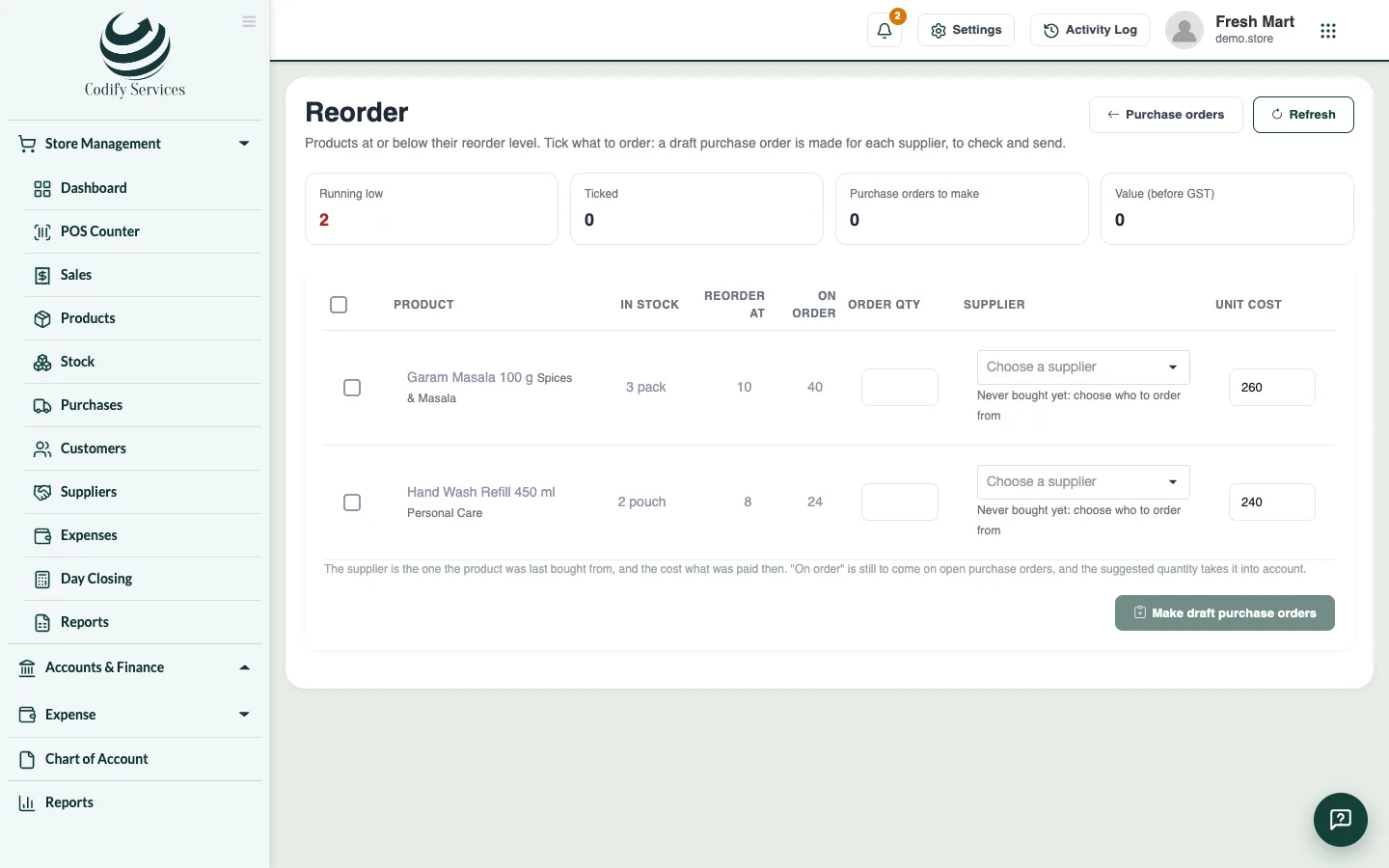
- Open Purchases > Reorder. It lists the products at or below their reorder level.
- Check the Order qty, Supplier and Unit cost, and tick what to order.
- Press Make draft purchase orders: one draft for each supplier, to check and send.
Good to know
- What is left after a part delivery stays on the order. Cancel the rest closes it; Cancel order cancels one with nothing received.
- Orders whose expected date has passed show as Late.
- In Reorder, the supplier is the one the product was last bought from, and "On order" (still to come on open orders) is taken into account.
Related
More in Buying and suppliers
Ready to try it? Open Codify Store (POS)