
Codify Store (POS) · Customers and promotions
Promotions, coupons and price lists
Run discounts, happy hours, buy X get Y and bundle deals, give coupon codes, and set wholesale or special prices for some customers.
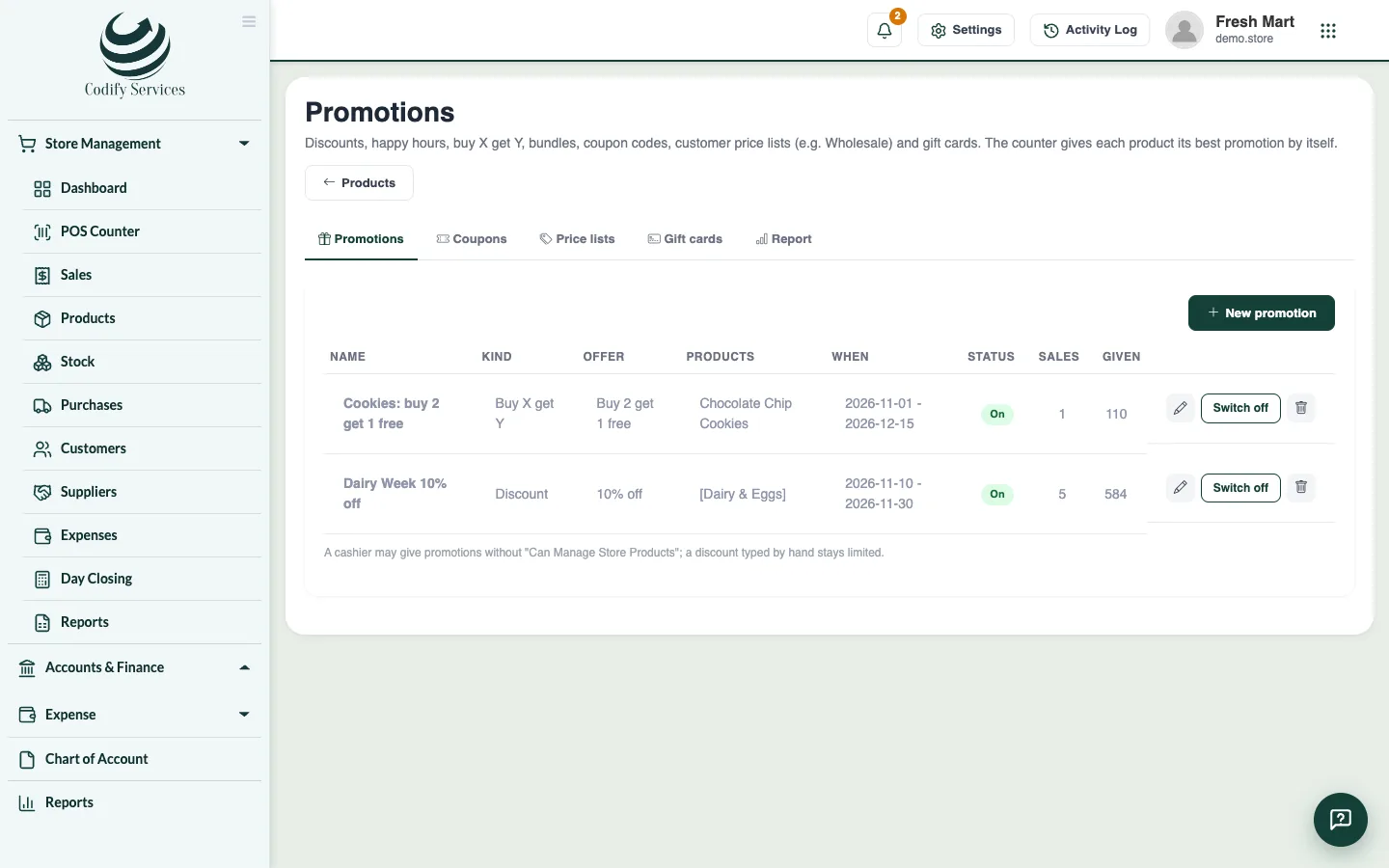
Promotions give discounts by themselves at the counter: the counter gives each product its best promotion. Coupons give a discount with a code, and price lists give some customers their own prices.
Steps
Make a promotion
- Open Sidebar > Store Management > Products and press Promotions.
- On the Promotions tab, press New promotion.
- Enter the Name and choose the Kind: Discount (% or amount off), Buy X get Y or Bundle / combo price.
- Enter the offer (for example 10 %, or Buy 2 Get 1 at 100 % off, or the Bundle price).
- Add the products or categories (none chosen: every product).
- Set the From date and To date, the Days and, for a happy hour, the From time and To time.
- Keep Switched on ticked and press Save.
Make a coupon
- On the Coupons tab, press New coupon.
- Enter the Code, the Discount (% or amount), and if you like the Most discount, Minimum bill, how many times it can be used and the dates.
- Tick Once per customer if each customer may use it once (the customer must be chosen at the POS).
- Press Save. At the POS, type the code and press Apply.
Make a price list
- On the Price lists tab, press New price list (for example "Wholesale").
- Enter Other products: % off the sale price (optional) and add products with This list's price.
- Press Save, then give customers the list under Customers with a price list.
Good to know
- A cashier may give promotions without Can Manage Store Products; a discount typed by hand stays limited.
- Switch off stops a promotion or coupon without deleting it.
- The Report tab shows how many sales used each promotion, coupon or price list and the discount given.
Related
More in Customers and promotions
Ready to try it? Open Codify Store (POS)