
Codify Store (POS) · Selling at the counter
Print or send receipts
Print receipts on 58 mm or 80 mm printers or as an A4 invoice, with your logo and QR code, a gift receipt, or send them by email or WhatsApp.
After each sale you can print the receipt, or send it to the customer. You choose the size, the language and what is printed on it.
Steps
Set up the receipt
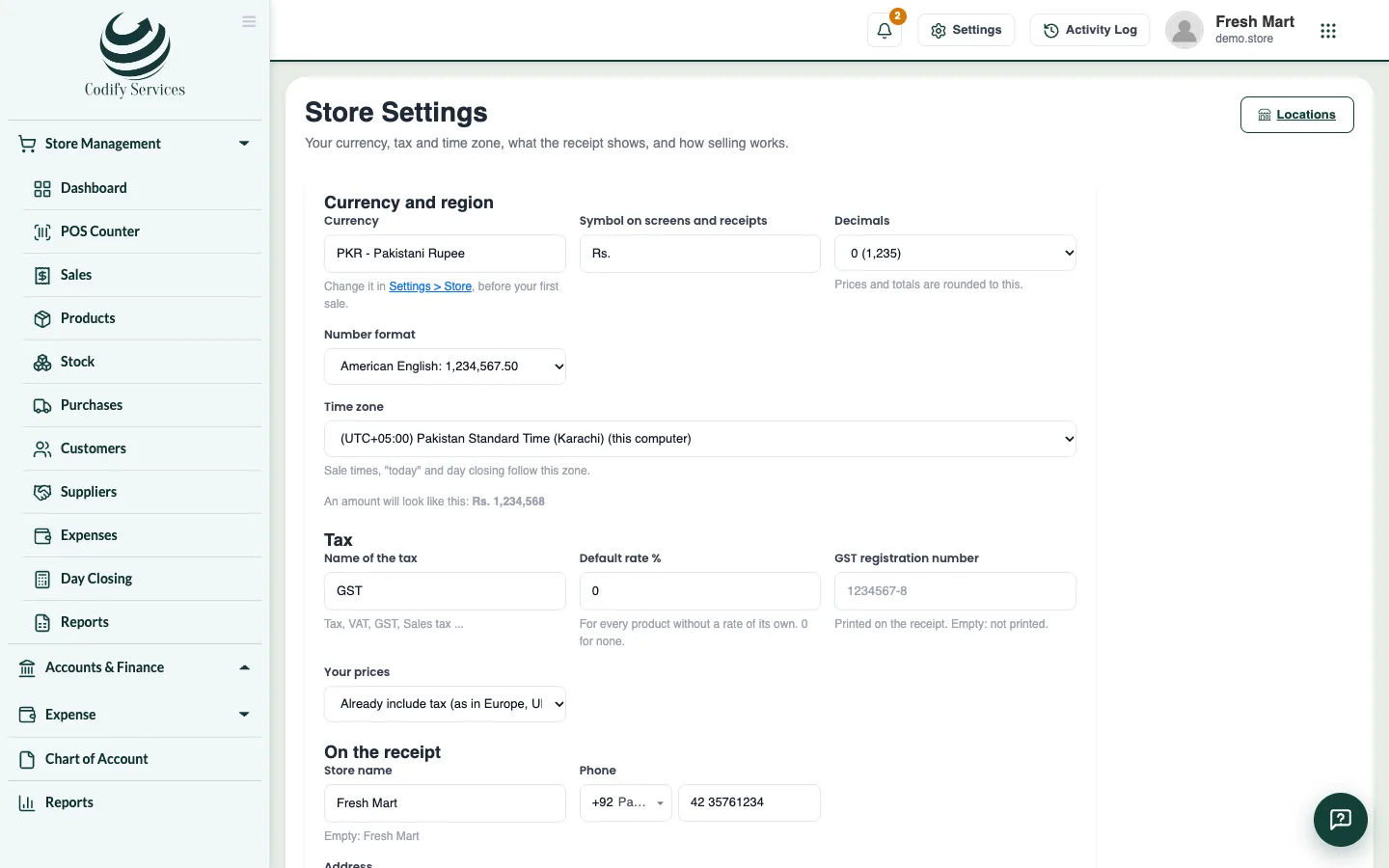
- Open Store Settings.
- Choose Print receipts as: Receipt printer (thermal) or A4 invoice, and the Receipt printer size (80 mm or 58 mm).
- Choose the Receipt language. Urdu and Arabic print right to left.
- Tick Company logo on the receipt (from Company Profile) and QR code and barcode of the receipt number.
- Enter the Terms on the A4 invoice and the Line at the bottom of the receipt.
- Press Save settings.
Print or send a receipt
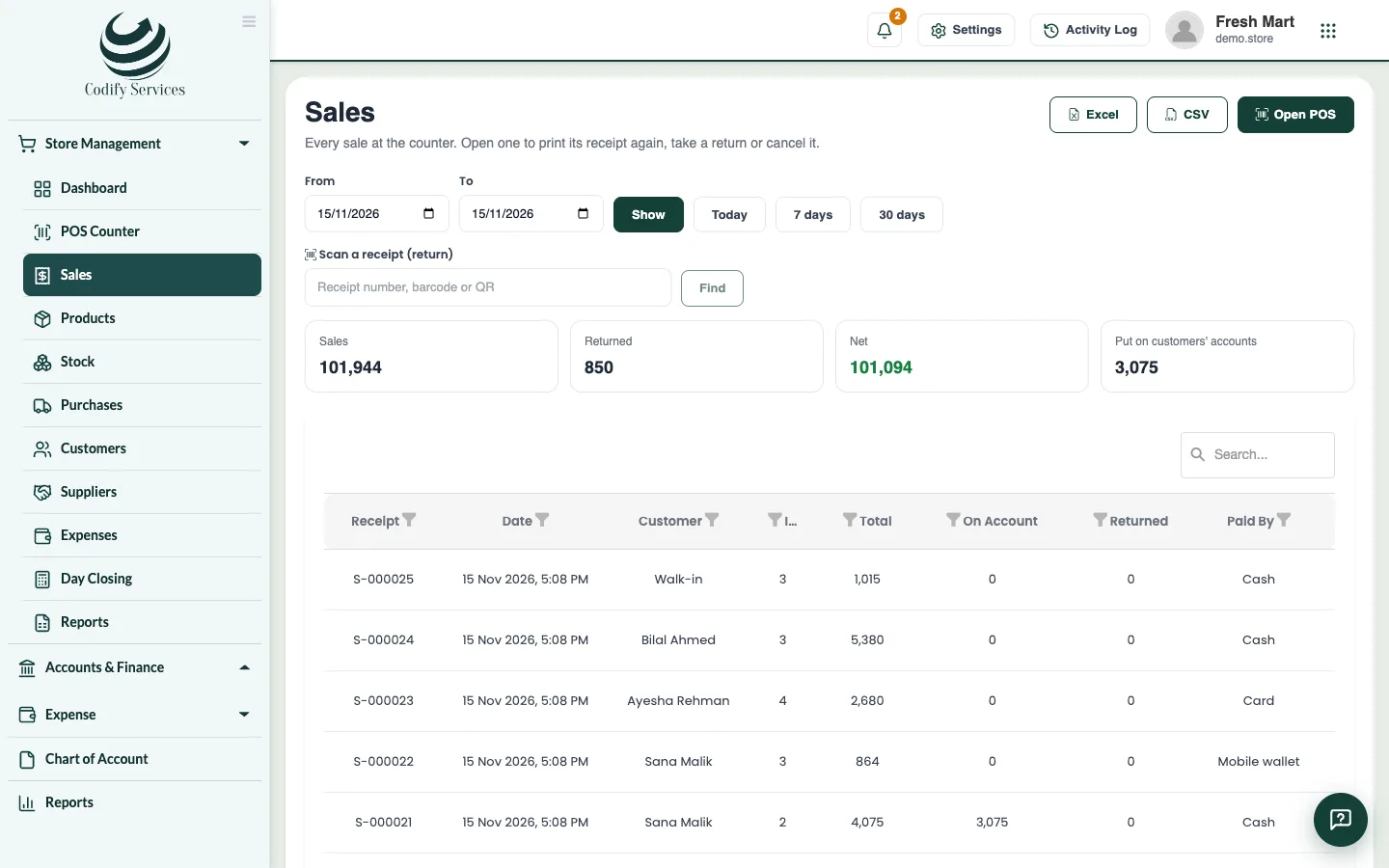
- After a sale, use the buttons under the last sale; or open Sidebar > Store Management > Sales and open the sale.
- Choose 58 mm, 80 mm, A4 invoice or Gift receipt (without prices).
- Press Print, or Email / WhatsApp, enter the address or number and press Send email / Send on WhatsApp.
Good to know
- Allow pop-ups for the site so the print window can open.
- The receipt's barcode / QR can be scanned on the Sales page (Scan a receipt (return)) to find the sale for a return.
- In Saudi Arabia, with a VAT number, the ZATCA QR code is printed too.
- To send receipts through WhatsApp Business, enter an approved template in WhatsApp Business template for receipts. Empty: WhatsApp opens with the receipt as text.
- Each sale lists when and how its receipt was sent.
Related
More in Selling at the counter
Sell at the POS counterScan or search products, change quantities and discounts, choose a customer, put a sale on hold and recall it, with keyboard shortcuts.Take payment by cash, card, split, credit or gift cardTake cash with change, card, bank transfer or mobile wallet, split one sale over several ways, put the rest on the customer's account.Open and close the register (day closing)Open your register with the cash in the drawer, record cash in and out, print an X report, and count the cash at day closing.Take a return or cancel a saleTake back items from a sale and give the money back in cash, card, wallet or to the customer's account, or cancel a sale made by mistake.
Ready to try it? Open Codify Store (POS)