
Codify Store (POS) · Products and stock
More shops and warehouses, and stock transfers
Add a second shop or warehouse, sell and count stock by location, and send stock from one location to another.
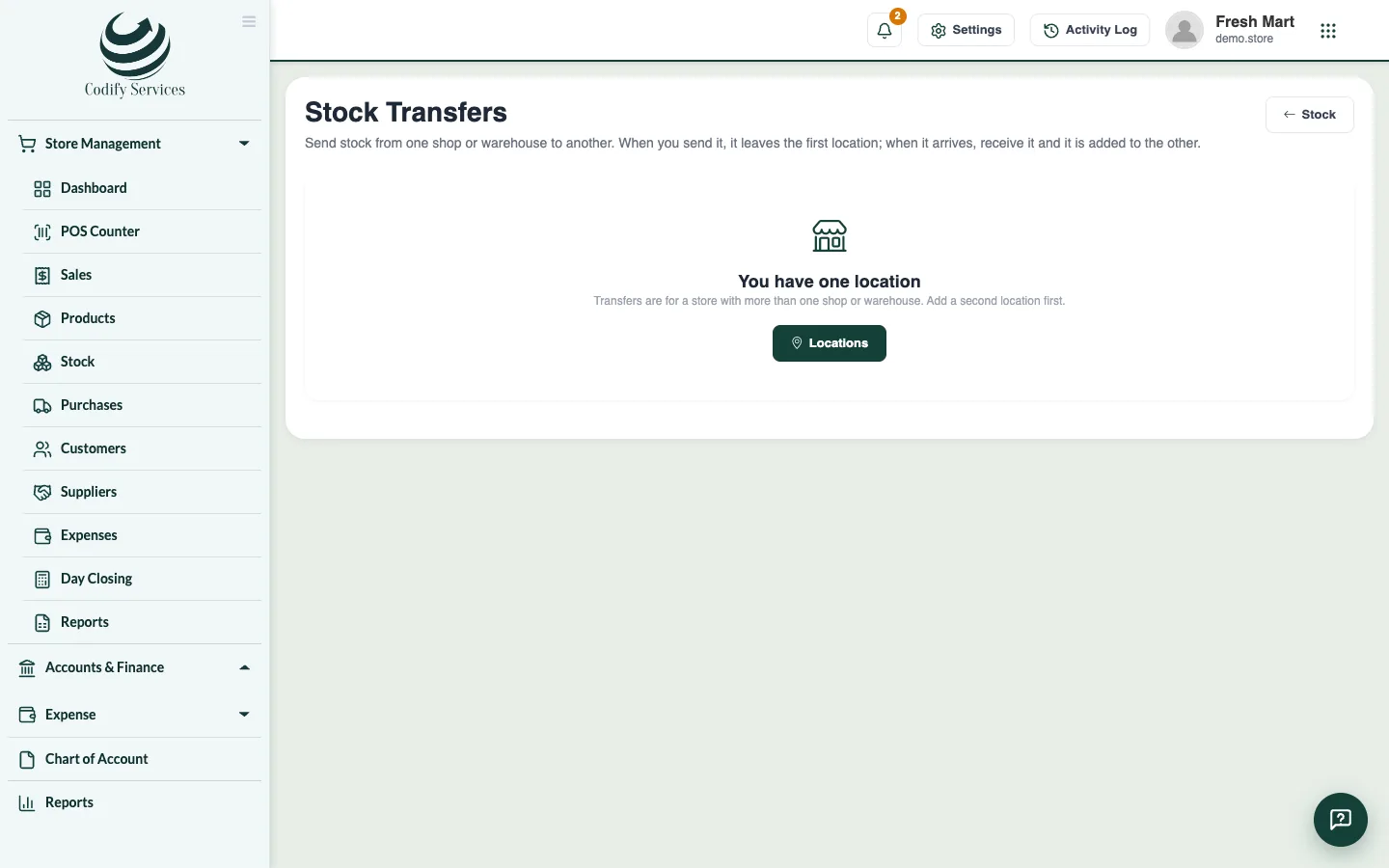
With one location nothing changes. Add a second shop or warehouse and you choose the location when you sell, buy, count stock and see reports, and you can send stock from one to another.
Steps
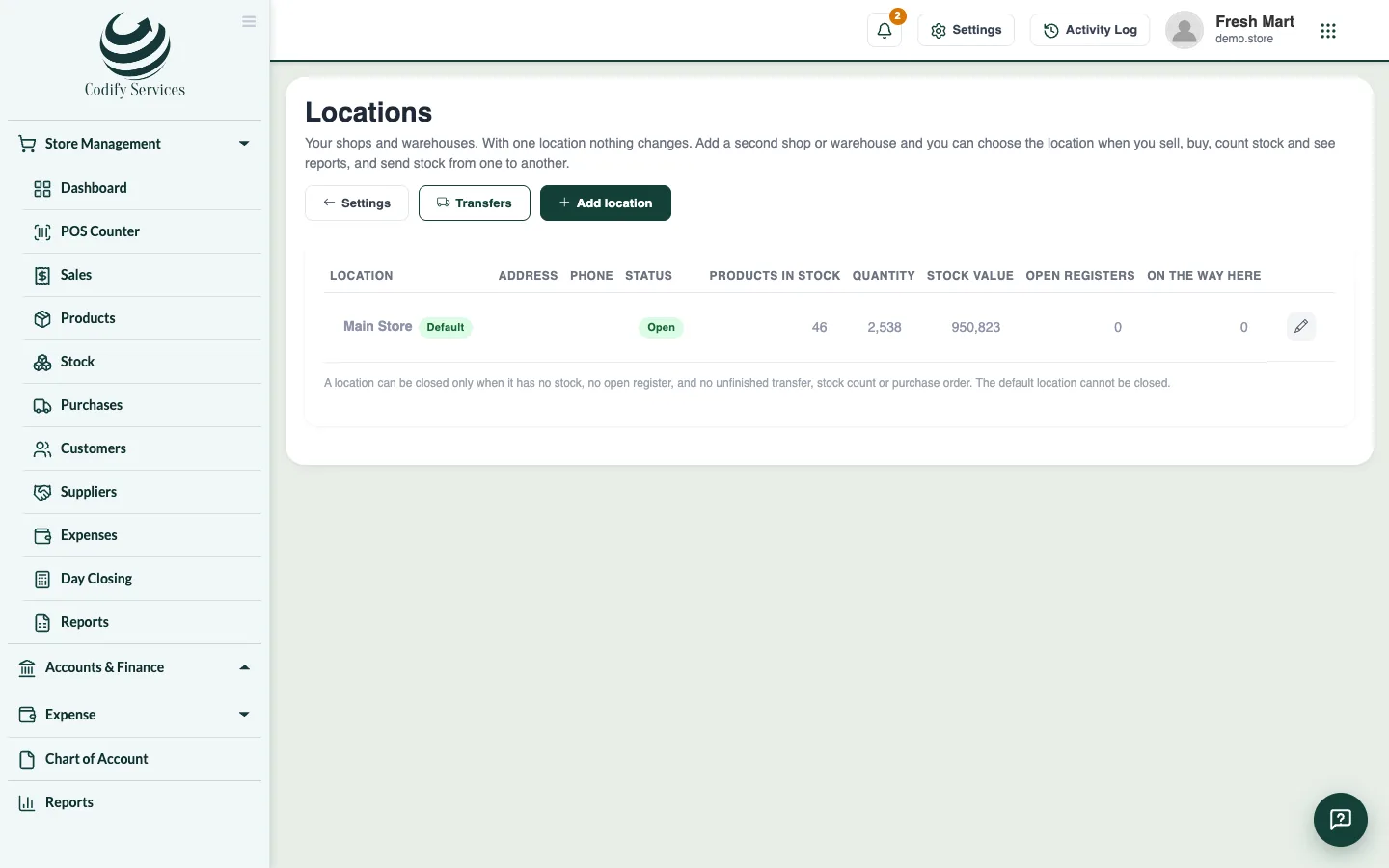
Add a location
- Open Store Settings and press Locations.
- Press Add location.
- Enter the Name, Address and Phone and press Save.
Send stock to another location
- Open Sidebar > Store Management > Stock and press Transfers.
- Press New transfer.
- Choose From and To.
- Add each product (search or scan) and enter the Quantity to send.
- Press Save and send (or Save draft to send it later). The stock leaves the first location.
Receive it
- At the other location, open the transfer (it shows In transit).
- Press Receive, check the quantities that came in and press Save what came in. The stock is added there.
Good to know
- Anything less than was sent is counted as lost on the way.
- On Locations, Make default chooses the main location. A location can be closed only when it has no stock, no open register, and no unfinished transfer, stock count or purchase order. The default location cannot be closed.
- Each register opens at a location, and the POS sells from it.
- Reports > Locations shows the sales, profit and stock value of each location.
- Locations need Can Manage Store Settings.
Related
More in Products and stock
Track serial numbers and IMEIFor mobiles and electronics - scan one serial number per unit when you buy and sell, find any serial's history and check the shelf.Add products and categoriesAdd what you sell with its barcode, cost and sale price, tax, reorder level and opening stock, and group products in categories.Make barcodes and print labelsGive products without a barcode one of their own and print barcode labels with the price on an A4 sheet or a label printer.Sell a product in sizes and coloursMake one product with variants (size, colour, material), each with its own barcode, price and stock, and pick the variant at the counter.Import products and customers from ExcelAdd many products or customers at once from an Excel or CSV file. Every line is checked and shown before anything is saved.See your stock and adjust itSee how much of each product you have and what it is worth, correct the stock with a reason, and check every movement in and out.
Ready to try it? Open Codify Store (POS)