
Codify Store (POS) · Products and stock
Make barcodes and print labels
Give products without a barcode one of their own and print barcode labels with the price on an A4 sheet or a label printer.
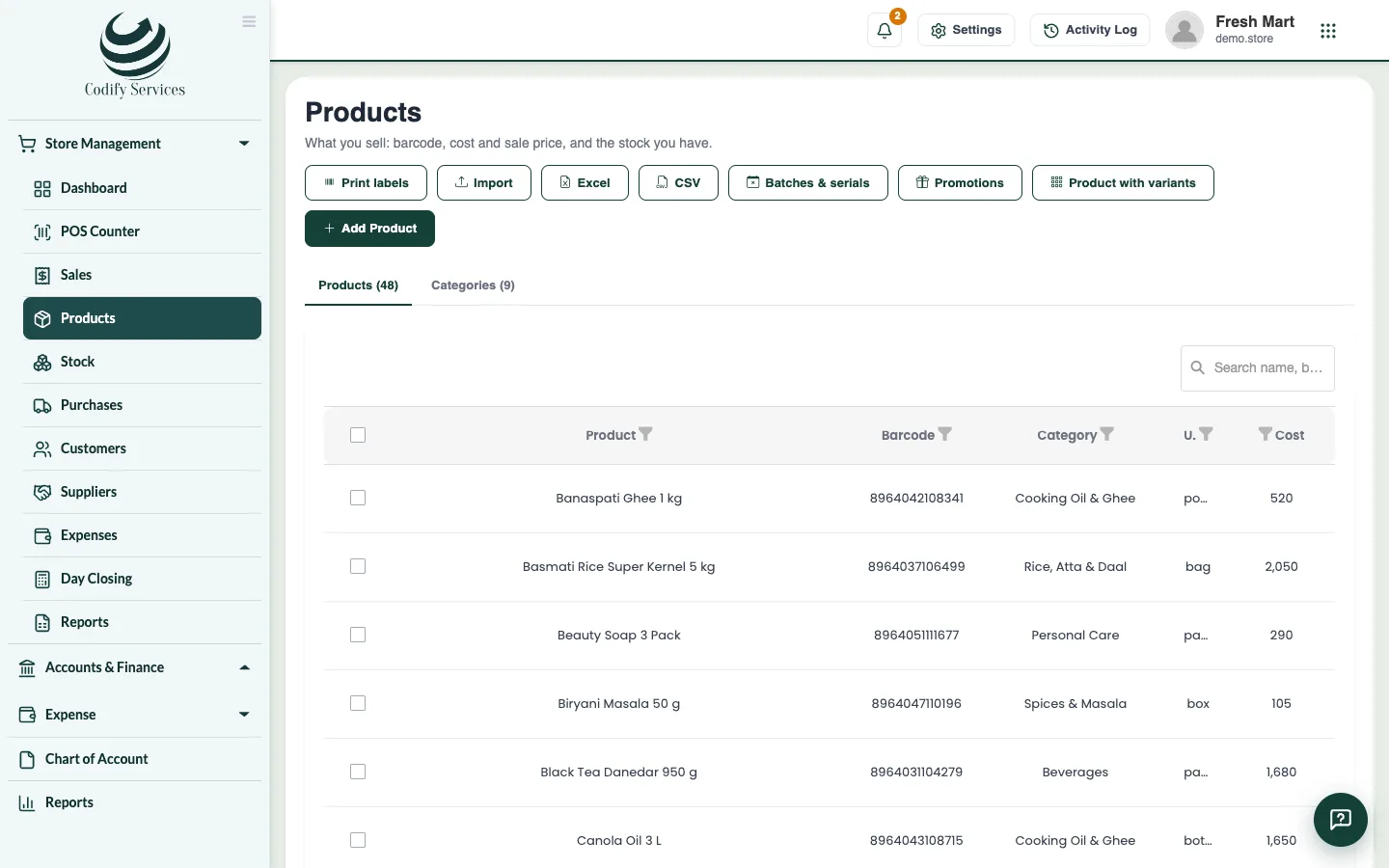
Every product sold at the counter is best scanned. If a product has no barcode, the store makes one, and you can print labels with the name, barcode and price.
Steps
Make a barcode
- Open Sidebar > Store Management > Products and edit the product (or press Add Product).
- Next to Barcode, press Make one.
- Press Save Changes.
Print labels
- On Products, tick the products you want labels for.
- Press Print labels.
- Choose the Label size: A4 sheet, 3 x 8 labels (70 x 37 mm) or Label printer, 50 x 25 mm.
- Set how many Labels of each product, or tick One label for each item in stock.
- Press Print ... labels.
Good to know
- A 13-digit EAN barcode prints as EAN-13; any other code as Code 128.
- Print at 100% (no "fit to page"), or the barcodes may not scan.
- A product without a barcode gets a label without one.
Related
More in Products and stock
Track serial numbers and IMEIFor mobiles and electronics - scan one serial number per unit when you buy and sell, find any serial's history and check the shelf.More shops and warehouses, and stock transfersAdd a second shop or warehouse, sell and count stock by location, and send stock from one location to another.Add products and categoriesAdd what you sell with its barcode, cost and sale price, tax, reorder level and opening stock, and group products in categories.Sell a product in sizes and coloursMake one product with variants (size, colour, material), each with its own barcode, price and stock, and pick the variant at the counter.Import products and customers from ExcelAdd many products or customers at once from an Excel or CSV file. Every line is checked and shown before anything is saved.See your stock and adjust itSee how much of each product you have and what it is worth, correct the stock with a reason, and check every movement in and out.
Ready to try it? Open Codify Store (POS)