
Getting started · Account and sign-in
Sign up and start your free trial
Create your Codify account on the sign-up page, choose a package and add-ons, and start using the software straight away.
Every Codify product has its own sign-up page, for example erp.codifyservices.com/#/signup for the Housing Society ERP or store.codifyservices.com/#/signup for Codify Store. You choose a package, add any extra modules, enter your details and your account is ready in a minute.
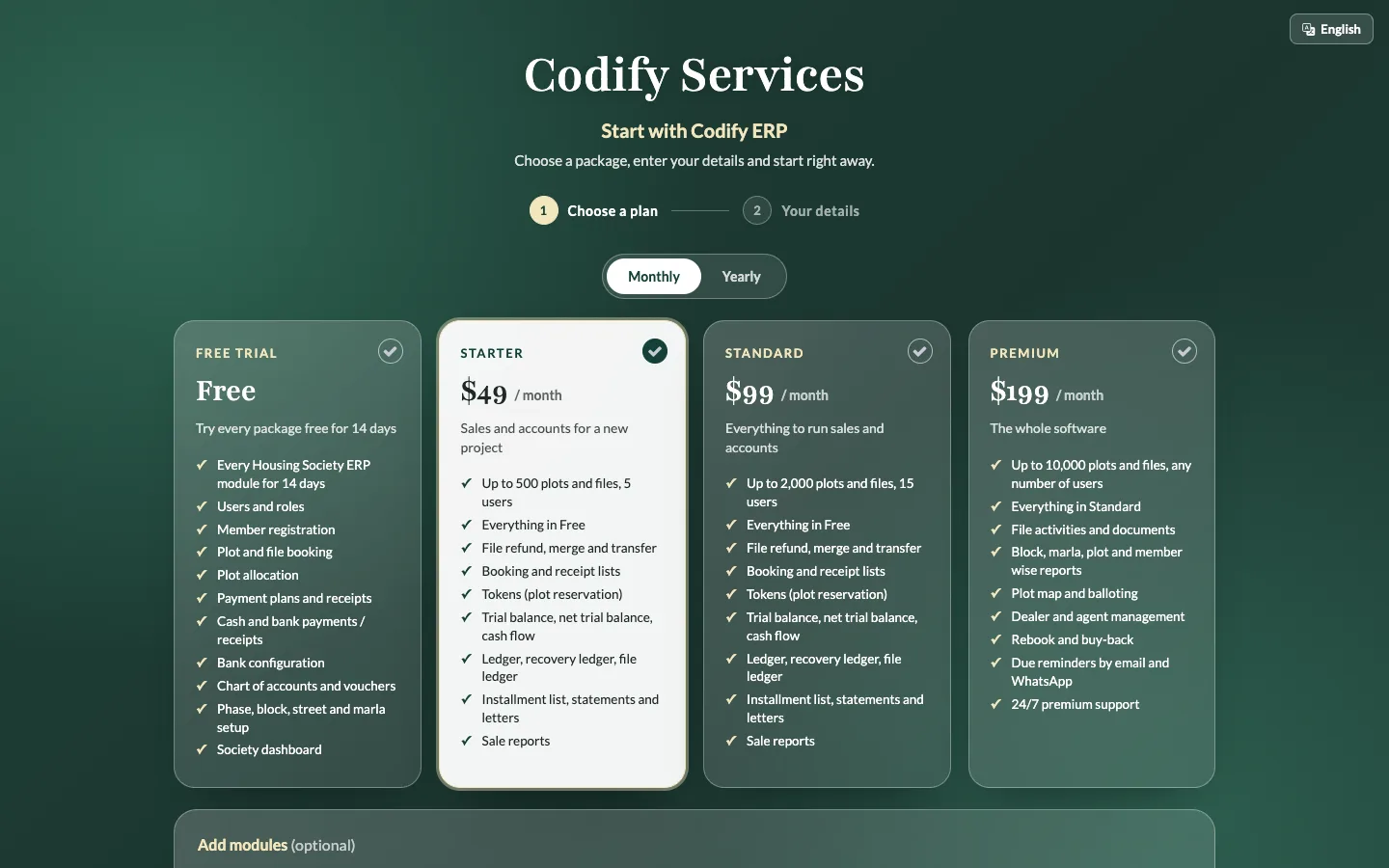
Steps
- Open the sign-up page of your product (the website's pricing page links to it), or press Sign up on the login page.
- Choose Monthly or Yearly at the top.
- Pick a package. The free trial package lets you try the software before you pay.
- Under Add modules, tick any add-on you want (for example Billing & Invoicing or HR). Press Read more to see what an add-on includes.
- Press Continue.
- Fill in Your details: your society or business name, address, Country, Currency and Language.
- Enter Your name, Email and Mobile (WhatsApp). Choose your country code first, then type the number.
- Choose a User name for login (4 to 50 letters or digits, no spaces) and a Password (at least 8 characters), and type the password again.
- Tick the box to agree to the terms of service.
- Press Create my account.
Good to know
- The free trial starts at once. During the trial every module of your product is open, so you can try everything.
- If you chose a paid package, your account is made but shows "Awaiting payment". Log in and the Subscription page opens, where you pay. The rest of the software opens once the payment is confirmed.
- Your login details are also emailed to you. Keep your user name and password safe.
- The Language you choose is used for all your users. You can change it later in Settings.
- Choose the currency carefully: once you have entries, it cannot be changed (amounts are never converted).
- To see packages and prices, visit https://codifyservices.com/pricing/.
Related
More in Account and sign-in
Log in to CodifyHow to log in with your user name and password, choose your society or company, and sign out again.Reset a forgotten password or usernameGet a verification code by email to set a new password, or find the user names linked to your email.Change your own password, email and photoUse My Account to change your user name, email, profile photo and password.