
Getting started · The basics
Find your way around the software
A quick tour of the sidebar, the top menu, Settings, the Activity Log, notifications, your profile panel and the help chat.
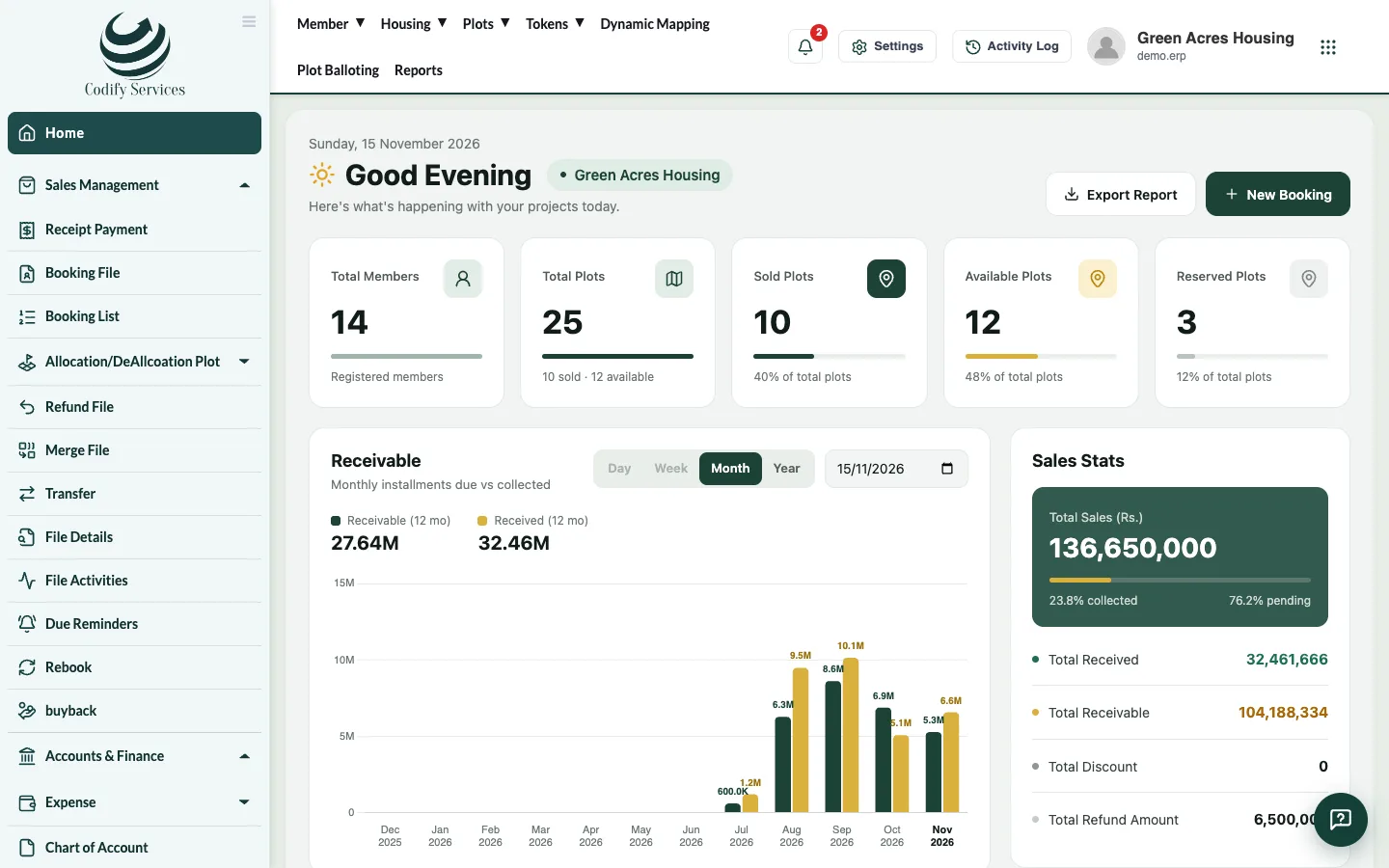
The software has the same layout in every Codify product. The sidebar on the left holds your daily work, the bar at the top holds menus, settings and your account. You only see the pages your role allows.
The sidebar (left)
- Your main work, grouped in sections. In the Housing Society ERP these are, for example, Sales Management, Accounts & Finance, Land Management, Dealer Management and App Announcements.
- Click a section heading to open or close its pages.
- The three-line button at the top of the sidebar makes it narrow (icons only) or wide again. On a phone, the button in the top bar opens the sidebar.
The top menu
- In the Housing Society ERP the top bar has Member, Housing, Plots, Tokens, Dynamic Mapping, Plot Balloting and Reports. On a small screen they are under Menu.
- Reports opens the Reports window with every report in groups.
The right side of the top bar
- Bell: notifications, things that need your attention now. Click one to open it.
- Settings (gear): the All Settings page, every setting of the software in one place.
- Activity Log: who did what and when (only for roles that may see it).
- Your picture and name: opens your profile panel with My Account, Sign Out, Subscription, Data Backup, Settings, help links and ways to contact Codify.
- Nine dots: switch between the Codify products you use.
Help chat
- Press Chat with the help assistant (or Help Guide) in your profile panel to ask how to do anything. You can write in English, Urdu or Roman Urdu.
- Modules in the chat lists every part of the guide.
Good to know
- A page you can't see in the menu is not given to your role, or is not in your package. Ask your administrator to check your role in Settings > Users & Roles > Role Claims.
- A coloured strip at the top of the page shows notices from Codify and reminders about your subscription.
Related
More in The basics
Give members access to the mobile appMembers of a housing society can see their files, installments and receipts in the mobile app. Make their app password and send it by WhatsApp.Use the All Settings pageEvery setting of the software in one place - company profile, users and roles, fiscal year, accounts set-up, integrations and module settings.Open and print reportsUse the Reports window to find any report, run it for your dates, then print it or export it to Excel.Every report in the Reports windowThe full list of reports in the Reports window, grouped as Finance, Billing, Sales and Members, Property and Inventory, and Charges and Notices.Set your company name, logo, currency, language and time zoneChange your society or company name, address, logo, country, currency, language and time zone in Settings.