
Getting started · Users and permissions
Create roles and choose their permissions
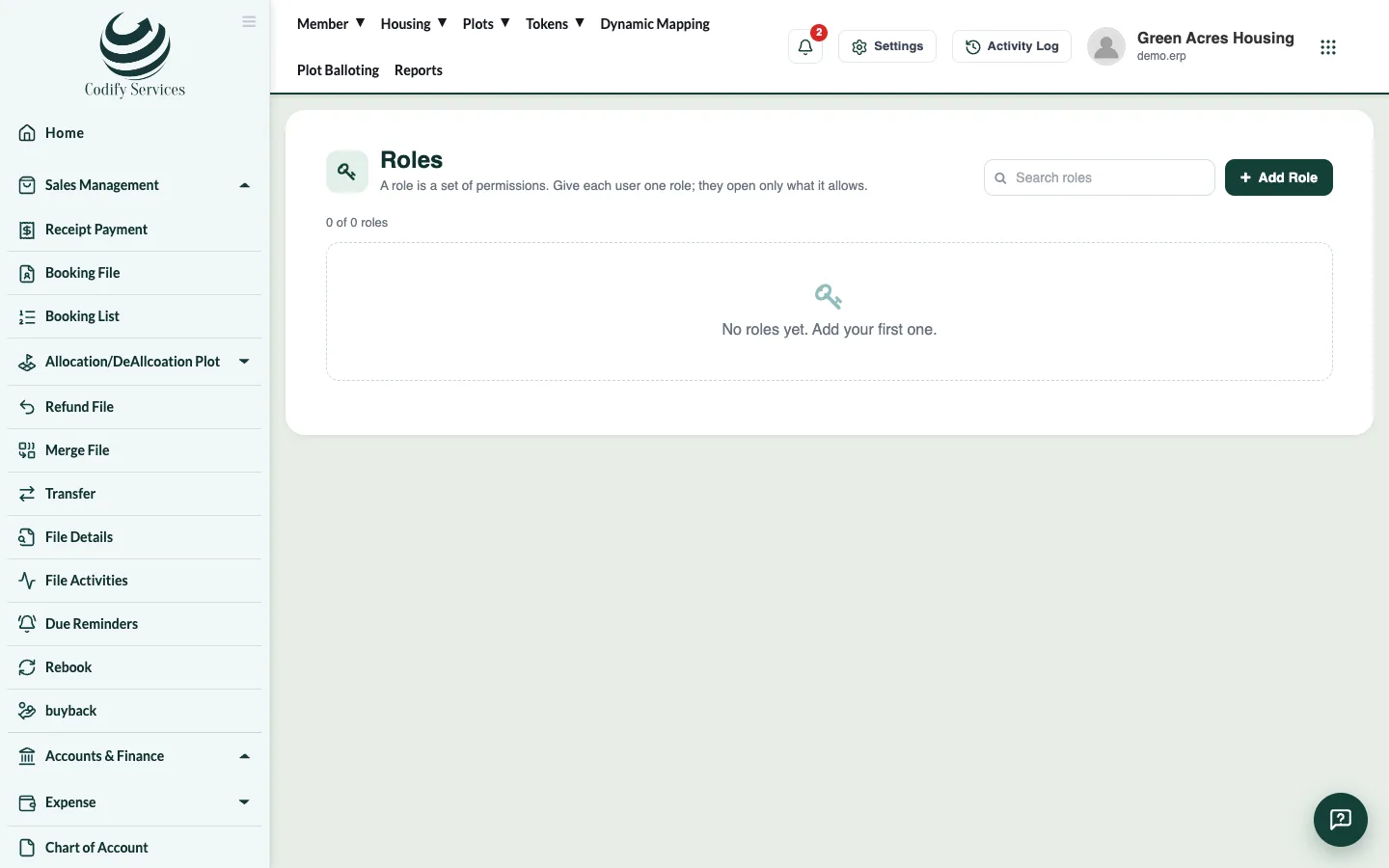
A role is a set of permissions. Make roles such as Accountant or Cashier and tick exactly what each one may open and do.
Instead of setting permissions for each person, you make roles (for example Accountant, Sales Officer, Cashier) and give each user a role. A user opens only what their role allows.
Steps
- Press Settings (the gear) at the top right.
- Under Users & Roles, press Roles.
- Press Add Role, type the Role name and save.
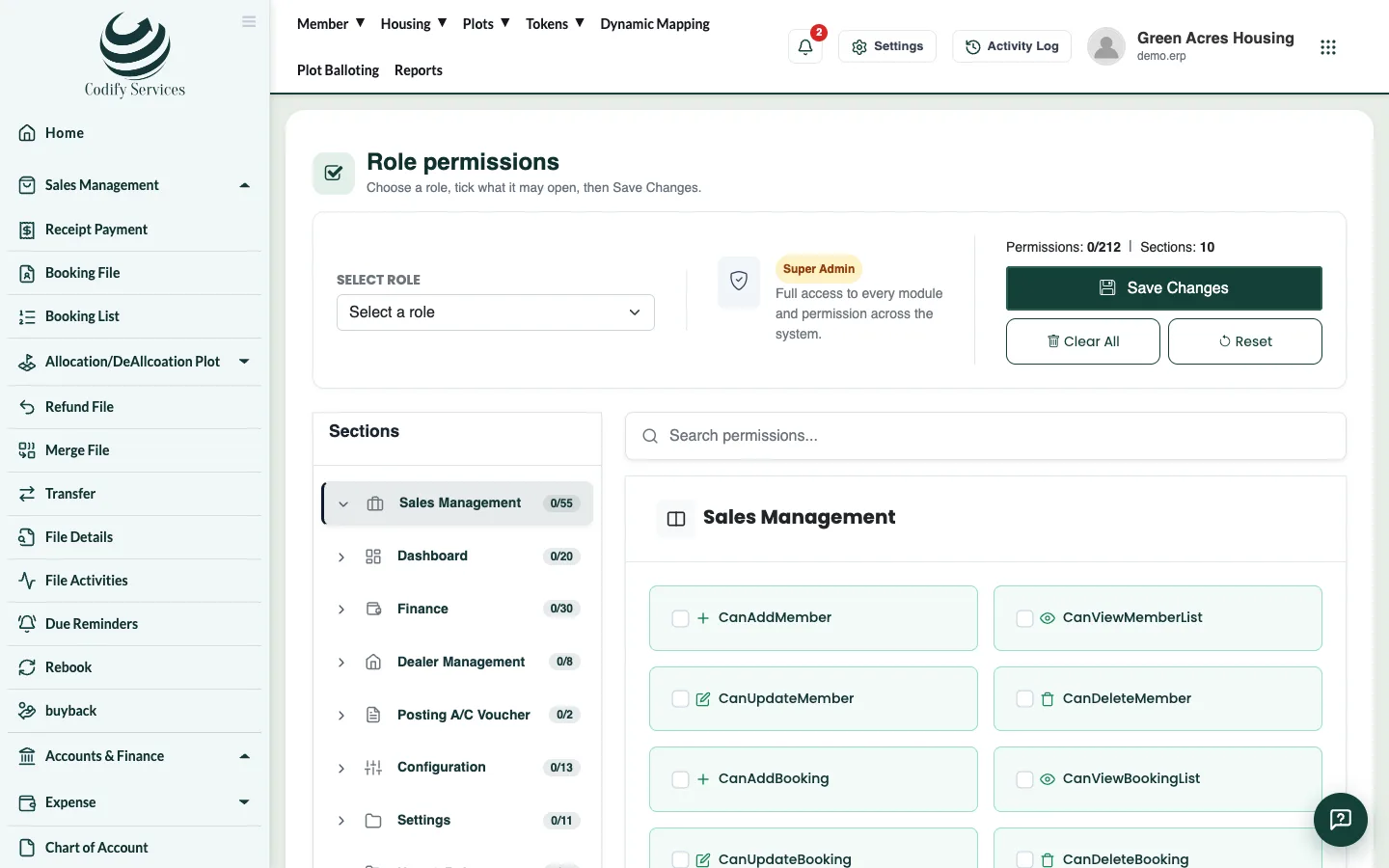
- Press Permissions on the role. The Role Claims page opens with the role chosen.
- Choose a module on the left (for example Sales Management or Accounts & Finance).
- Tick each thing the role may see or do.
- Press Save Changes.
- Give the role to your users on the Users page.
Good to know
- Roles marked System come with the software. Roles you made show Your own role.
- Super Admin has full access to every module and permission.
- Clear All removes every tick of the module you are on; Reset puts the ticks back as they were.
- A page missing from someone's menu, or a "not authorised" message, almost always means a permission is not ticked for their role.
- Users see the change after they log out and log in again.
- Some pages also need your package to include the module. See Subscription > Included in your package.