
Getting started · The basics
Set your company name, logo, currency, language and time zone
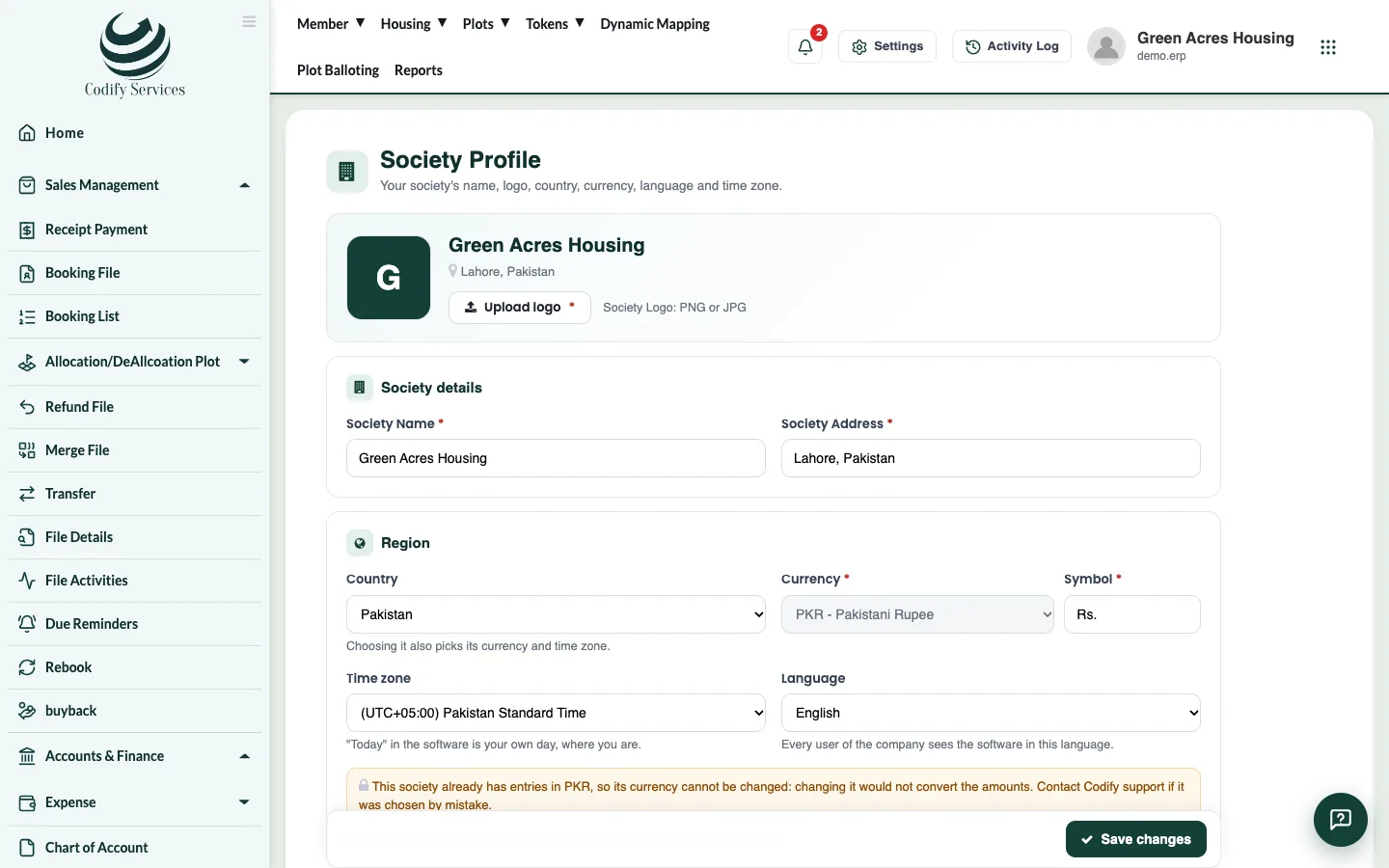
Change your society or company name, address, logo, country, currency, language and time zone in Settings.
Your company profile holds the name, address and logo printed on receipts, letters and invoices, and the region settings used everywhere: country, currency, language and time zone.
Steps
- Press Settings (the gear) at the top right.
- Under Organization, press Society Profile.
- Change the Society Name or Society Address.
- Press Upload logo (or Change logo) and choose a PNG or JPG file.
- Under Region, choose the Country. This also picks its currency and time zone.
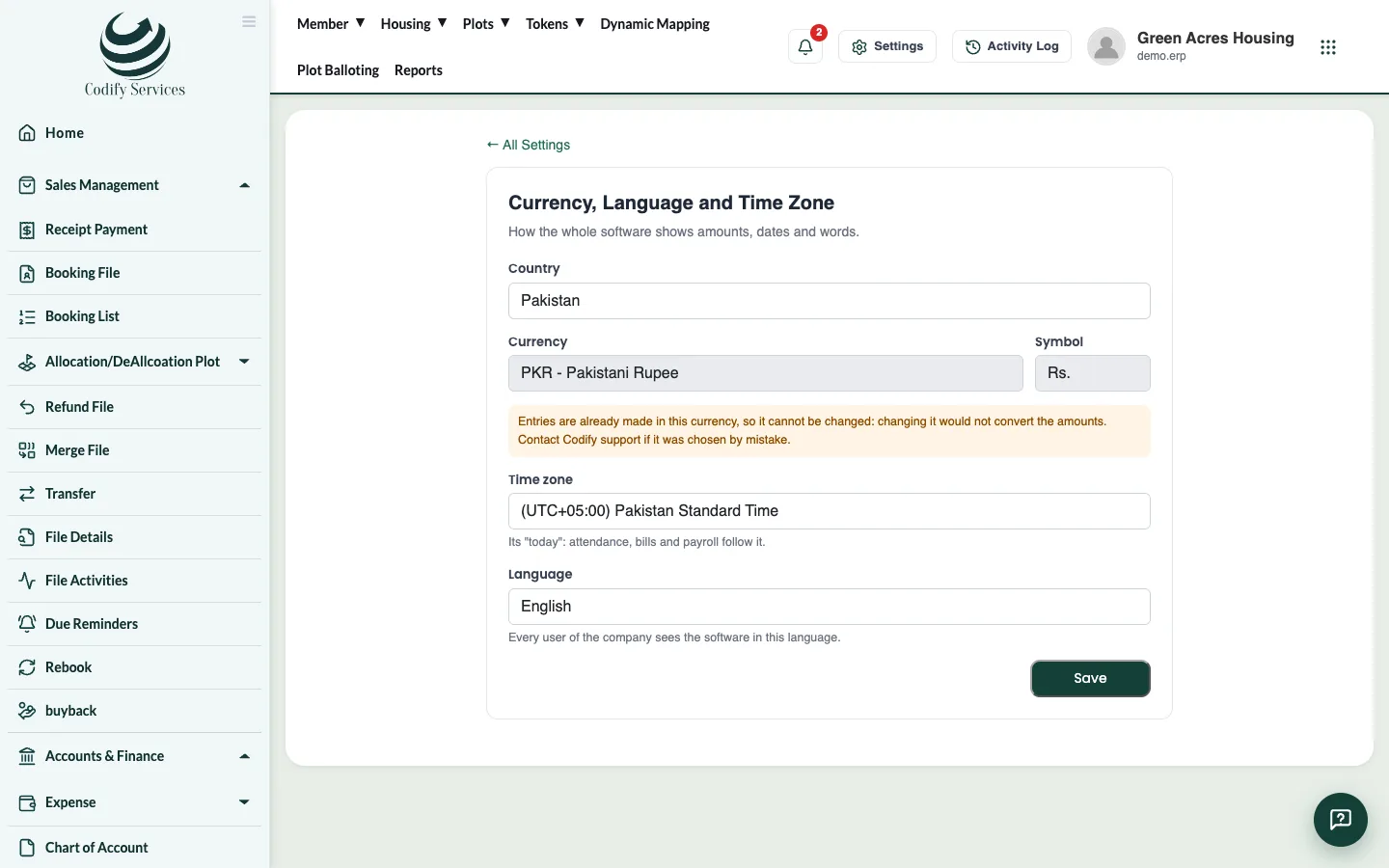
- Check the Currency and its Symbol (for example Rs., AED or £).
- Choose the Time zone and the Language.
- Press Save changes.
Good to know
- You need the permission to change the society (ask your administrator if Society Profile is missing). Any user can open Currency, Language and Time Zone, but only the administrator can save it.
- The language is for every user of the company.
- The time zone decides what "today" is in the software, for example for day closing and attendance.
- Amounts are never converted. Once your company has entries in a currency, the currency is locked. If it was chosen by mistake, contact Codify support.
Related
More in The basics
Give members access to the mobile appMembers of a housing society can see their files, installments and receipts in the mobile app. Make their app password and send it by WhatsApp.Find your way around the softwareA quick tour of the sidebar, the top menu, Settings, the Activity Log, notifications, your profile panel and the help chat.Use the All Settings pageEvery setting of the software in one place - company profile, users and roles, fiscal year, accounts set-up, integrations and module settings.Open and print reportsUse the Reports window to find any report, run it for your dates, then print it or export it to Excel.Every report in the Reports windowThe full list of reports in the Reports window, grouped as Finance, Billing, Sales and Members, Property and Inventory, and Charges and Notices.