
Property Management · Selling units (builder)
Receive a buyer's installment
For builders - find the buyer's file, see the installment schedule, receive a payment, give a discount and print the receipt.
When a buyer pays an installment, you record it on their file. The schedule shows each installment's due date, what was received and what is left.
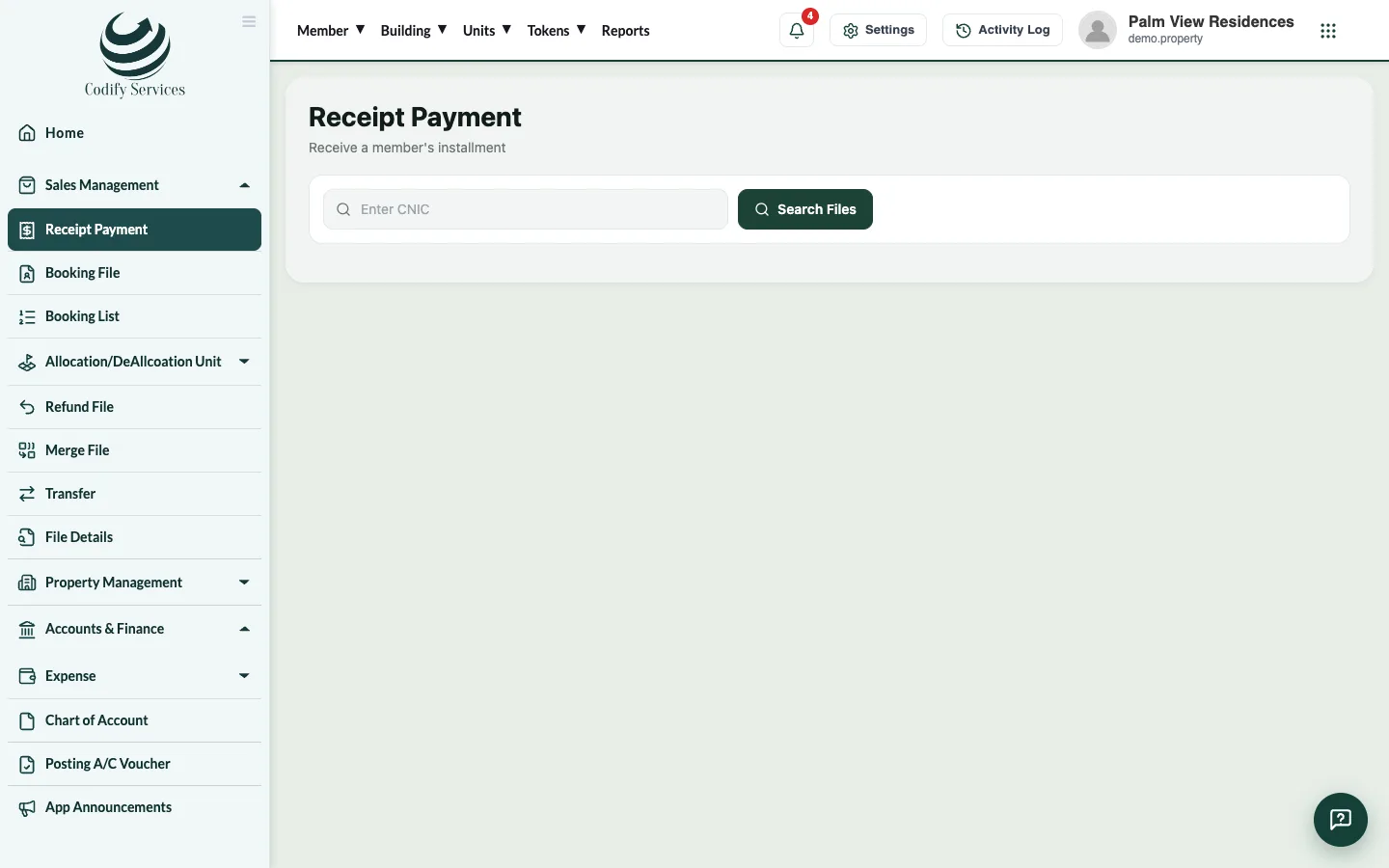
Steps
- Open Sidebar > Sales Management > Receipt Payment.
- Enter the buyer's CNIC, press Search Files and pick the file.
- Check the Installment Schedule: due, received, discount and status of each installment.
- Enter the Amount, or use the quick buttons (overdue, next due, full).
- Choose the Payment Mode (cash, cheque or bank, with the bank, account no and cheque no) and the Payment Date.
- Press Deposit.
- Press Payments and open the receipt with the eye icon to print it.
Good to know
- To give a discount, press Add Discount, enter the amount, date, type and head, then Apply Discount. Discounts shows the history.
- Ledger shows the file's ledger, and Print File Ledger prints it.
- Sidebar > Sales Management > Due Reminders lists files with overdue or soon-due amounts, and sends reminders by email or WhatsApp.
Related
More in Selling units (builder)
Sell a unit with a booking and installment planFor builders - book a unit for a buyer, set the price and discount, build the installment plan and add the dealer's commission.Transfer a unit to a new ownerFor builders - transfer a sold unit's file from its owner to a new buyer, charge the transfer fee and print the transfer letter.Allot a unit and give possessionFor builders - allot a unit to a buyer's file, free it again if needed, and print the possession letter.Dealers and their commissionFor builders - add dealers and agencies with their commission rate, see what each has earned and pay their commission.
Ready to try it? Open Property Management