
Property Management · Getting started
Get started with the Property Management System
What the Property Management System does, who it is for, and the first steps to get your building ready.
The Property Management System runs apartments, buildings, shops and offices. It works for three kinds of business: a building's management (maintenance bills, complaints, gate, parking, amenities, meters), a landlord letting units (tenants, leases, rent) and a builder selling units (bookings, installments, transfers, possession). It has its own site, property.codifyservices.com.
Steps
- Sign in. Users without the main dashboard land on Sidebar > Property Management > Dashboard.
- Read the box Get your building ready. It lists the first steps until they are done.
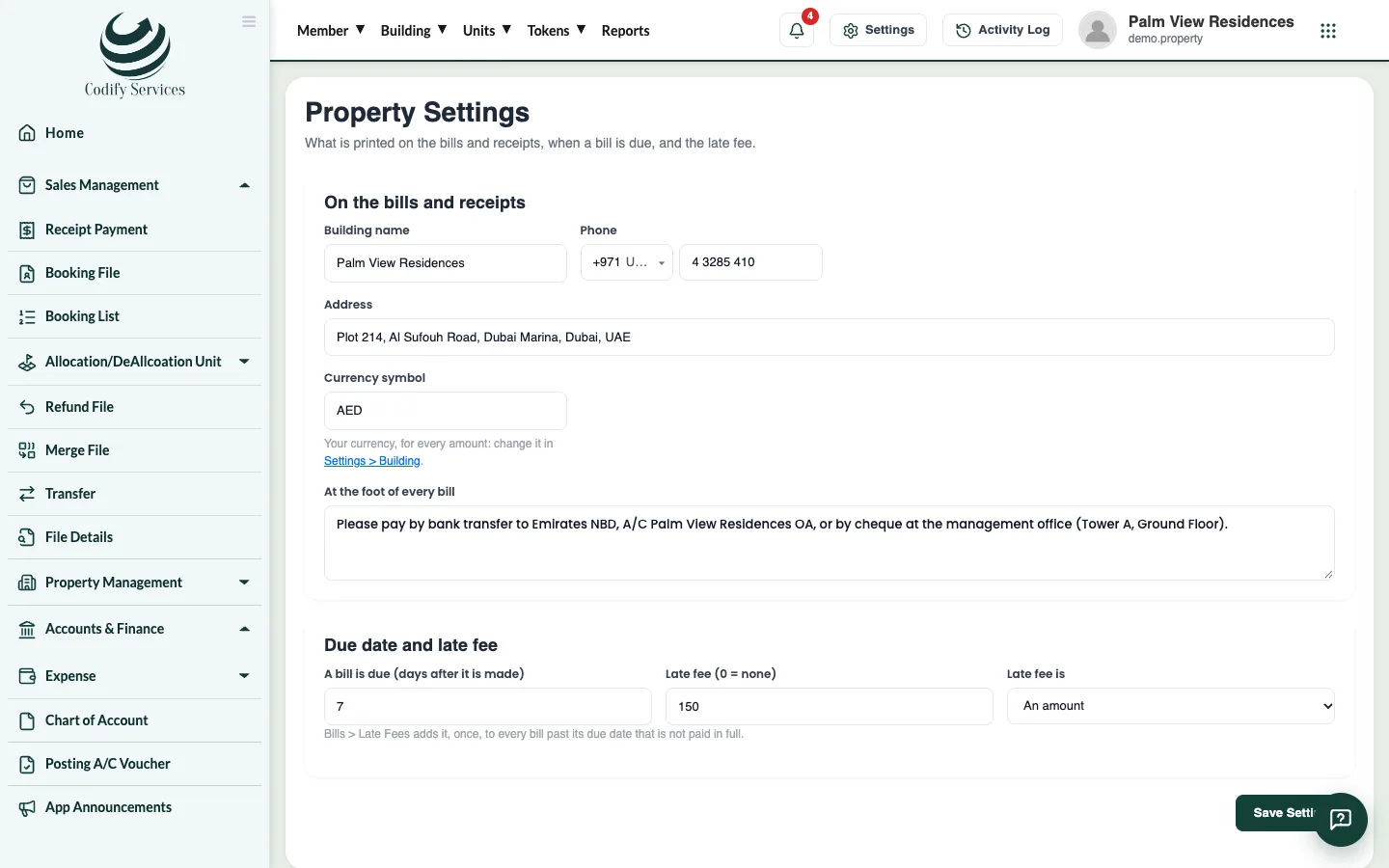
- Open the gear at the top right (All Settings) and choose Module Settings > Property > Property Settings.
- Fill in On the bills and receipts: Building name, Phone, Address, Currency symbol and the line At the foot of every bill (for example, how to pay).
- Under Due date and late fee, set A bill is due (days after it is made) and the Late fee (0 = none). Under Late fee is, choose An amount or A percent of the bill.
- Press Save Settings.
- Add your towers and units, then your owners and tenants, then the monthly charges.
Good to know
- The system says Unit, Tower, Floor and Size everywhere (menus, pages and the sales pages too).
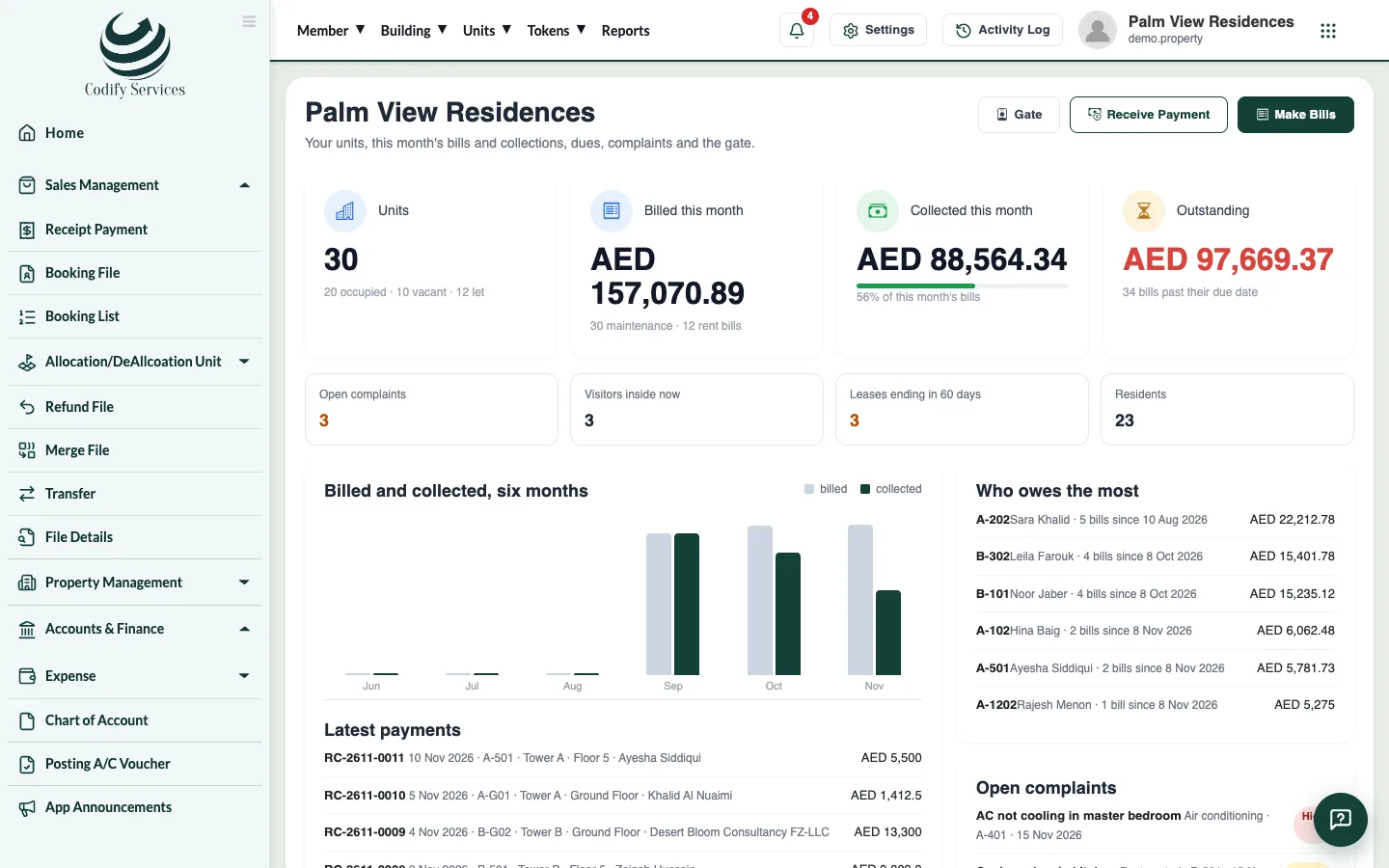
- The dashboard shows your units (occupied, vacant, let), this month's bills and collections, what is outstanding, open complaints, visitors inside now and leases ending in 60 days. Its buttons Make Bills, Receive Payment and Gate open those pages.
- Your currency itself is changed under Settings > Building (your building's profile).
- What you see depends on your package (Builder, Management, Rental or Complete). See https://codifyservices.com/pricing/.
- A page you cannot see in the menu is not given to your role. Ask your administrator to give it under User & Roles > Role Claims > Property Management (View, Units, Bills, Receive Payments, Complaints, Leases, Visitors, Parking, Amenities, Meters, Reports, Settings).
Related
Ready to try it? Open Property Management