
Property Management · Bills and payments
Add late fees and follow up dues
Add the late fee to every overdue bill in one click and see who owes how much and for how long.
A bill not paid by its due date can get a late fee. You set the fee once in the settings, then add it to all overdue bills in one click. The Outstanding Dues report shows who owes what.
Before you start
- Set the late fee in Property Settings: Late fee (0 = none) and Late fee is (An amount or A percent of the bill). See Get started with the Property Management System.
Steps
Add late fees
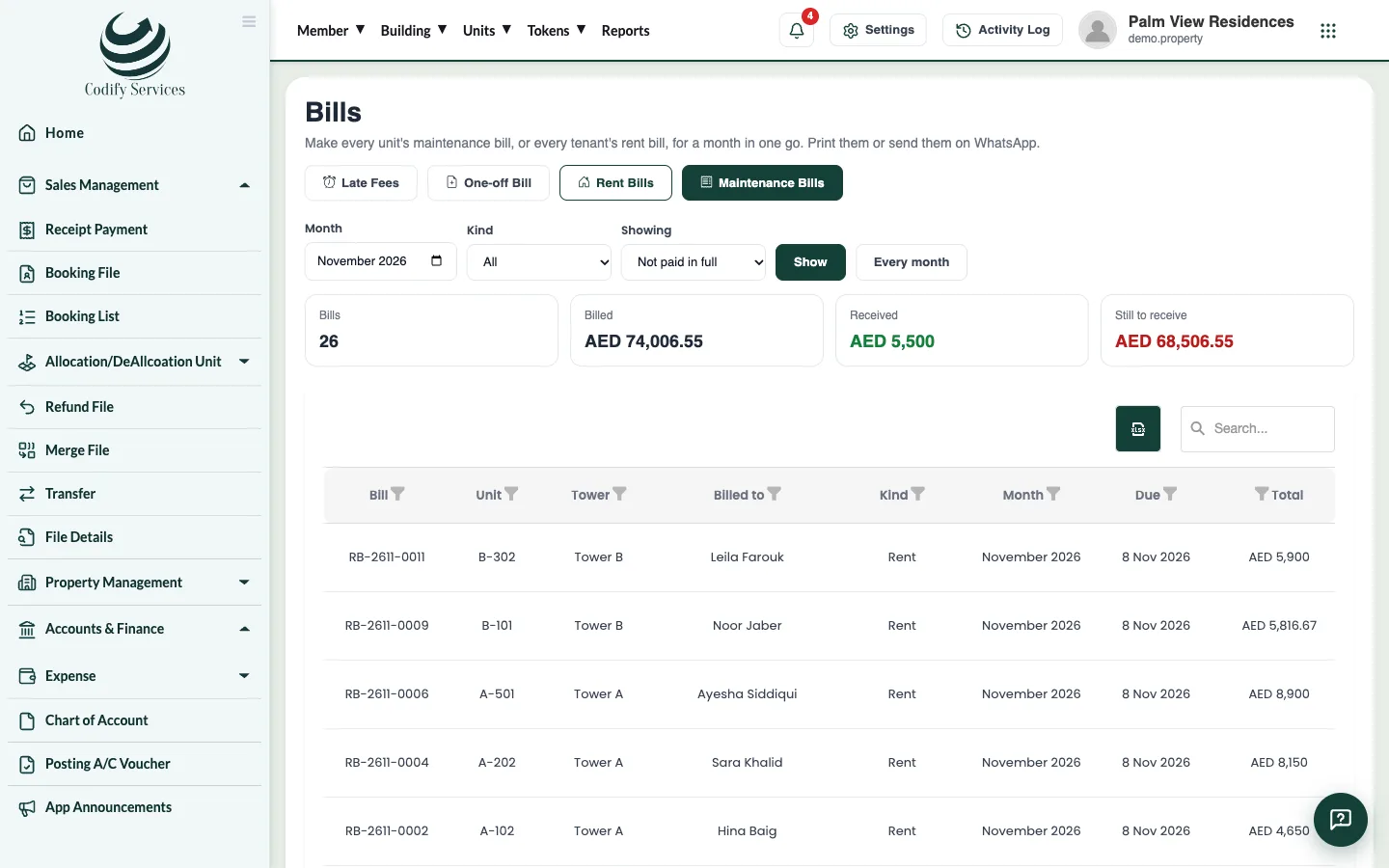
- Open Sidebar > Property Management > Bills.
- Press Late Fees.
- Confirm. The fee is added, once, to every bill past its due date that is not paid in full.
See who owes
- In Bills, choose Showing: Past due date and press Show.
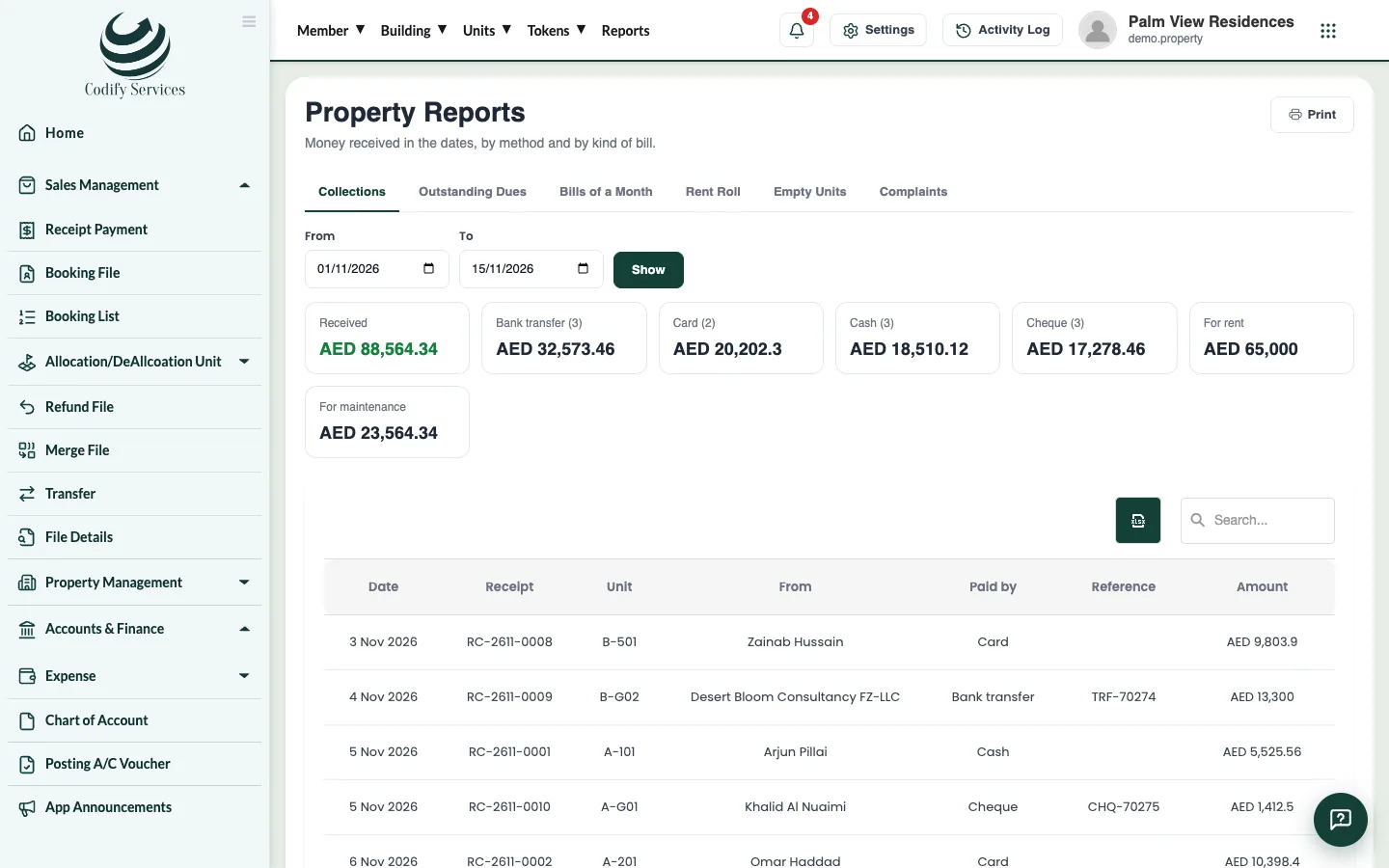
- Or open Sidebar > Property Management > Reports and choose Outstanding Dues.
Good to know
- A bill gets the late fee only once, however often you press Late Fees.
- Outstanding Dues splits what each unit owes into not due yet, up to 30 days late, 31 – 60, 61 – 90 and over 90 days.
- The dashboard box Who owes the most lists the units with the biggest dues.
- Send a bill on WhatsApp from the bill to remind the resident.
Related
More in Bills and payments
Set the monthly maintenance chargesDecide what each unit pays every month: a fixed amount or a rate per sq ft, for every unit or one type, lived-in units only if you like.Make every unit's maintenance bill in one clickMake the month's maintenance bill for every unit at once, with its charges, meter readings, parking and amenity bookings, then print or WhatsApp it.Make a one-off bill, change or cancel a billBill a unit for a repair, a fine or a transfer fee, add a line or a discount to a bill, and cancel a bill made by mistake.Receive a payment and print the receiptRecord money received from an owner or tenant, pay the unit's bills oldest first, print the receipt, or cancel a bounced cheque.
Ready to try it? Open Property Management