
Accounts & Finance · Vouchers
Make and post a voucher
Enter a journal, cash or bank voucher with its accounts and amounts, save it, then post it so it counts in your ledgers and reports.
A voucher is one accounting entry: the date, the accounts, and the debit and credit amounts. You save it first, then post it. Only posted vouchers count in ledgers and reports.
Before you start
- An open fiscal year must cover the voucher date.
Steps
- In the sidebar, open Accounts & Finance > Expense and choose the voucher type, for example Journal Voucher.
- Enter the Voucher Date, the Document Reference (bill, cheque or invoice number) and a Description.
- Under Entries, choose the Account on the first line and enter its Debit or Credit and Remarks.
- Press Add Line for each further account. Use one account per line.
- Check that the Total debit equals the total credit.
- Press Save. The voucher number is given (for example JV-15).
- Press Post to post it.
Good to know
- The tabs at the top (Journal, Cash Payment, Cash Receipt, Bank Payment, Bank Receipt) switch the voucher type.
- The search button next to the number (Select Voucher) opens an earlier voucher to view, change or print (Report).
- Un-Post takes a posted voucher back to draft so it can be corrected.
- Debit and credit totals must be equal, or the voucher is not saved.
- If the page says there is no active fiscal year, set one in Fiscal Year first.
Related
More in Vouchers
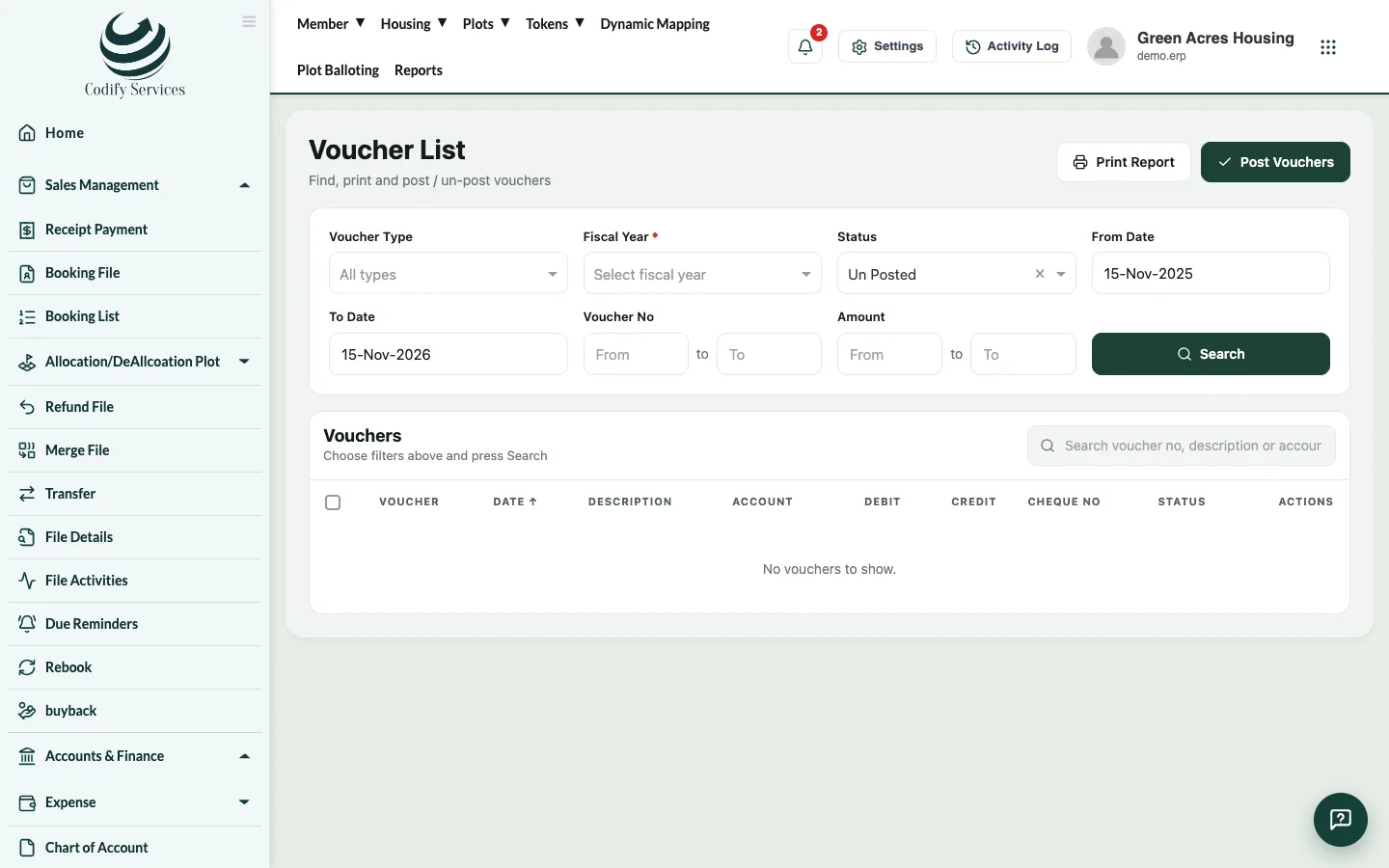
Post receipts and bookings to accountsUse Posting A/C Voucher to post member bookings, receipts, refunds and discounts into your accounts as vouchers.Which voucher type to useWhen to use a Journal, Cash Payment, Cash Receipt, Bank Payment or Bank Receipt voucher, and the vouchers the software makes by itself.Record an expenseRecord an office or site expense, such as salaries, electricity or fuel, with a cash or bank payment voucher.Find, print and post vouchers in the Voucher ListSearch vouchers by type, fiscal year, status, date, number or amount, open one, print it or the whole list, and post or un-post them.
Ready to try it? Open Accounts & Finance